Action1 RMM Forensics Artifacts for Windows
Hello everyone, it's Chicken0248, back with the RMM research series. From the header you already know which one we're digging into today: Action1.
Action1 is sold as vulnerability management software, but it also has remote control and can run scripts on any endpoint with its agent installed. Pair that with a dead-simple sign-up and a free tier covering up to 200 endpoints, and you have something useful. Useful for you, and for your friendly local (or international) threat actor too. That's why it keeps turning up in ransomware intrusions and as a way to push other RMMs through 2026.
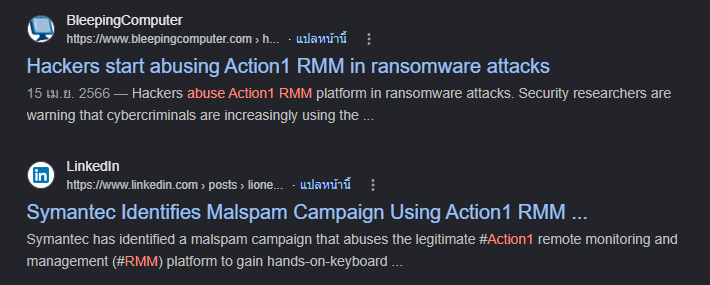
So this post is about how it works: which files it drops, which processes it spawns, and the forensic artifacts that help us reconstruct what an operator did on the box.
Action1 supports a few operating systems. Once you have an account and hit "getting started," you can grab an MSI for Windows, an SH bootstrapper (it fetches and installs a .pkg) for macOS, and .deb / .rpm for Linux. However it's packaged, the goal is the same: the agent runs as SYSTEM on Windows (or root on macOS/Linux) so it can inventory installed software, flag vulnerabilities (mostly by version), and carry out actions like remote desktop, run script, deploy or update software, and remediation.
Everything below was captured on Windows, and that is the focus of this post. The macOS/Linux details come from Action1's docs and the console UI, not my own captures, so treat those cross-platform bits as reference rather than verified findings.
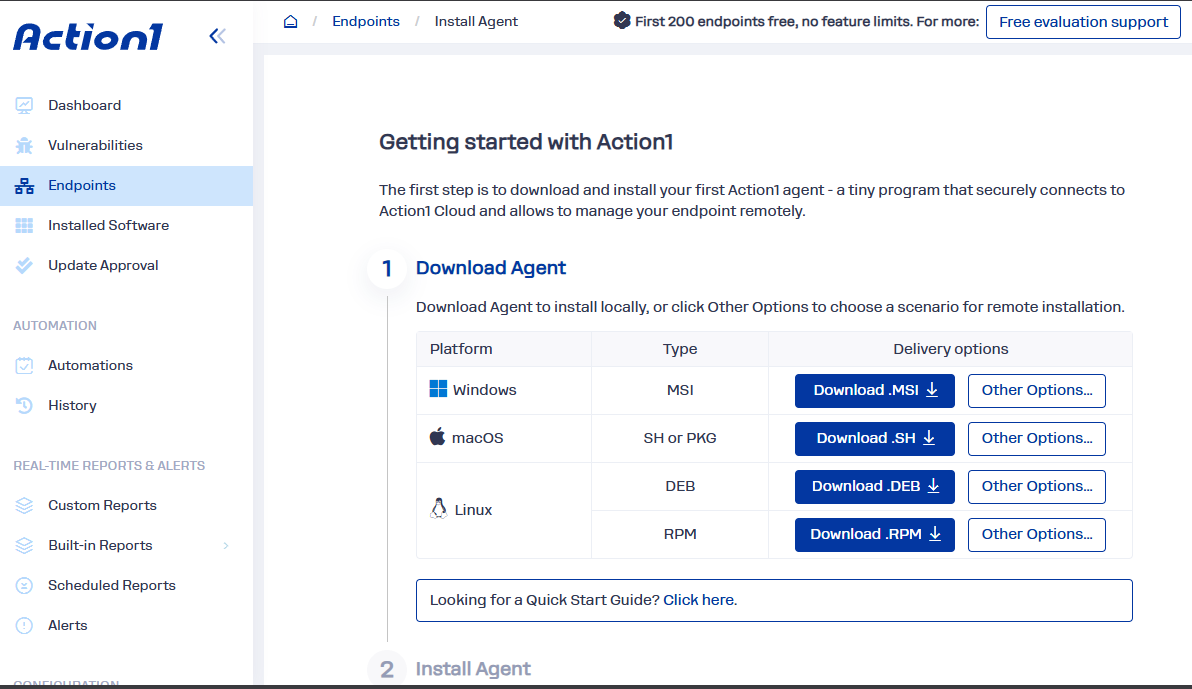
The "Other Options…" button under each platform opens the download options, which are mostly install commands. On Windows you get three:
- Interactive Installation downloads the MSI to the current folder and runs it.
- Unattended Installation is the one I'd expect an IT department to use, or a threat actor who doesn't want to host the MSI on their own infra.
- Direct Download is just the MSI file, nothing else.
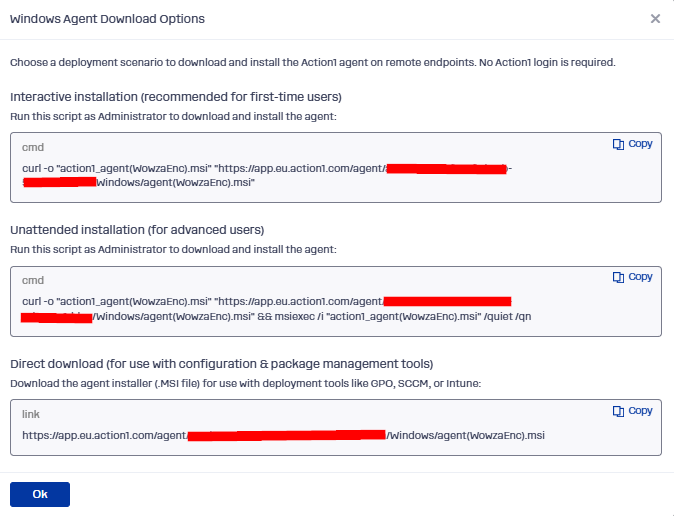
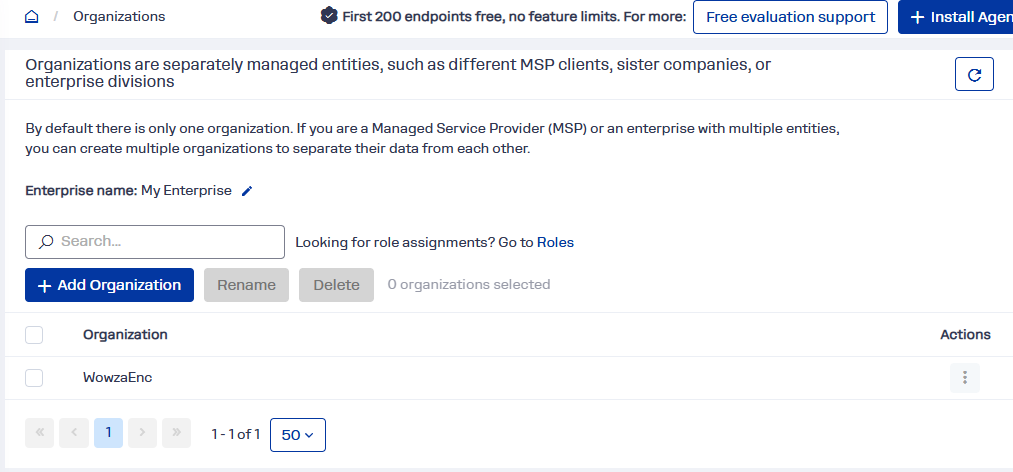
Notice the installer filename also carries the organization name. A brand-new account is called "My Organization" by default. I renamed mine to "WowzaEnc," and a threat actor can just download the plain MSI and rename it for better opsec.
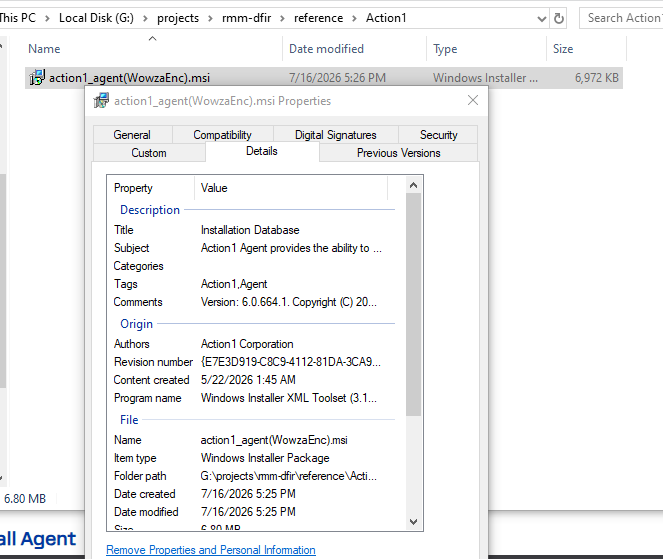
Looking at the file properties and digital signature, "Action1 Agent" is right there, with the version number sitting in the comment field.
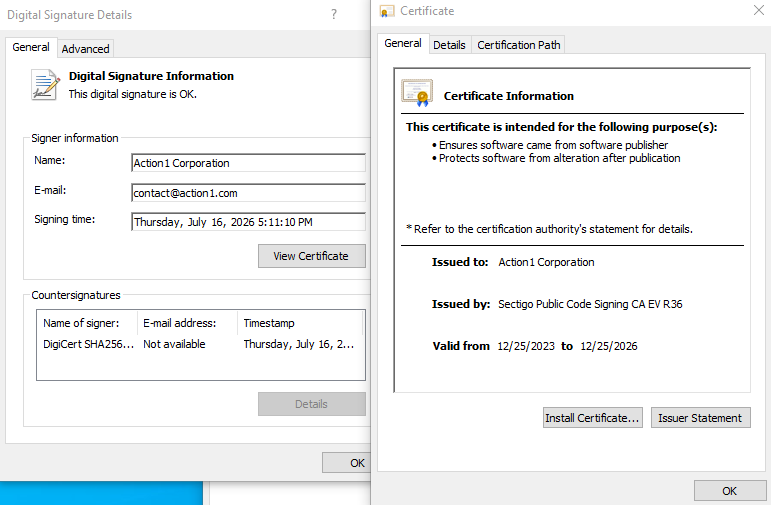
The signature is issued by Sectigo Public Code Signing CA, and the signer is Action1 Corporation.
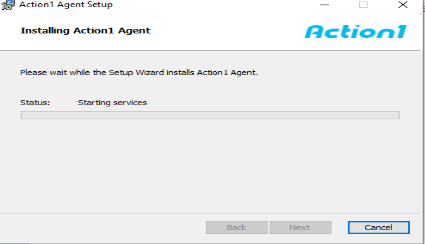
Next we'll walk through the install itself: what gets created, what drops to disk, which event logs to look for, and the Action1 files worth your attention.
Like I said, the agent runs as SYSTEM, so whoever installs it has to be in the local Administrators group (or Domain Admins).
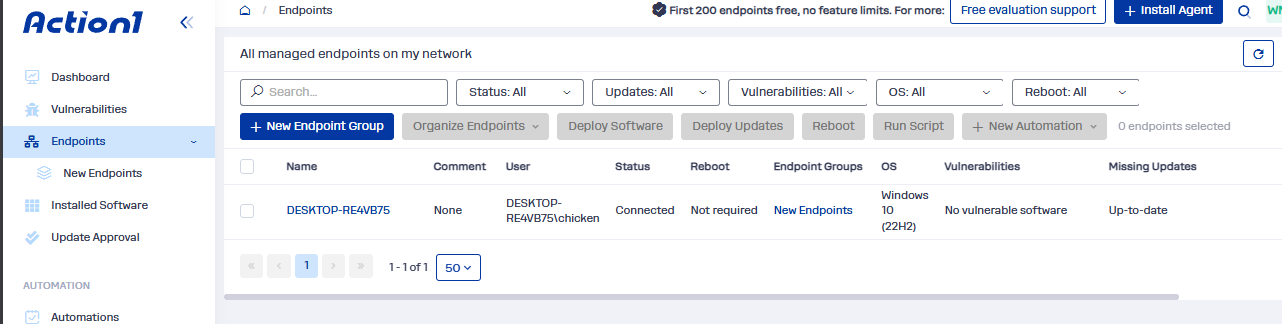
Once the install finishes, the endpoint shows up on the Endpoints page in the console.
Files, Registry & Network
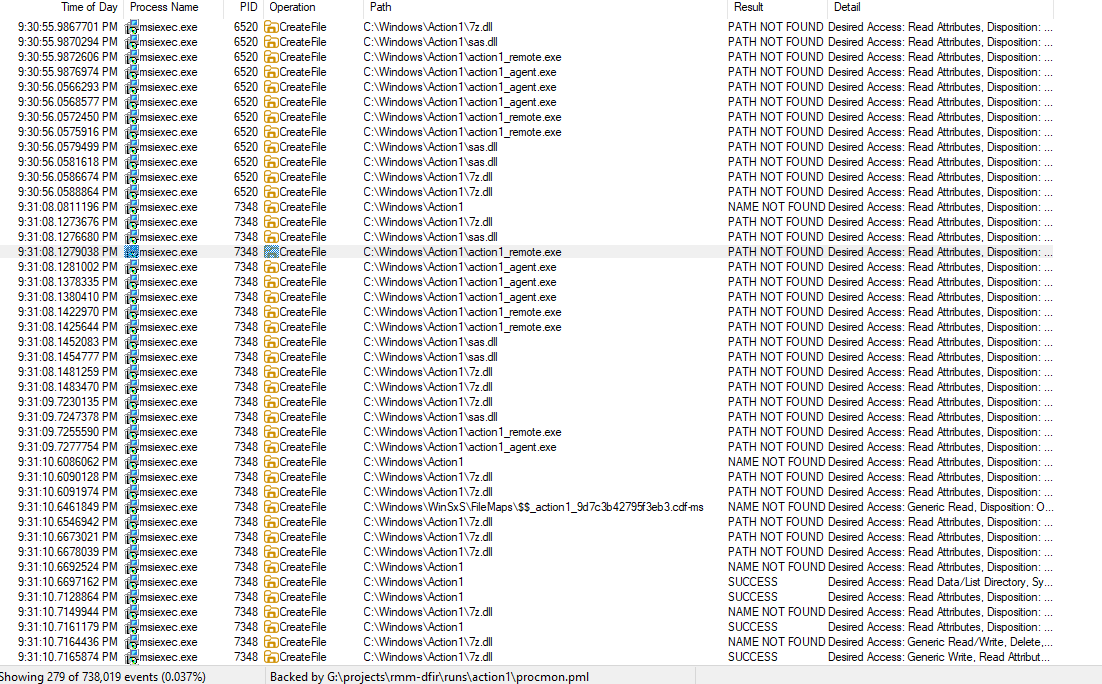
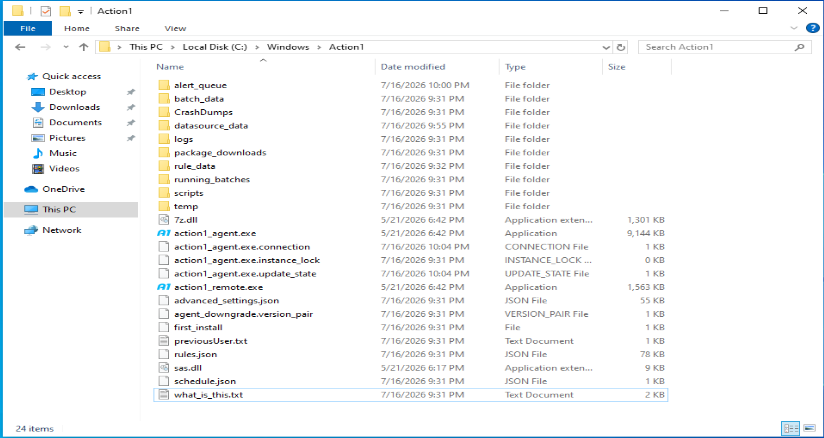
Let's rewind and look at what actually happened during the install. An Action1 folder gets created under C:\Windows, and the binaries it needs drop inside. We'll focus on action1_agent.exe and action1_remote.exe, because those two EXEs are the heart of the agent, and they're easy to spot and alert on with a decent rule.
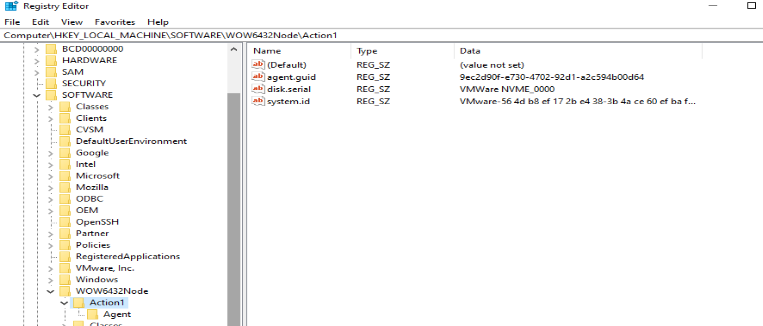
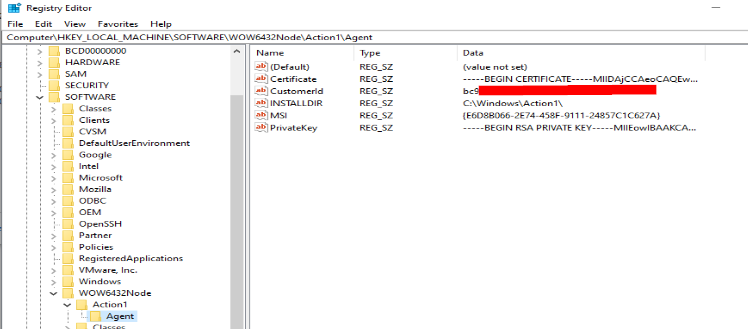
The MSI also writes a registry key holding the agent's certificate, public key, customer ID (grab this one; you can hand it to Action1 for takedown and legal action), the MSI package ID, and the path to the Action1 install folder:
HKLM\SOFTWARE\WOW6432Node\Action1
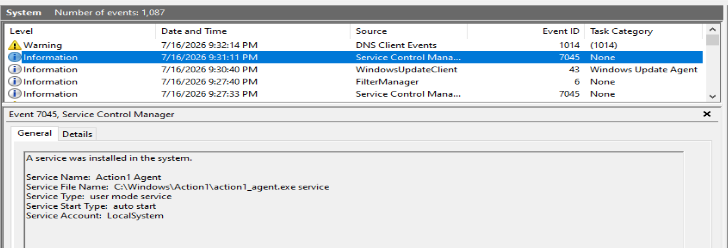
At the end of the install, the MSI registers a service called A1Agent and starts it, so the agent comes up as SYSTEM, reaches the Action1 server, and starts sending heartbeats.
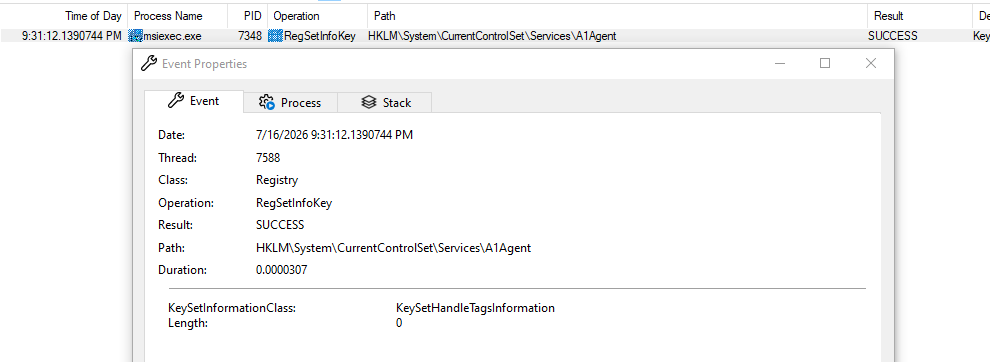
The service's display name is "Action1 Agent," it starts automatically at boot, and it runs as SYSTEM. The process it launches is action1_agent.exe with the service flag:
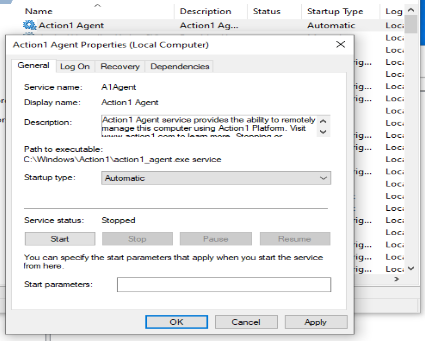
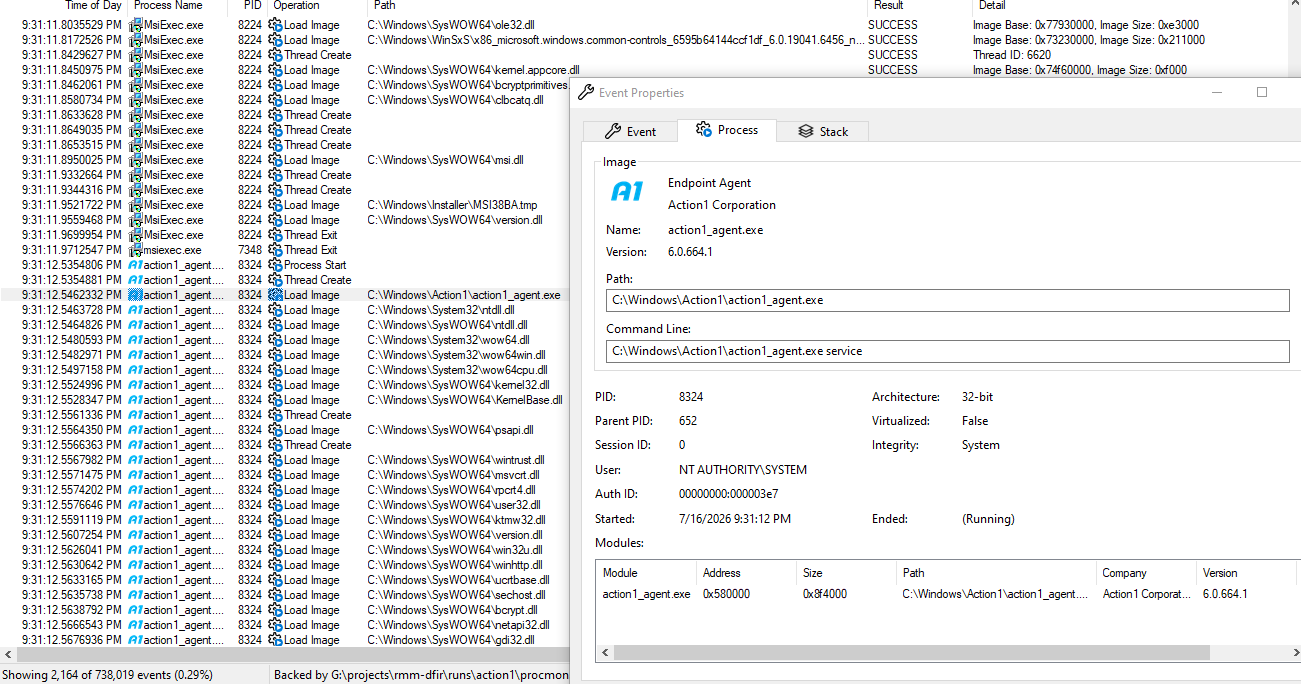
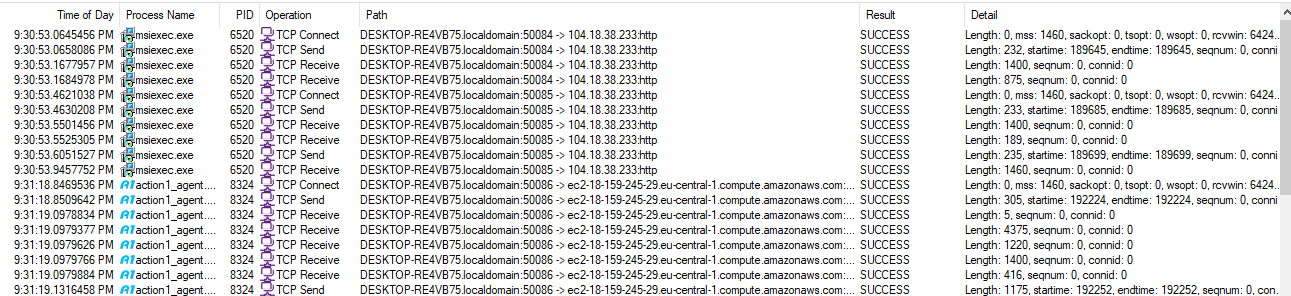
From a network angle: during install, the MSI reaches out to 104.18.38.233, which belongs to Cloudflare (AS13335). Best not to blanket-block that range. Once the agent is installed and running, it opens its persistent channel to server.eu.action1.com (hosted on AWS in eu-central-1). I created my account in the EU, so I got the EU endpoint; other regions get their own (server.<region>.action1.com).
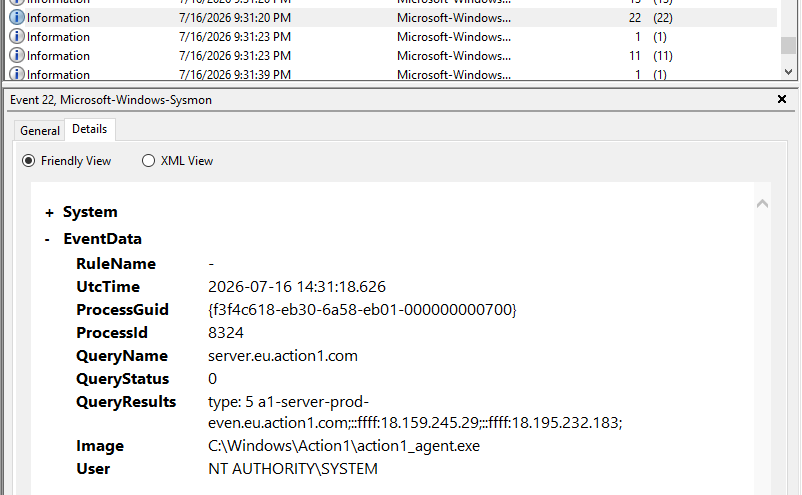
Right after it starts, the agent fires off a burst of PowerShell commands to collect information and send it back to the server for display on the console:

Event Logs
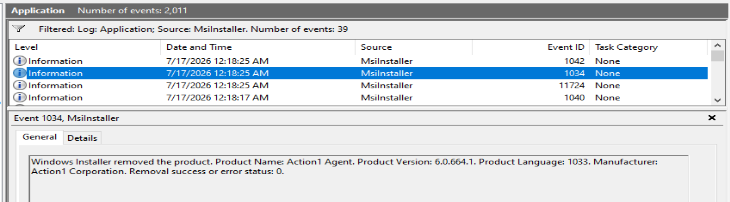
The MSI is the only supported way to get the agent onto Windows, so expect MsiInstaller events in the Application log. The ones to watch:
- 1040, Beginning a Windows Installer transaction: shows the full path to the MSI and the first PID that kicked off the install (it spawns more
msiexecprocesses later).
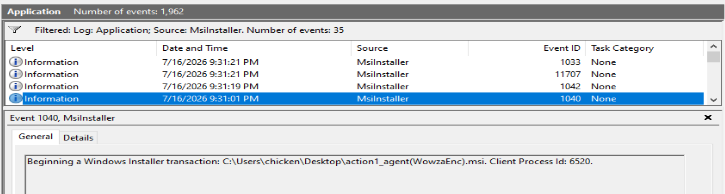
- 1042, Ending a Windows Installer transaction: shows up after 1040 and also carries the full MSI path.

- 11707, Product installation completed successfully: the product reads "Action1 Agent."

- 1033, Installation success: "Action1 Agent" as the product name again, alongside manufacturer "Action1 Corporation."
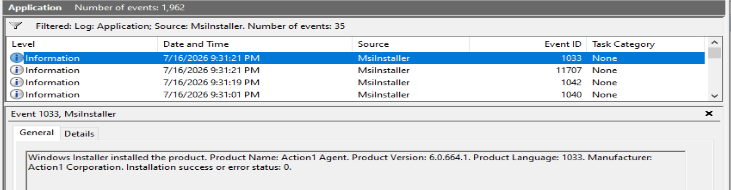
Because it installs and starts as a service, you also get Event ID 7045 (System log) with the service name "Action1 Agent."
Files Inside the Install Folder
There's a lot living in the install folder. In my capture it was 10 folders, 2 EXEs, and 2 DLLs:
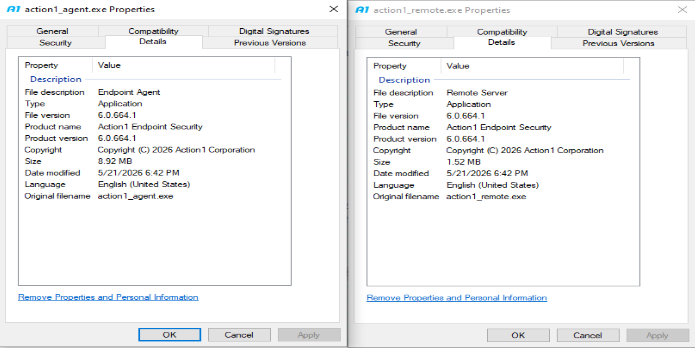
Both EXEs, action1_agent.exe and action1_remote.exe, share the same version number, product name, and signature. Their descriptions differ, and so do their jobs:
action1_agent.exeis the always-running agent that talks to the cloud and executes every command (scripts, deploys, inventory). If this is running, the box is Action1-managed. Full stop.action1_remote.exeonly fires up when someone remote-controls the box.
And action1_remote.exe is built on top of TightVNC, so the remote session is really VNC under the hood.
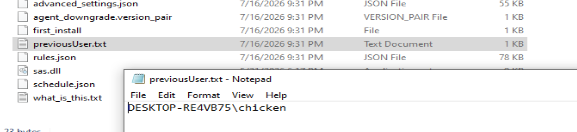
previousUser.txt holds a username in WORKSTATION\user format, most likely the admin who installed the agent.
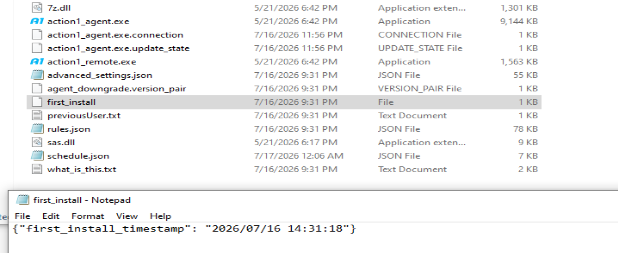
first_install, you guessed it, contains the first-install timestamp in UTC.
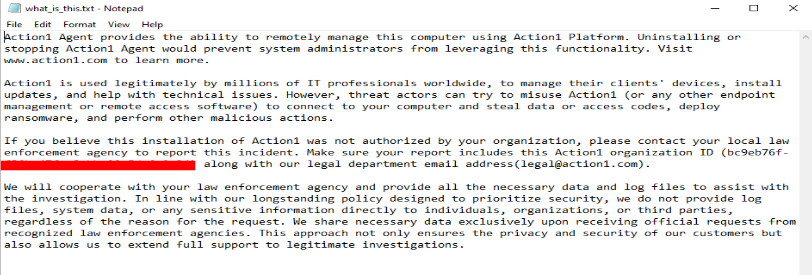
The fun one is what_is_this.txt. It's a warning aimed at whoever stumbles onto this folder. It explains what Action1 is and says that if nobody in your org authorized this install (or it landed on the wrong machine), you can note the organization ID tied to the agent and contact Action1's legal team.
Here's the part I love as a DFIR analyst: Action1's logging is extremely verbose. It logs from the moment the agent starts, every interaction with the server, right down to the heartbeats.
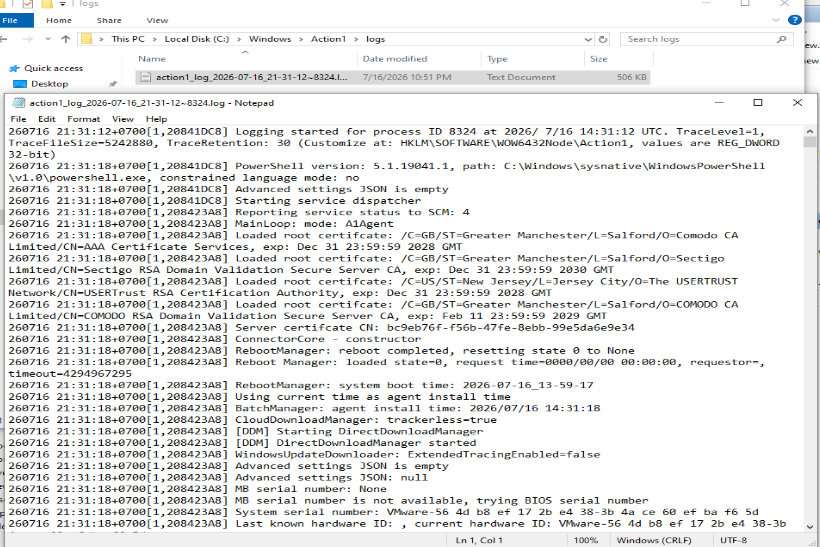
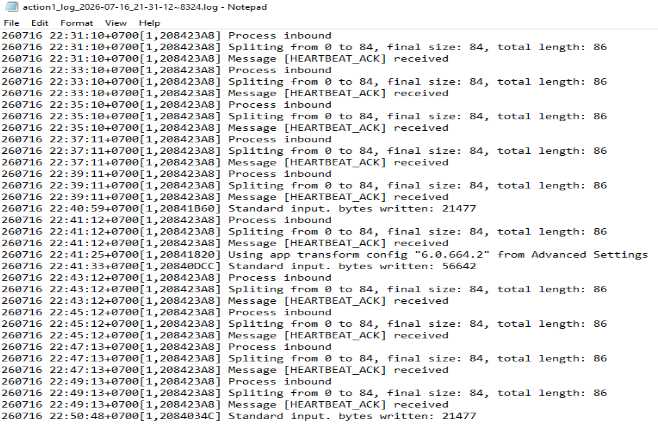
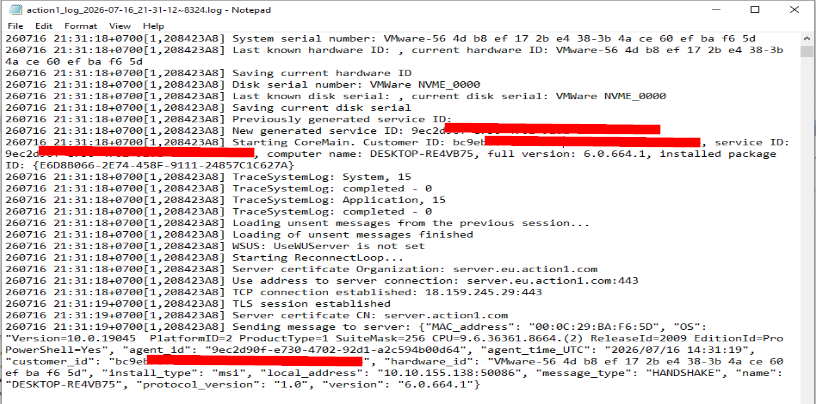
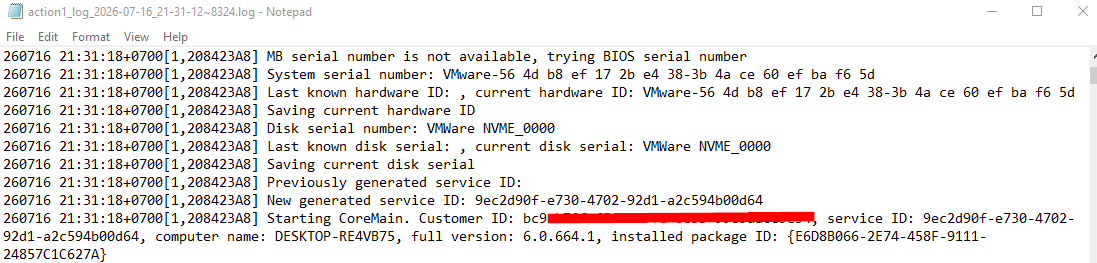
Inside those logs we can pull the identity of the org (or the threat actor): the Customer ID, which is the same value you'll see in what_is_this.txt, and the service ID, which is the agent ID for the org that deployed it. The agent also reports endpoint details to the server (MAC address, OS version, PowerShell status, agent time, hardware ID, and more), all of which surface in the management console.
From the console, the operator can hunt vulnerable services, inventory installed software, spot missing updates, and run automation or remote desktop. That's what we're covering next.
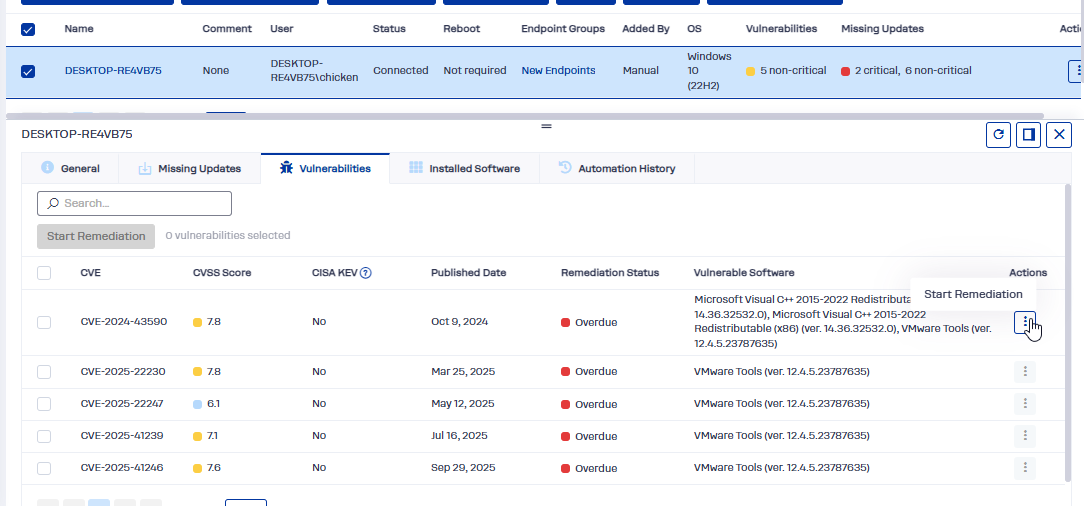
There's a whole menu of things you can do to an agent from the console: deploy updates, deploy software, reboot, run scripts, uninstall software, remote desktop, and uninstall the agent itself.
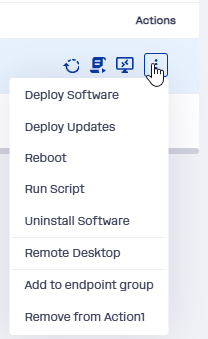
But before any of that, Action1 makes you verify your account. Why? Because they know their product gets abused in attacks, so they put a third-party identity check (Onfido) in front of these features. It wants a government ID (national ID, passport, or driver's license) and your face.
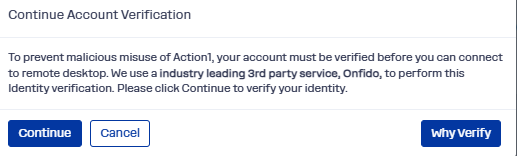
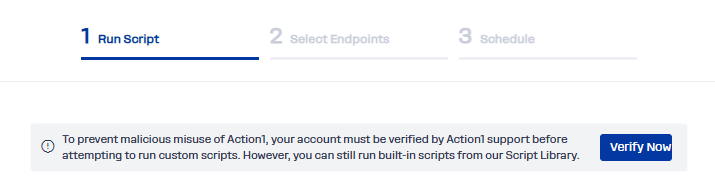
I went ahead and verified mine, so let's start with remote desktop.
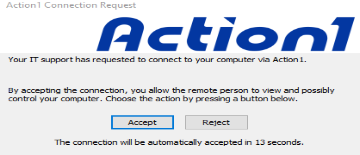
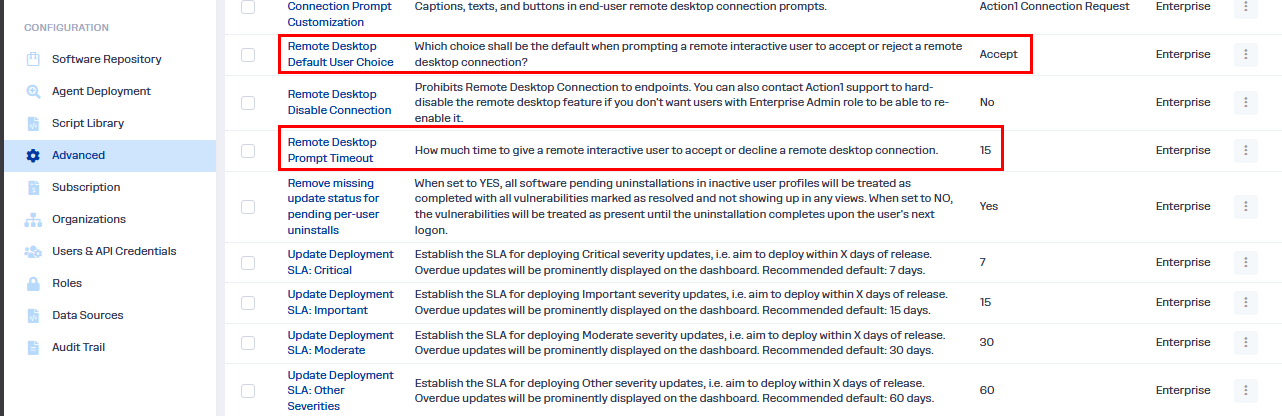
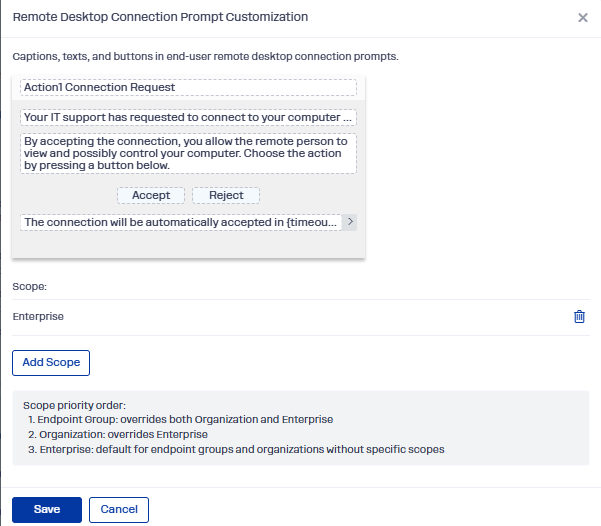
When an admin (or a threat actor) opens a remote-desktop connection, a prompt pops up on the endpoint by default to tell the user someone's about to take control. The logo and prompt duration are configurable in the console (Advanced Settings). Out of the box, the user gets 15 seconds to reject the session, and if the timer runs out, Action1 auto-accepts.

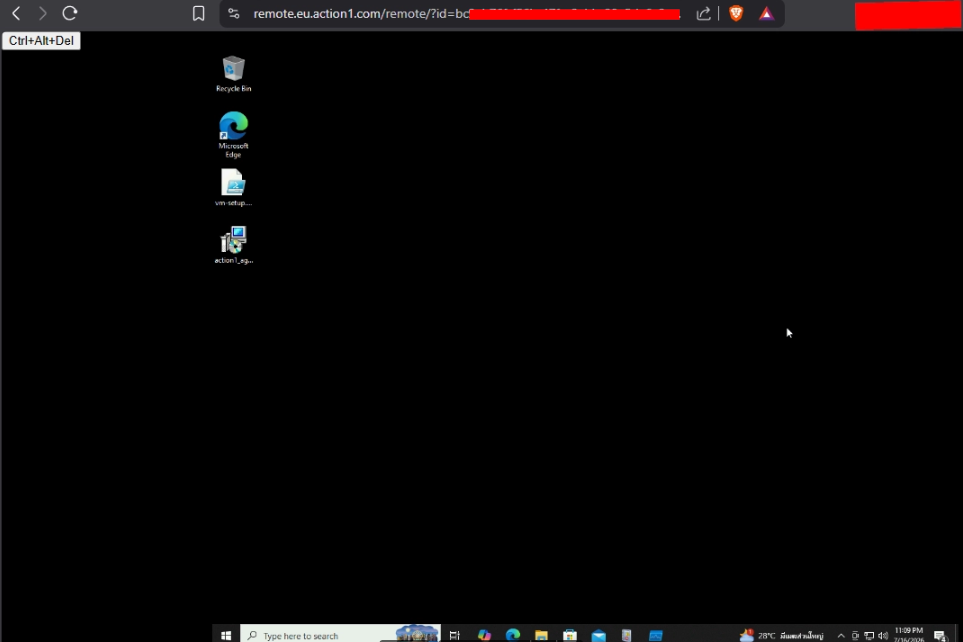
The whole session runs inside the browser, and as far as I can tell that's the only option. There's no file-transfer utility exposed; it's pure remote control with a small shortcut menu in the top-left. (The underlying TightVNC code does support clipboard and file transfer. Action1 just doesn't surface it in their client.) The endpoint's wallpaper also gets swapped to a plain dark background by default.
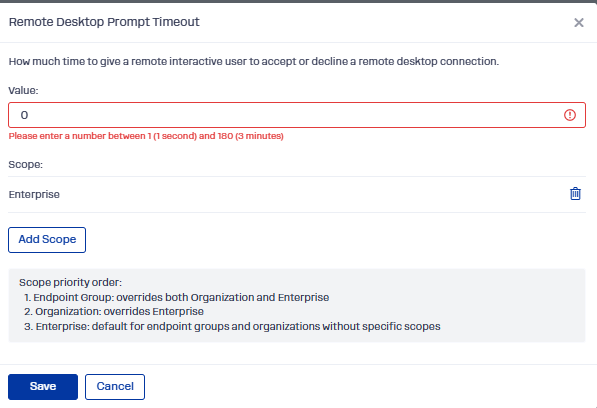
An operator can shrink that consent prompt too. The default is 15 seconds, but the range is 1 to 180 seconds. So if I wanted the smoothest possible takeover, I'd set it to 1 second: the prompt barely blinks before it auto-accepts.
The connection-request prompt text is customizable as well.
Now let's look at the processes and artifacts this feature leaves behind. When the server sends a connection request, action1_agent.exe spawns a monitorcount instance that enumerates the endpoint's displays via WMI (Win32_DesktopMonitor) so the session knows how many screens to serve. It re-runs roughly every 60 seconds during the session to track display changes. Then the action1_remote.exe chain kicks off:
controlservice -slaveis the TightVNC control worker.queryconnection -peer 127.0.0.1 -accept -timeout 15is the 15-second consent prompt, default-accept, auto-accepting on timeout.desktopserver -logdir "C:\Windows\Action1\logs" -loglevel 0 -shmemname Global\<id>is the RFB screen server. This is when the session goes live, andlogdirpoints this process's own log back intoC:\Windows\Action1\logs.

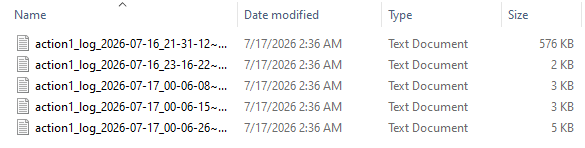
We can line all of this up against the agent's own logs. First, a word on the logs. If the agent's been running for days, you'll find a pile of files named action1_log_YYYY-MM-DD_HH-MM-SS~<pid>.log. The one carrying the heartbeat is easy to pick out; it's the big one by file size. Or just search for HEARTBEAT_ACK to confirm.
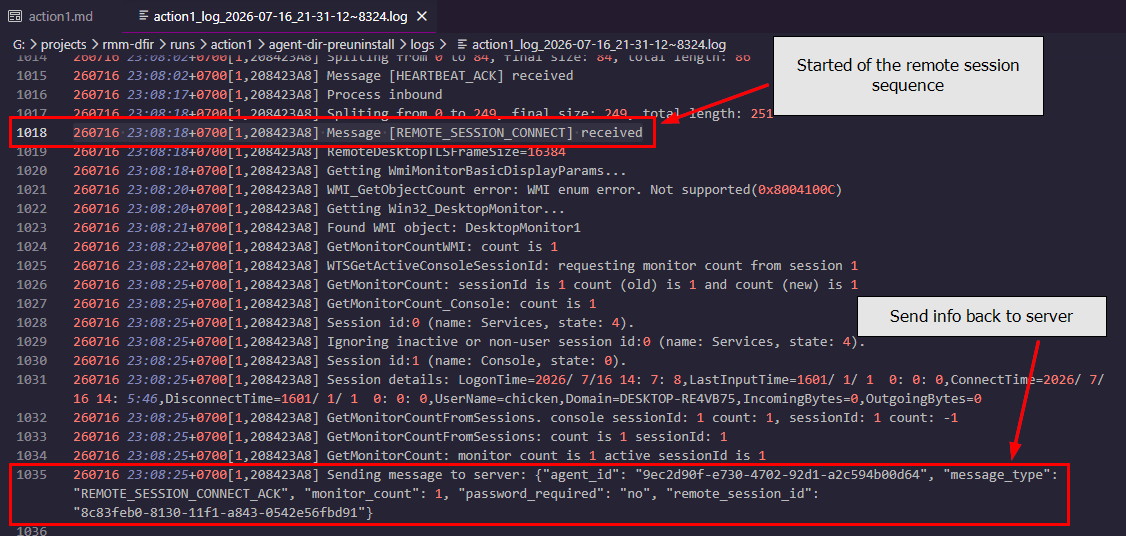
To find where the remote connection started, look for the REMOTE_SESSION_CONNECT message:
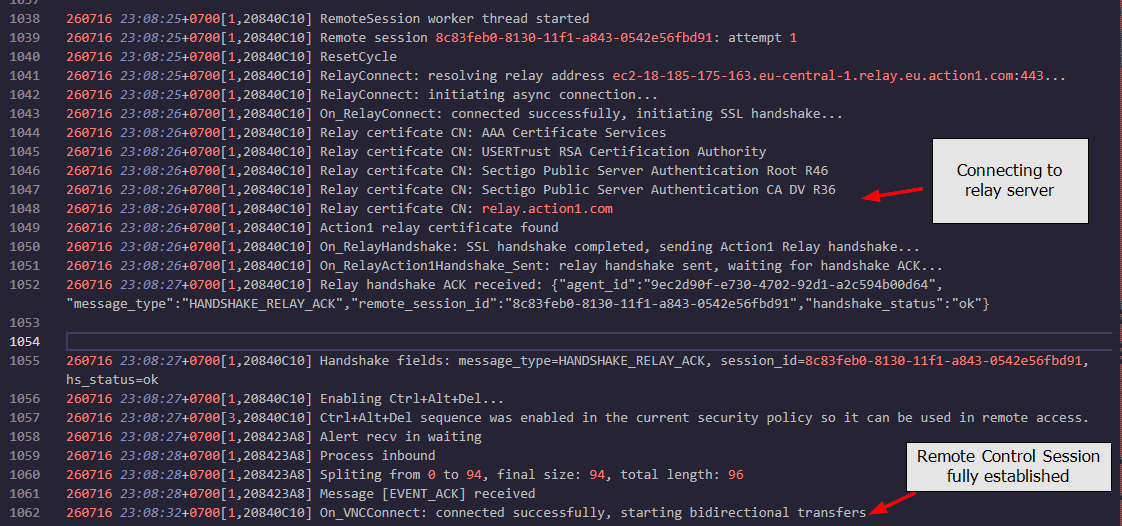
The log shows the connection established at 23:08:32. That's not the moment the operator actually sees the screen. Procmon shows the desktopserver process spawning at 23:08:57, about 25 seconds later. That gap is the 15-second consent auto-accept plus spawn latency, and my other attempts lined up the same way.
The takeaway: more telemetry gives you a more accurate timeline. The log tells you when the transport came up; the process tells you when the operator could actually start working.
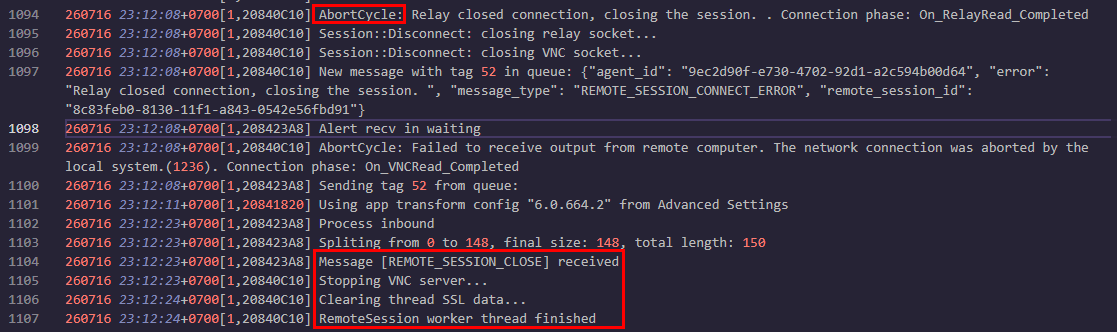
What about session teardown? Both the process view and the log answer this one. On the process side you'll see action1_remote.exe -controlservice -shutdown kick off the shutdown. Simple as that.
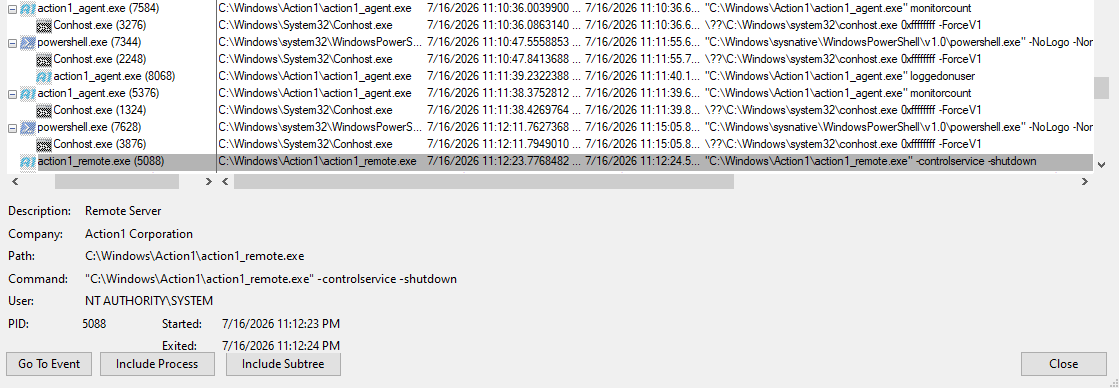
In the log, teardown starts with "Relay closed connection, closing the session." About 15 seconds later the agent receives a REMOTE_SESSION_CLOSE message from the server, runs action1_remote.exe -controlservice -shutdown, stops the VNC server, cleans up its threads, and settles back into normal heartbeats.
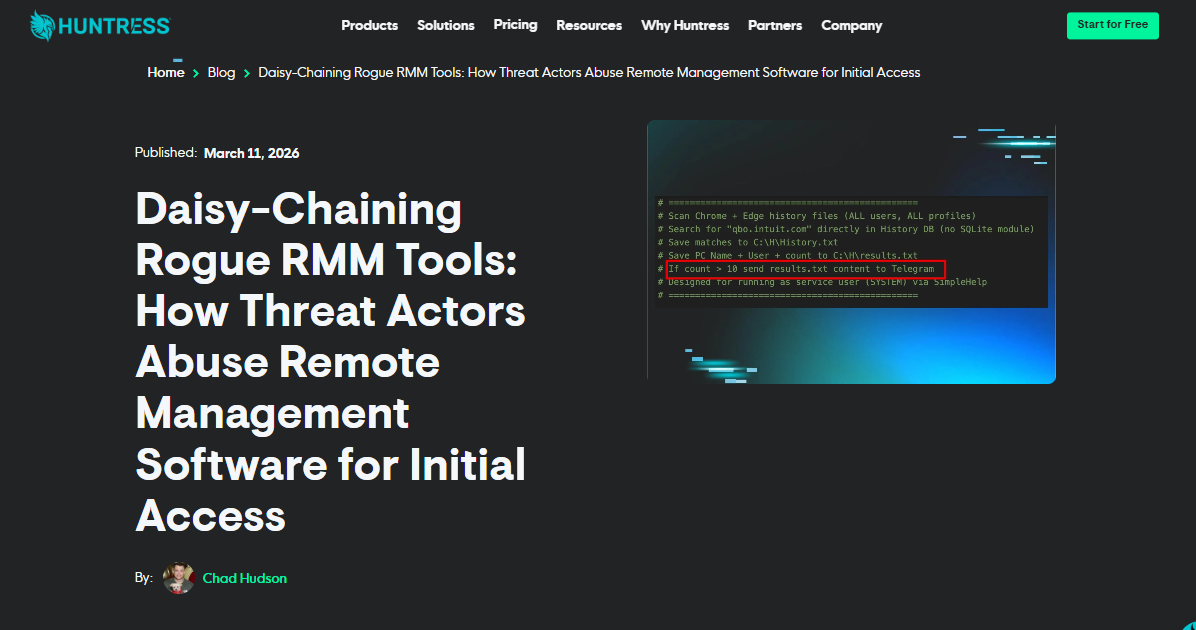
Because the remote session is just VNC, it doesn't have the bells and whistles of a full remote-support suite. That's why I'd bet Run Script and Deploy Software, not remote desktop, are the features ransomware operators actually lean on to drop other RMMs (like ScreenConnect), exactly like in this Huntress blog post.
Run Script is one of the two features that do the real damage here (Deploy Software being the other). It's simple: run any command or script on any endpoint with a live agent, either as native Command Prompt or as PowerShell.
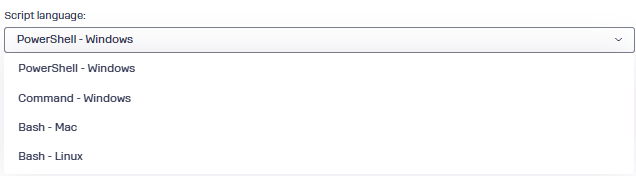
For testing I split it into three cases: a command via Command Prompt, a basic command via PowerShell (something that calls another binary, like whoami), and a real PowerShell cmdlet/script. That way I could see what Action1 leaves behind in each case and what it cleans up.
Command Prompt on Windows
I ran whoami. The flow is straightforward: drop your command in the box, and if it's something you'll reuse, there's a "Save in Script Library" button (more on the library later).
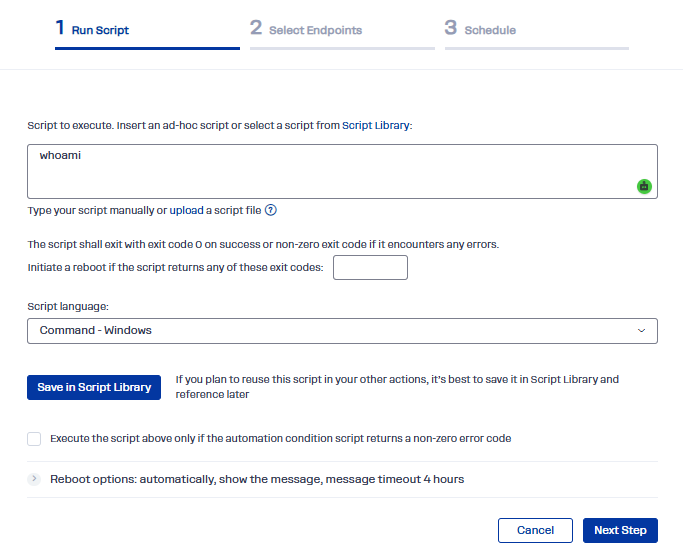
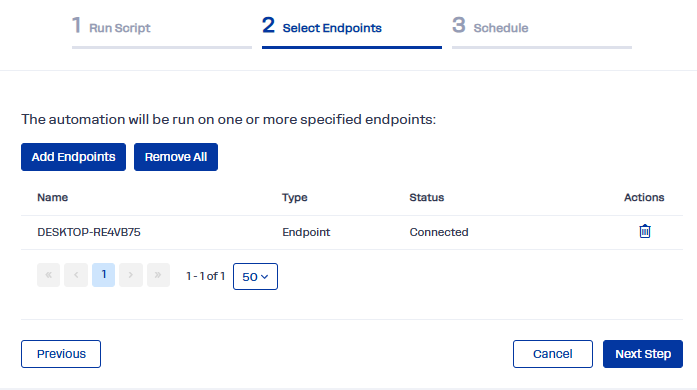
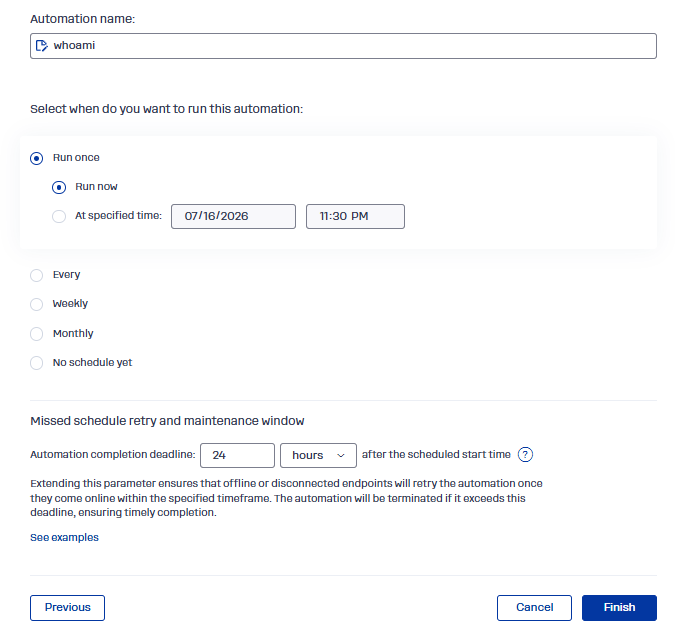
Next you add endpoints, name the automation, and click finish. The operator gets scheduling options ranging from "now" to a specific time, with frequencies from daily to monthly.
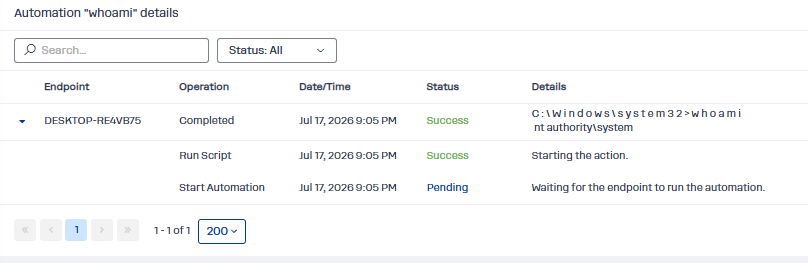
Once it runs, it shows up under Automation, and the command output lands here:
Now the process view. action1_agent.exe spawns a child with schedule: and runaction: arguments. You can read the UNIX timestamp and the automation name straight off the command line. Then whoami runs from a .cmd script the agent dropped in C:\Windows\Action1\scripts.
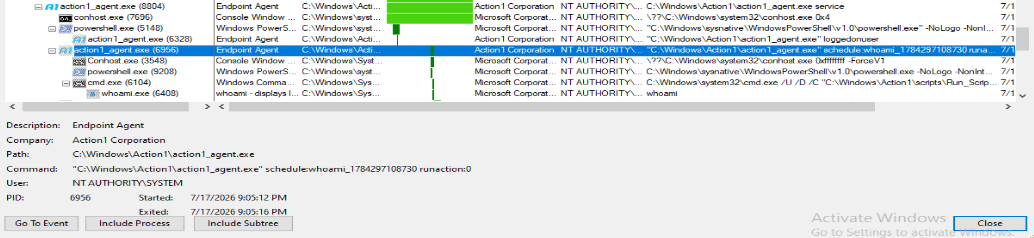
That script is created by action1_agent.exe and deleted the moment it finishes executing.

cmd.exe handles execution (spawned as a child of action1_agent.exe), then action1_agent.exe captures the output and sends it back to the server. The output file is named with the same automation name and timestamp, and it too gets deleted once the result is uploaded.
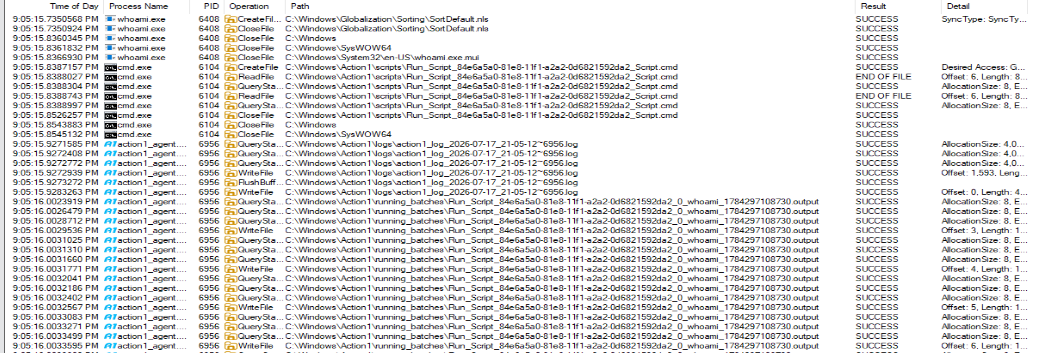
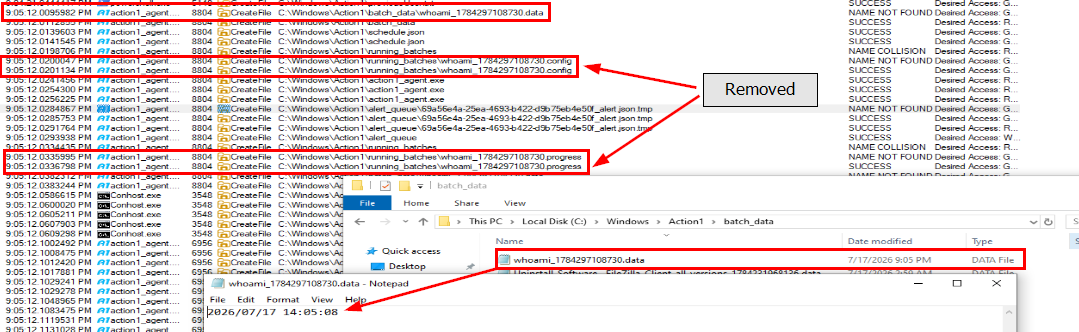
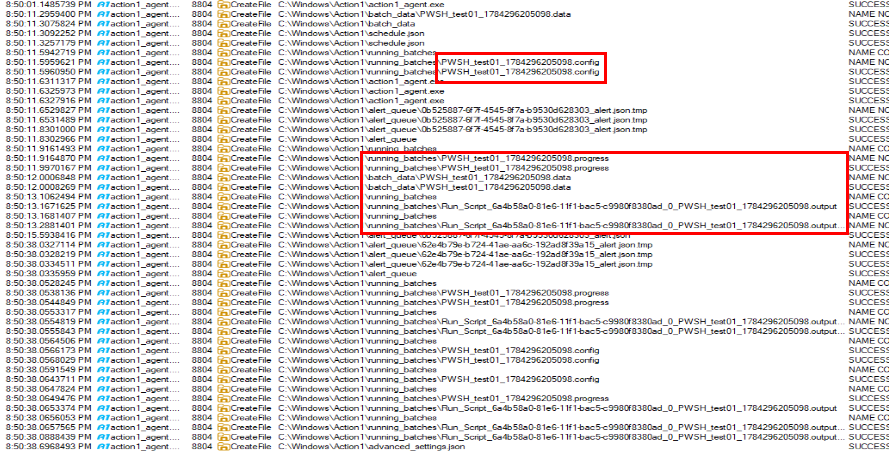
So what actually sticks around? Two remnants in the Action1 folder: the log file in logs, and a record of the task's start in batch_data (a file named after the automation and the task's UNIX timestamp, with a .data extension).
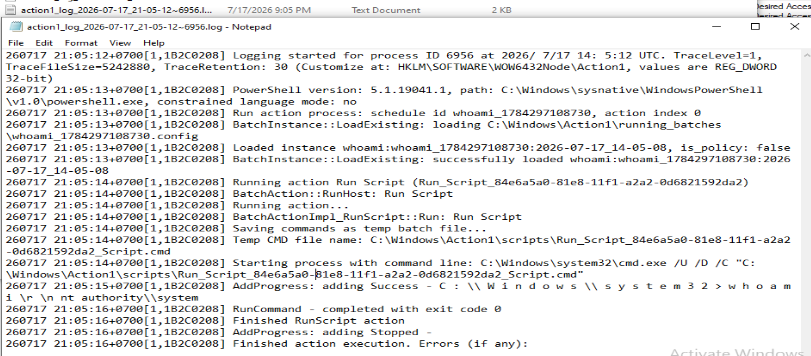
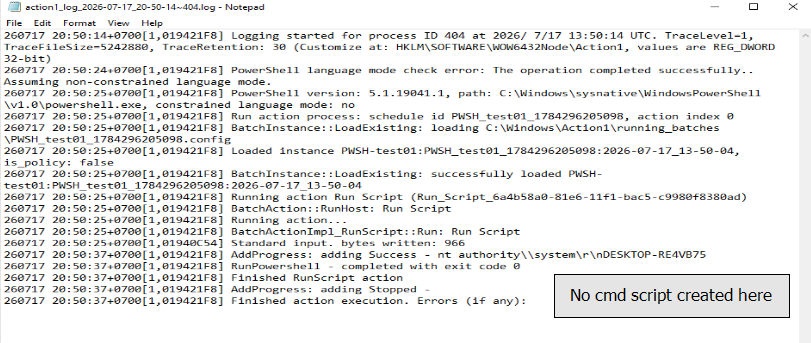
The nice thing about the log here is that it's separate from the noisy heartbeat/remote-desktop log, so it's lean and easy to read. You get the automation's start time, the automation name (as the schedule ID), the temp script that was created, the command the operator ran, and the result before exit.
PowerShell on Windows (Basic Command)
I used this:
"Action1 test $(Get-Date -Format o)" | Out-File C:\users\public\test2.txt
whoami
hostname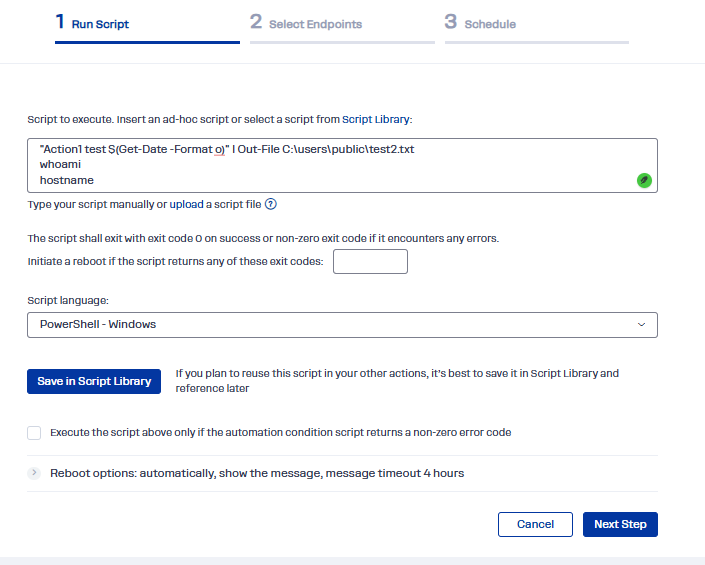
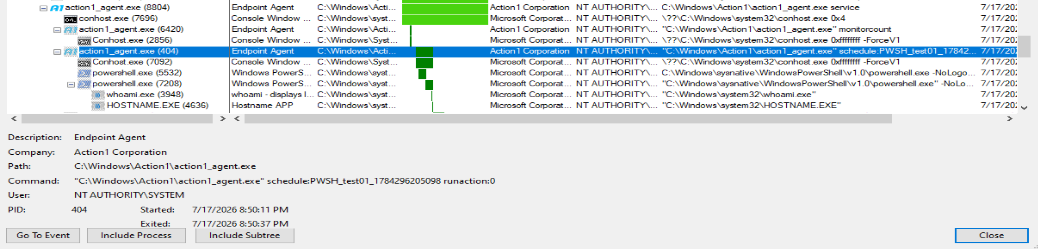
As expected, when PowerShell executes external binaries like whoami and hostname, they show up as children of powershell.exe. Same overall pattern as the Command case, except there's no .cmd script this time, because action1_agent.exe uses PowerShell to run the commands directly.
PowerShell on Windows (Cmdlet)
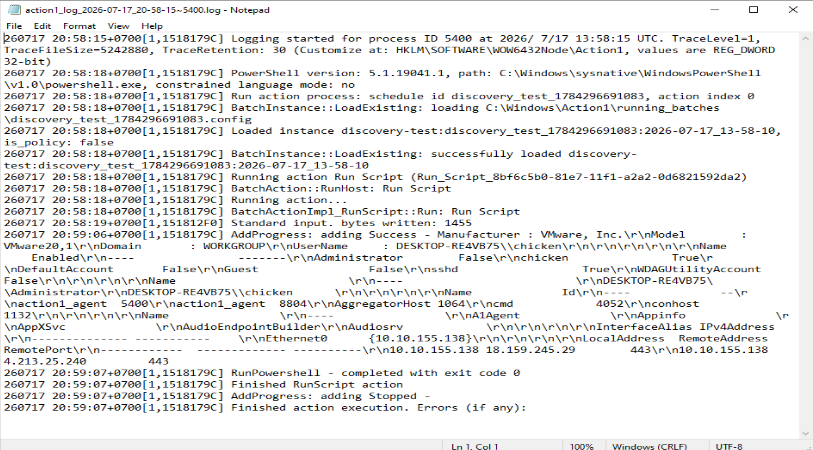
I ran these to confirm the behavior, and it matched: the dropped file, the log file, and the process tree all followed the same pattern as before.
Get-CimInstance Win32_ComputerSystem | Select Manufacturer,Model,Domain,UserName | Format-List
Get-LocalUser | Select Name,Enabled | Format-Table -Auto
Get-LocalGroupMember Administrators -EA SilentlyContinue | Select Name
Get-Process | Select -First 5 Name,Id | Format-Table -Auto
Get-Service | ? Status -eq Running | Select -First 5 Name | Format-Table -Auto
Get-NetIPConfiguration | Select InterfaceAlias,IPv4Address | Format-Table -Auto
Get-NetTCPConnection -State Established -EA SilentlyContinue | Select -First 5 LocalAddress,RemoteAddress,RemotePort | Format-Table -Auto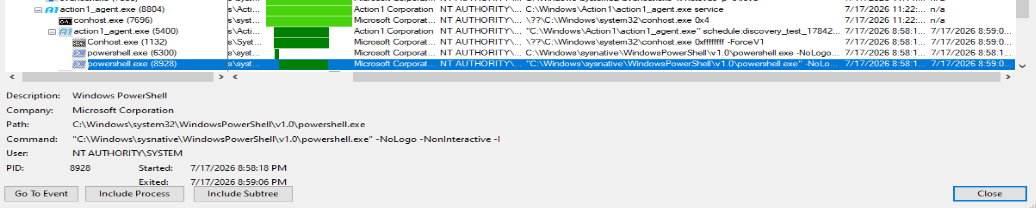
Script Library
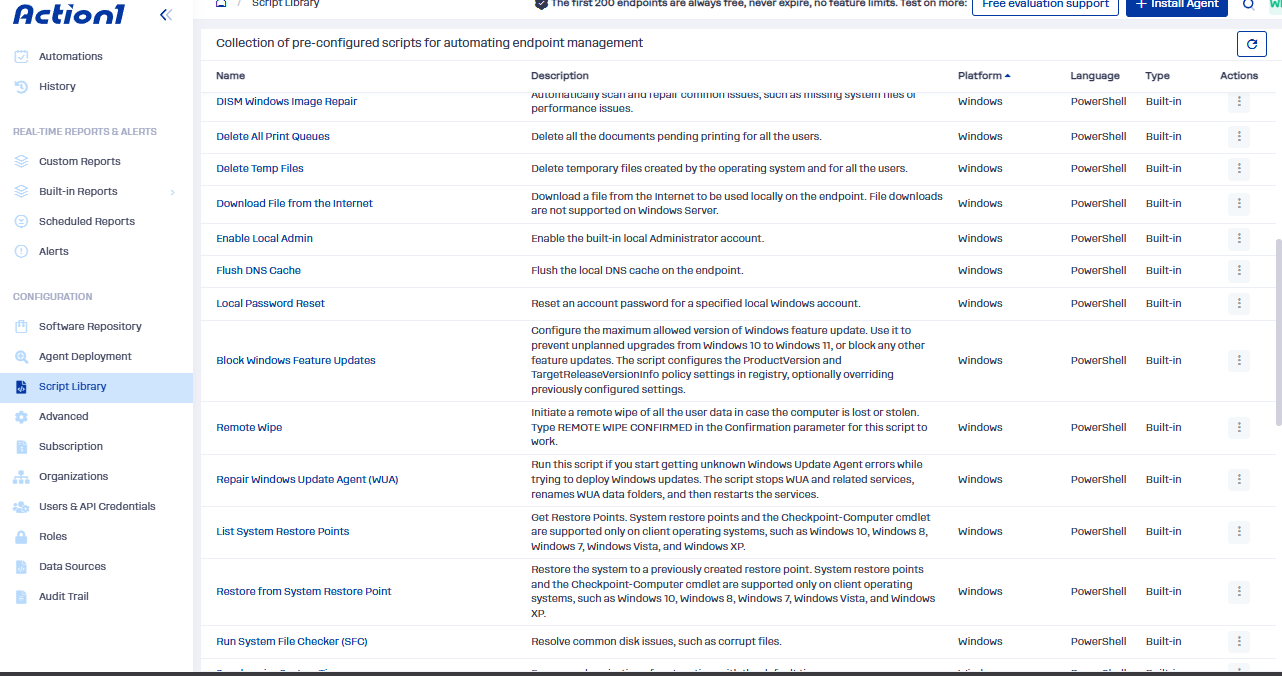
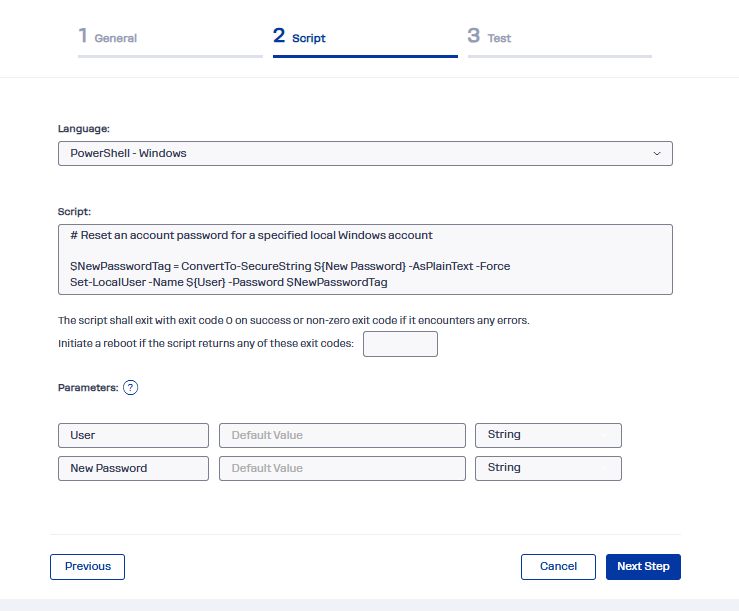
One thing worth mentioning is the Script Library. It ships with templates. Some run with no parameters at all, like "Enable Local Admin" and "Turn Off Windows Firewall." Others take parameters, like "Local Password Reset" and "Download from the Internet." Operators can also add their own, which is exactly how the ScreenConnect-installer script in the Huntress blog got there.
Deploy Software is the other feature ripe for abuse: it remotely installs software on the target. That can be something straight out of Action1's own repository, and plenty of those are abusable, like TeamViewer, Remote Desktop Manager, Splashtop Streamer, and TightVNC.
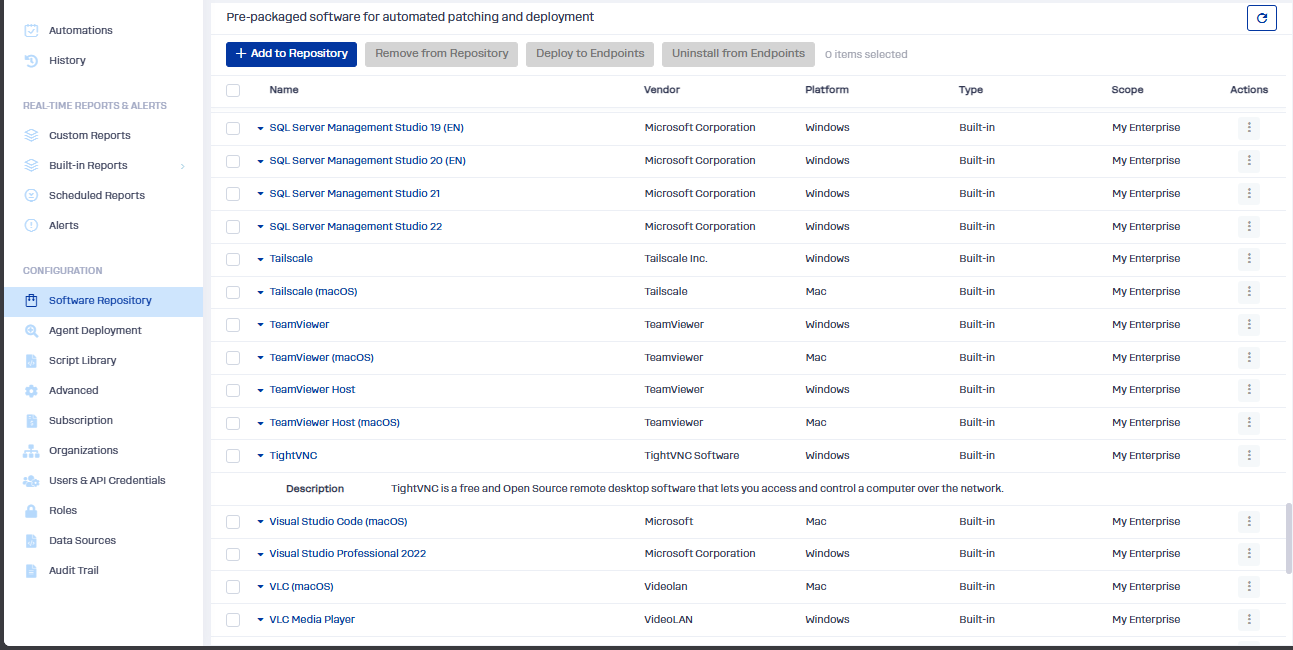
An operator can also push vulnerable software, though I don't see that as a strong attack path here. Action1 already runs as SYSTEM, so a local-privilege-escalation bug buys an attacker nothing they don't already have.
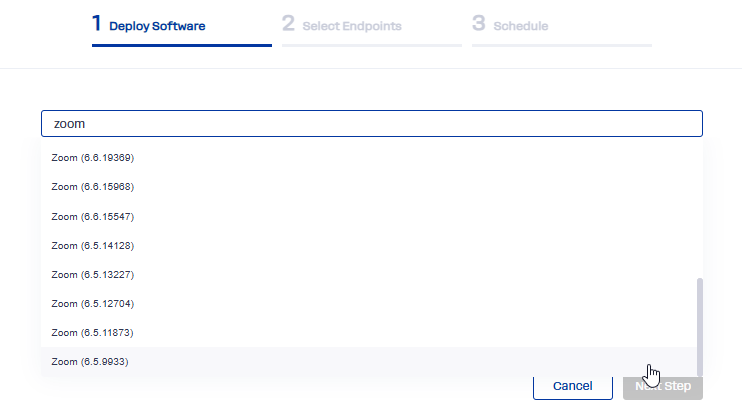
Operators can build their own packages too. Action1 accepts .msi, .cmd, .bat, and .ps1, with a silent-install option.
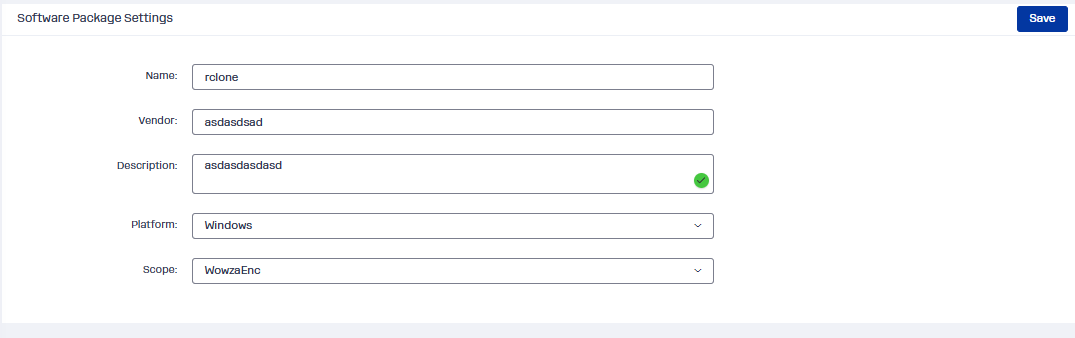
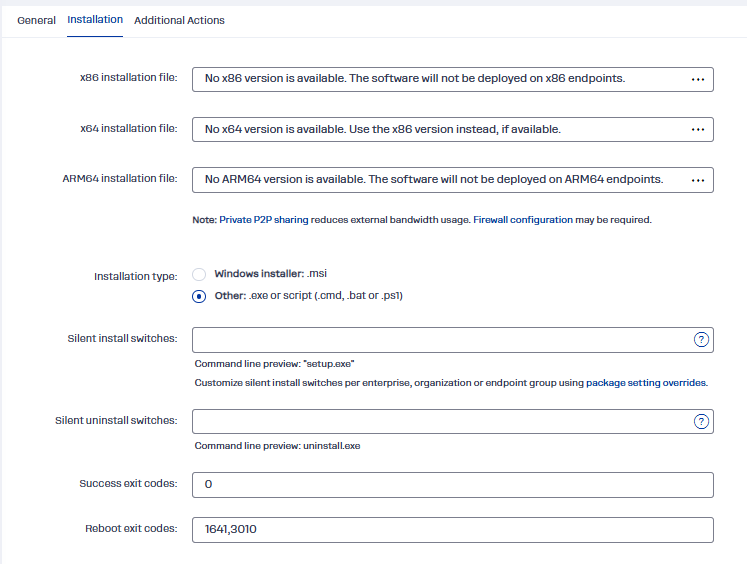
To demo this, I deployed FileZilla Client.
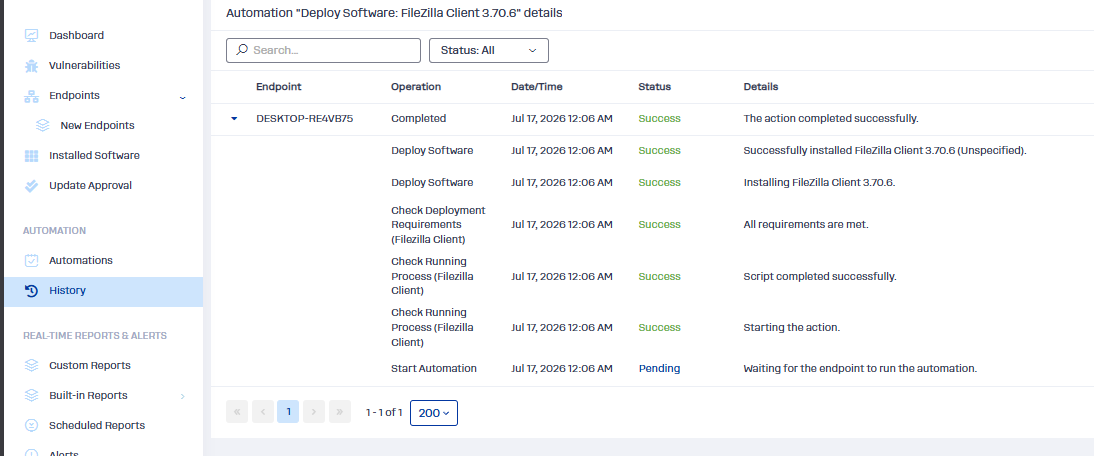
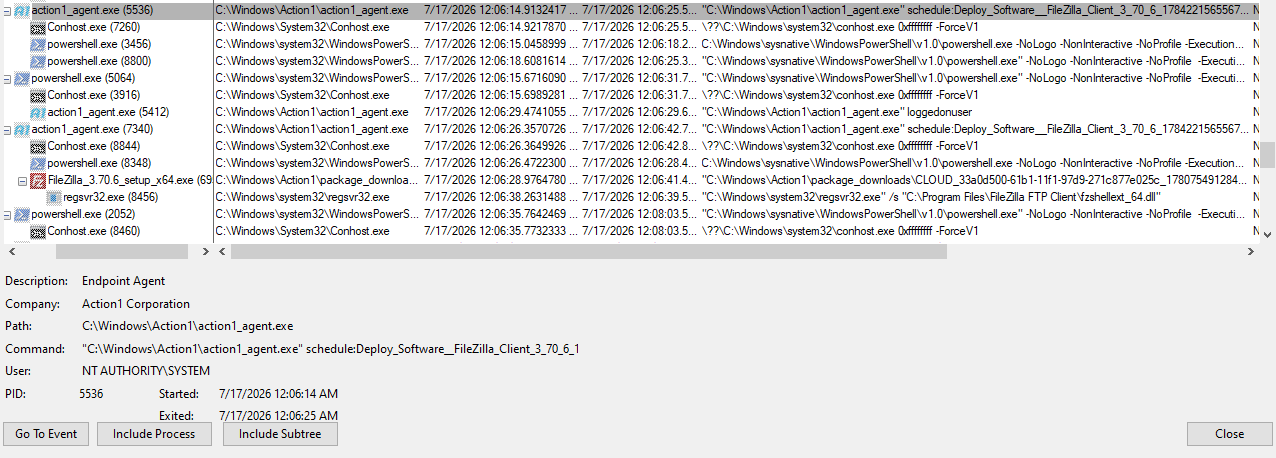
FileZilla ships as an EXE (setup) installer, and it runs as an automation. So we see the familiar action1_agent.exe spawned with the schedule: flag, and the installer running as its child process:
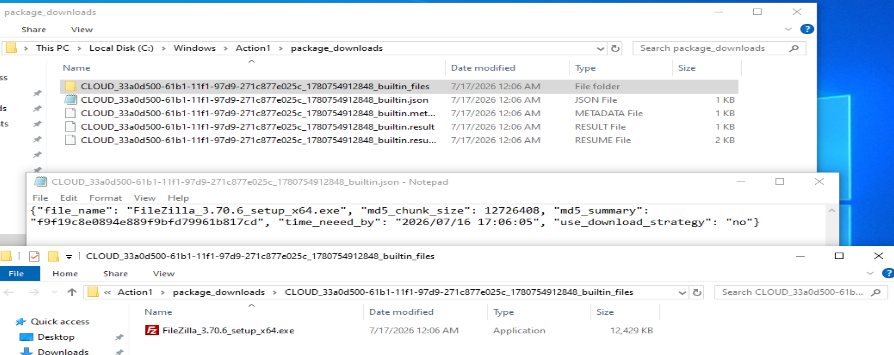
Like Run Script, it writes its own logs (separate from the heartbeat and remote-desktop logs), and there are automation files dropped in the running_batches folder. Those are basically temp files, deleted as soon as the automation finishes.

The interesting leftovers live in package_downloads. After the install, this folder keeps the installer/setup file plus a set of sidecar files:
- a
.jsonwith the installer's filename and MD5, - a
.resultwith the outcome (OKon success), - a
.metadata, which is the bencode torrent file, - and a
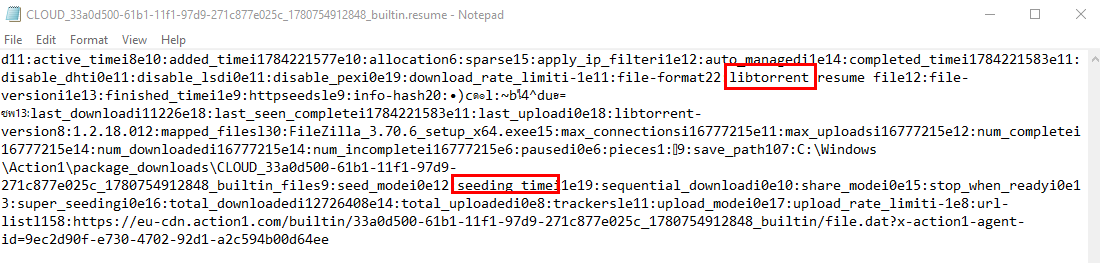
.resume, the full libtorrent download state.
That .metadata/.resume pair is a nice tell: Action1 pulls installers using libtorrent. It's not a free-for-all P2P swarm, though. The .metadata template lists a localhost:6969 tracker that gets cleared at runtime, and the actual bytes come over HTTPS from Action1's CDN web-seed (eu-cdn.action1.com, which fronts BunnyCDN). Peer endpoints only seed to each other when they already have the package.
The install also leaves a fingerprint in the Windows Firewall. The agent adds three inbound Allow rules for action1_agent.exe:
| Rule Name | Direction | Action | Local Port | Program |
|---|---|---|---|---|
| Action1 Agent (TCP-In) | In | Allow | 22551 | C:\Windows\Action1\action1_agent.exe |
| Action1 Agent (UDP-In) | In | Allow | 22551 | C:\Windows\Action1\action1_agent.exe |
| Action1 Agent LPD (UDP-In) | In | Allow | 6771 | C:\Windows\Action1\action1_agent.exe |
That 6771 is the giveaway. It's the BitTorrent Local Peer Discovery port (multicast 239.192.152.143:6771), and "LPD" in the rule name stands for Local Peer Discovery. So on a network with several Action1 agents, they find each other over 6771 and pull packages from a nearby peer on 22551 instead of hammering the CDN. If you see inbound 6771/udp and 22551 tied to action1_agent.exe, that's Action1's P2P distribution, and it's a separate signal from the package_downloads files on disk. (Don't confuse 22551 inbound with the 22543 the agent uses outbound for C2. Different channels.)
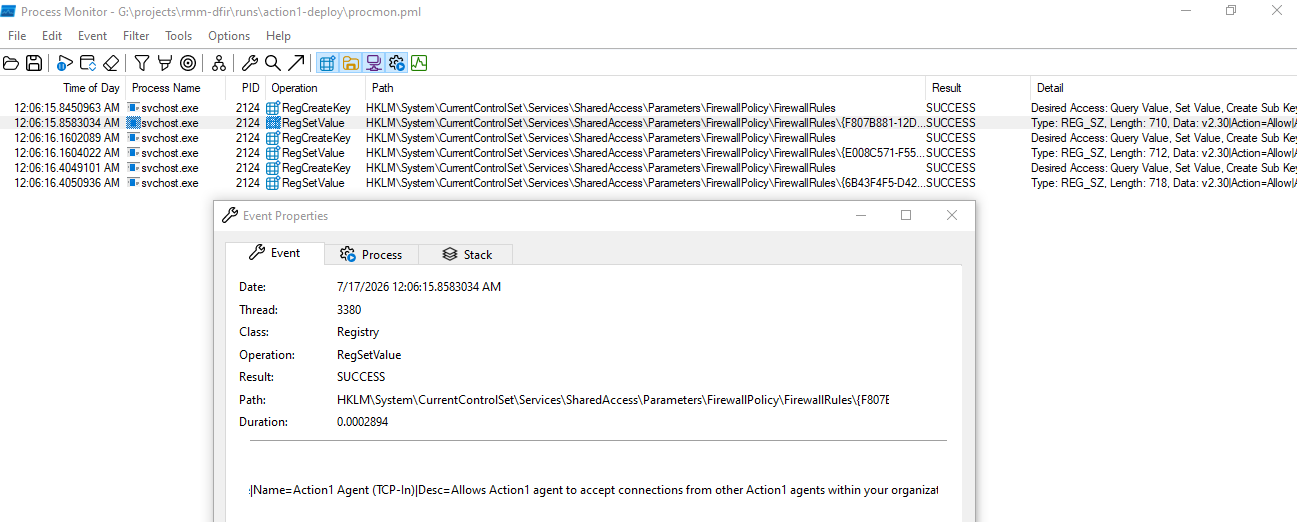
Who adds these rules, and when? Not the MSI, and not at install. I only found them in the Deploy Software capture, not the install one, and that lines up with a string in the binary: Checking firewall rules for file downloader. The agent sets them up the first time it needs its P2P downloader, which is the first deploy.
Procmon has the whole sequence. The install run captured action1_agent.exe, msiexec.exe, and svchost.exe in full and shows zero firewall activity. The deploy run shows action1_agent.exe loading FirewallAPI.dll, then the Windows Firewall service (svchost.exe / MpsSvc) writing the three rule GUIDs into the registry on the agent's behalf:
A beat later the agent actually uses it, and Procmon catches the Local Peer Discovery going out:
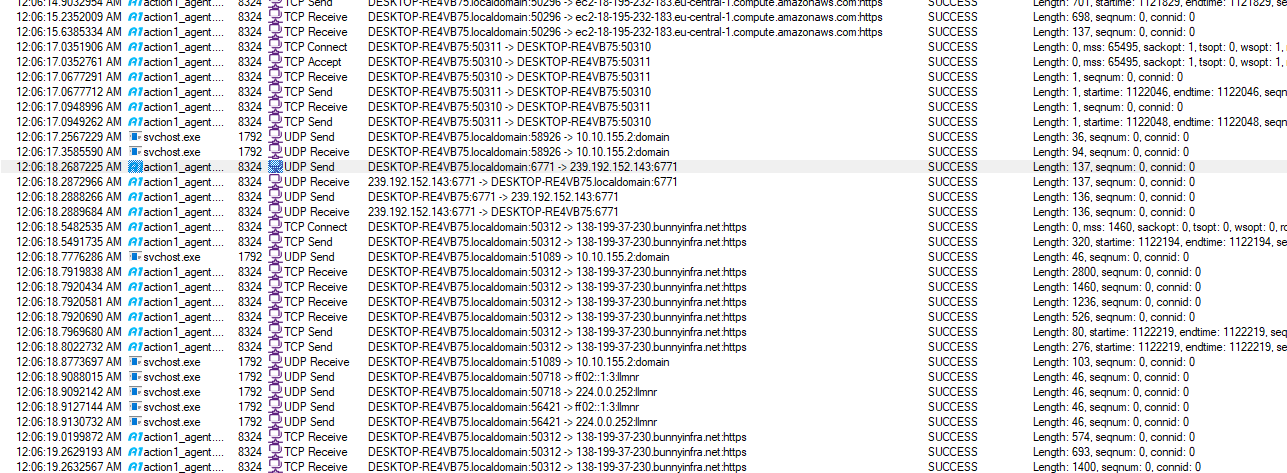
The agent drives the Windows Firewall COM API (INetFwPolicy2), and MpsSvc does the registry write. Detection consequence: the rule creation shows up as svchost, not action1_agent.exe, and a stock SwiftOnSecurity Sysmon config won't log it at all (no netsh, and the FirewallRules registry path isn't in scope). To catch this you want the Windows Firewall operational log (Event 2004, "a rule was added") or the outbound 6771 multicast to 239.192.152.143, not Sysmon.
The rule's own description, pulled from the binary, spells out why it exists:
Allows Action1 agent to accept connections from other Action1 agents within your organization to share downloaded applications and minimize external bandwidth.
While you're in those strings, one more thing stands out: the agent also carries code to query the default firewall blocking state and to unblock all inbound traffic in firewall settings. I didn't see it fire during my captures, but a management agent that can flip the host firewall's inbound posture is worth keeping in the back of your mind.
Because the agent owns these rules and the MSI never registered them, they outlive the agent. A box that had Action1 removed can still carry three Action1 Agent* firewall rules pointing at an action1_agent.exe that no longer exists. Windows only prunes them once that binary is actually deleted. A firewall rule with no file behind it is a quiet little tombstone.
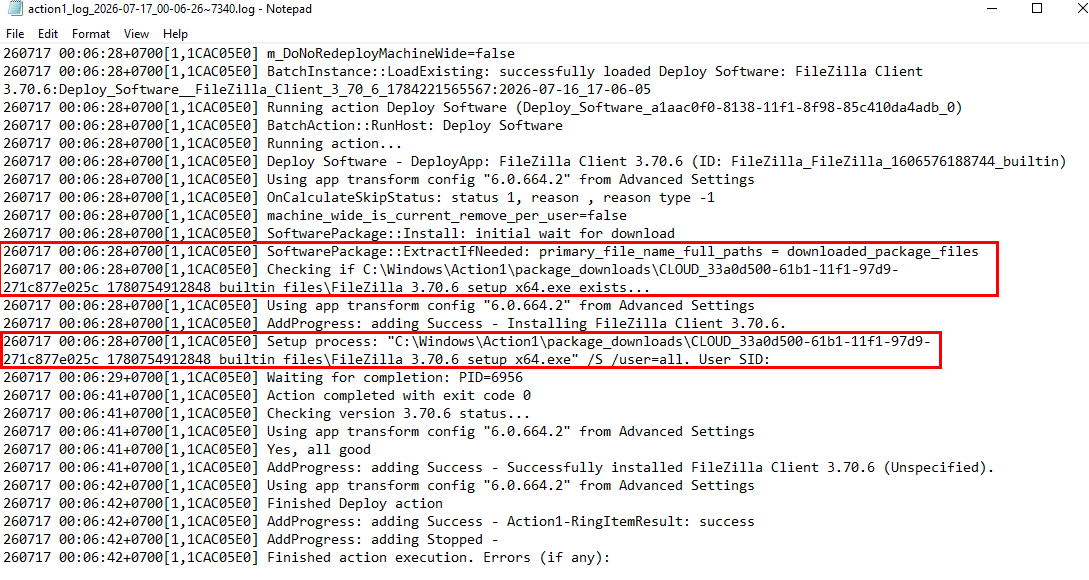
Now the logs, and here's a small surprise: the deploy generates three separate log files, one per step of the automation.
First, before the setup file is even downloaded, the agent runs a script to check whether the same software is already present.
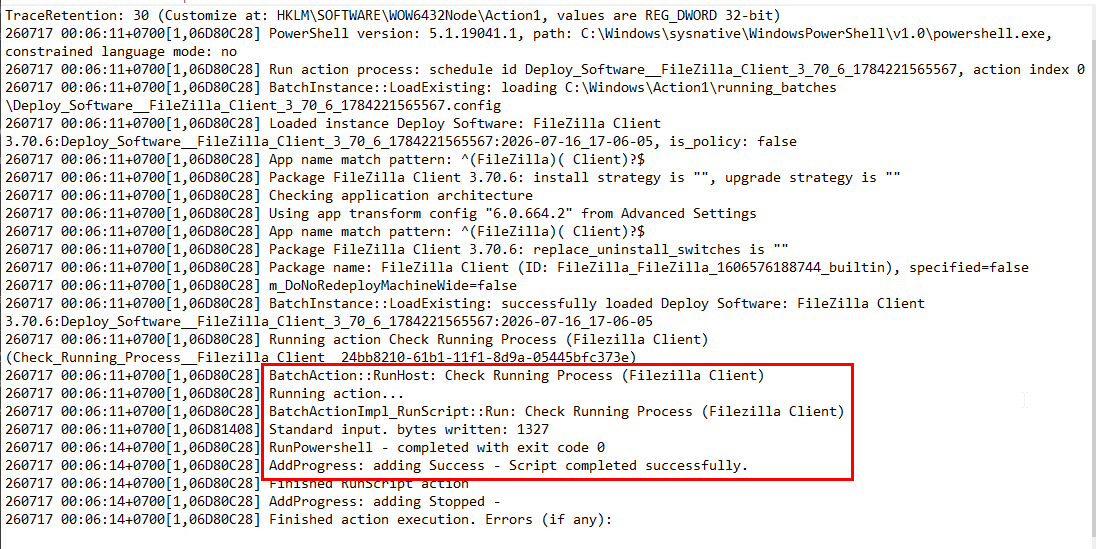
Second, it checks the deployment requirements.

Third, the final log records the install itself: it waits for the download to complete, then runs the setup. (The actual torrent download is logged in the main heartbeat log, not this one.)
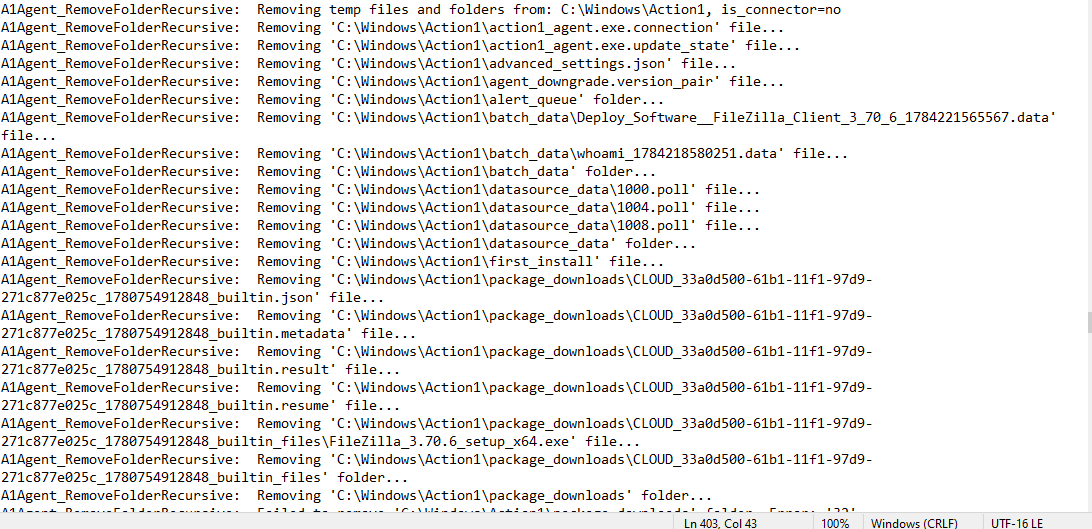
For responders, the key point: the package_downloads payload does not survive an agent uninstall. The MSI wipes that folder. If you're working an IR case on a box where Action1 was later removed, grab C:\Windows\Action1\ before touching the uninstall, or that installer (and its MD5) is gone. More on that in the removal section.
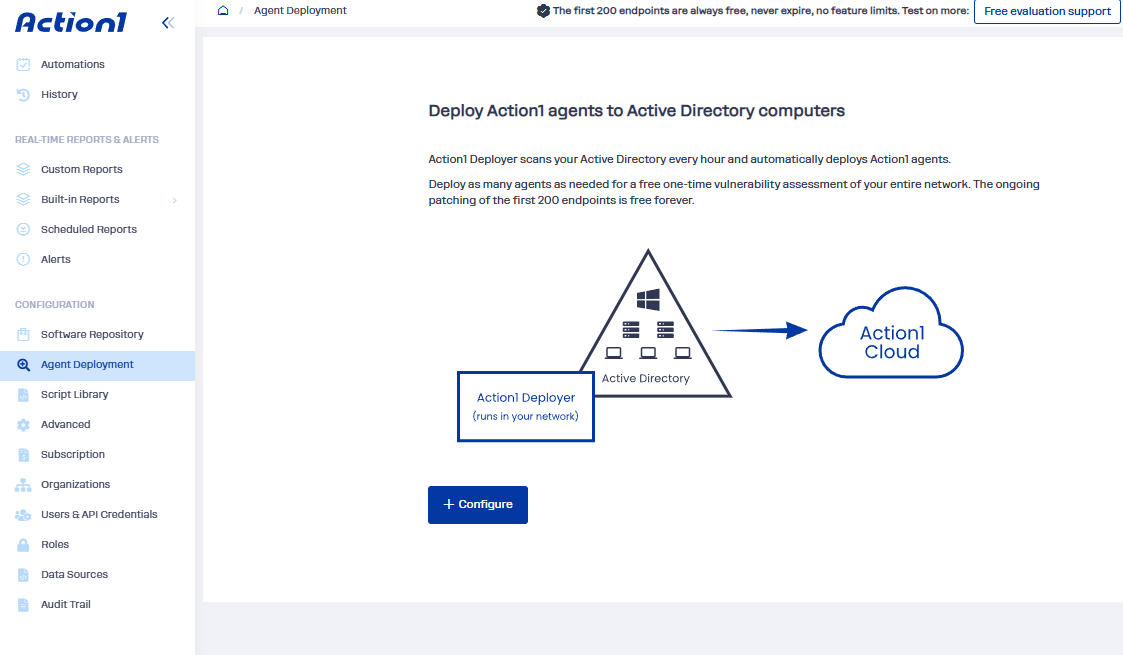
Action1 has plenty of IT-admin conveniences. One is the deployer: drop it into an Active Directory environment and it auto-discovers endpoints that don't have the agent yet and installs it, chugging along until it hits your license cap or runs out of new machines. I haven't seen this abused at scale, probably because it's noisy and needs Domain Admin, but it's good to know it exists.
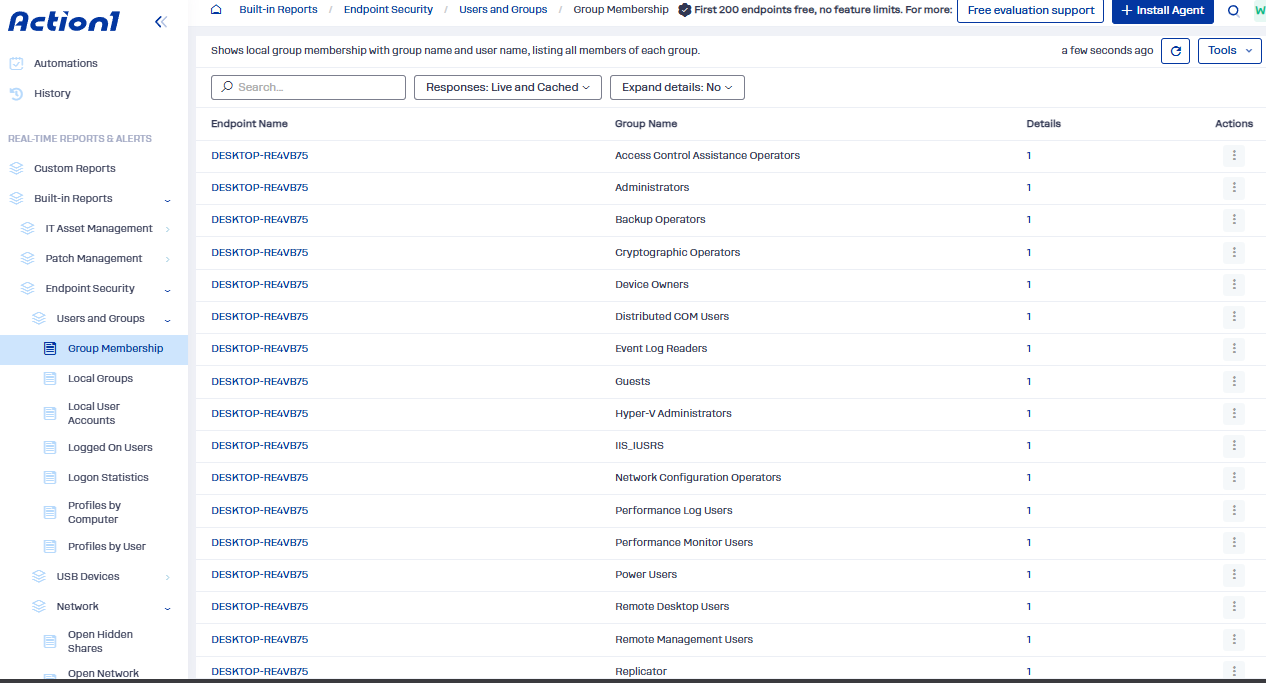
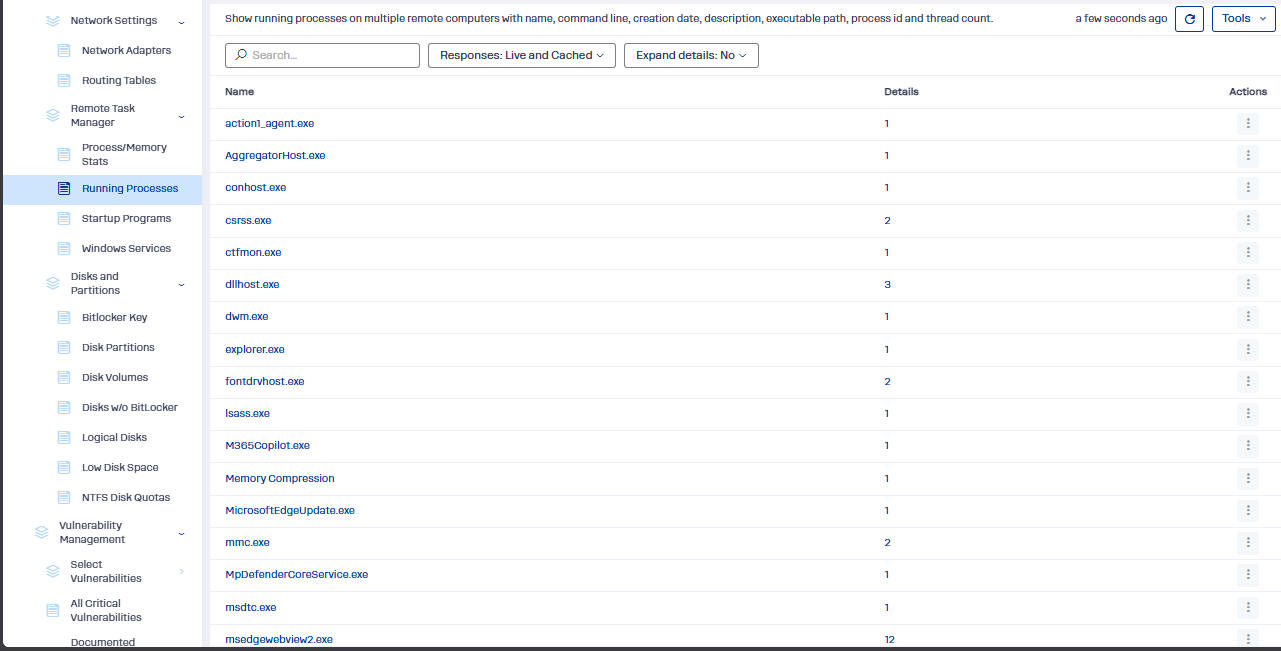
And because Action1 is a vulnerability-management platform, it comes with reports and dashboards. For an operator, that means a pile of juicy inventory data served up without running a single noisy automation on the endpoints.
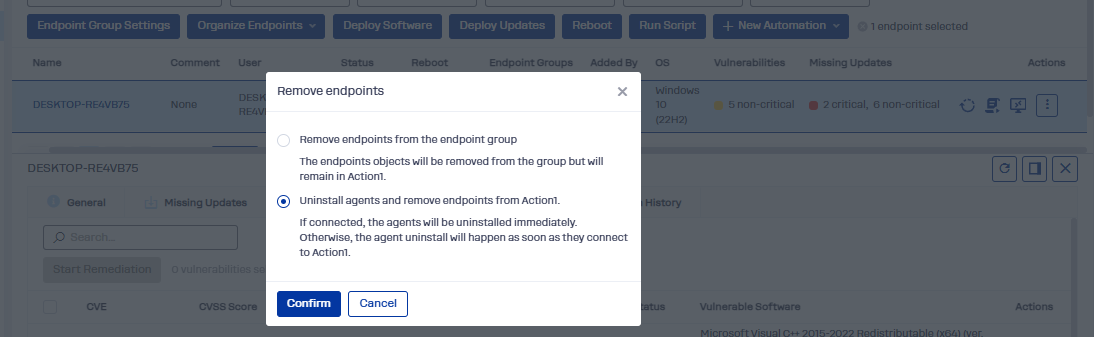
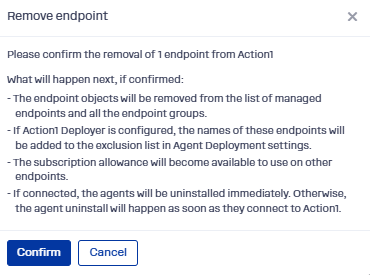
Once an operator wraps up (having, say, deployed another RMM or their own implant), they can remotely uninstall the Action1 agent from the target. That strips out some of the juicy artifacts, but not all of them. Let's see what survives.
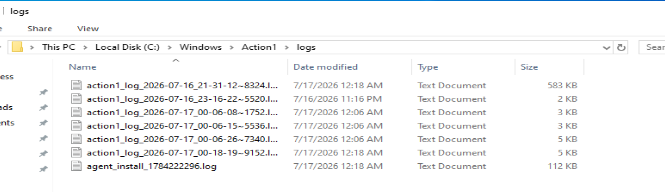
First, the C:\Windows\Action1 folder is still there, but down to just two folders. The good news: one of them is logs, our main resource when working an Action1 case.

There's also a new log file created by the uninstall itself.
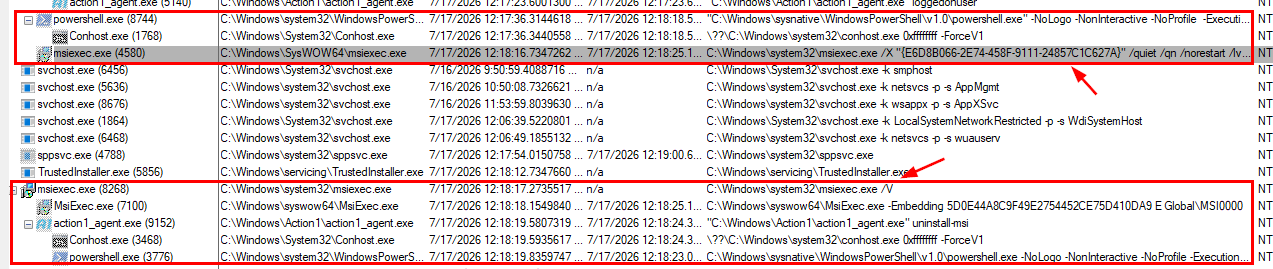
Here's what the uninstall actually does. It spawns a PowerShell process that runs msiexec to kick off the removal, roughly:
msiexec /X "{E6D8B066-2E74-458F-9111-24857C1C627A}" /quiet /qn /norestart /lv* "C:\Windows\Action1\logs\agent_install_<UNIXTIMESTAMP>.log" ALLOWRESTRICTEDVERSIONS=1That /lv* sets the MSI log path, so yes, a file named agent_install_* is actually the uninstall log. Don't let the name fool you. That first msiexec invokes another, which eventually calls action1_agent.exe with the uninstall-msi flag to run the cleanup. The cleanup:
- stops and deletes the
A1Agentservice, - removes the WER (Windows Error Reporting) registry values for the agent binaries,
- and deletes everything inside
C:\Windows\Action1exceptCrashDumpsandlogs.
Now the useful part. Because the uninstall logs its own file-removal operations, you can still see which software was deployed via Action1 even after it's been removed. The deleted payload is gone, but the log remembers its name.
The registry key holding the agent info, including the operator's org ID, also gets removed. Don't panic, though: we can still pair the agent GUID with the org ID recovered from the log to contact Action1's team.
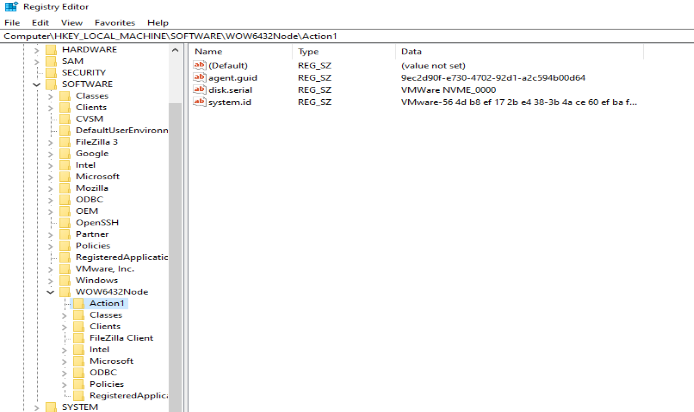
So even though what_is_this.txt and the registry key are gone, the log file still records the IDs. Grab those for your report if you're planning to pursue legal action.
Last one. To timestamp the uninstall and correlate it against the Action1 logs, look at the same MsiInstaller event chain in the Application log as the install, except the details now describe a package removal instead of an installation.
Let's tie it together.
Installation & Proof of Existence
- Path:
C:\Windows\Action1\. Installing intoC:\Windows\is unusual on its own and a strong signal. - Registry:
HKLM\SOFTWARE\WOW6432Node\Action1. Agent config, certificate, customer/org ID, agent GUID (agent.guid), hardware ID (system.id), disk serial. - Service:
A1Agent(display name "Action1 Agent"), Auto start, SYSTEM →C:\Windows\Action1\action1_agent.exe service. - Binaries:
action1_agent.exe(the agent),action1_remote.exe(TightVNC remote server), plus7z.dllandsas.dll. - Installer:
action1_agent(<ORG>).msi(the filename embeds the org name), signed by Sectigo, signer Action1 Corporation, product code{E6D8B066-2E74-458F-9111-24857C1C627A}. - Event logs: Application/MsiInstaller 1040, 1042, 11707, 1033 (product "Action1 Agent"); System 7045 (service "Action1 Agent").
- Marker files:
first_install(install time, UTC),previousUser.txt(installing admin),what_is_this.txt(org ID), verboselogs\*.log(Customer ID + agent/service ID + endpoint inventory).
Network
- Install-time pull from Cloudflare,
104.18.38.233(AS13335). - Persistent C2 to
server.<region>.action1.com(AWS; EU tenant here), the always-on agent channel, 443 plus high port22543outbound. - Remote-session relay
relay.<region>.action1.com(443), only during remote desktop. - Deploy payloads over
eu-cdn.action1.com(BunnyCDN web-seed), 443. - LAN P2P: inbound
22551(TCP/UDP, peer transfer) and6771/udp(BitTorrent LSD, multicast239.192.152.143) fromaction1_agent.exe.
Remote Desktop (VNC / TightVNC)
action1_agent.exe monitorcount(display enumeration, re-runs ~60s).action1_remote.exechain:controlservice -slave→queryconnection -peer 127.0.0.1 -accept -timeout 15(15s consent, auto-accept) →desktopserver … -shmemname Global\<id>(screen goes live).- Teardown:
action1_remote.exe -controlservice -shutdown. - Log messages:
REMOTE_SESSION_CONNECT,REMOTE_SESSION_CLOSE,HEARTBEAT_ACK. Pair the log (transport up) with the process (screen live) for an accurate timeline.
Run Script
action1_agent.exe schedule:<automation>_<unixts> runaction:Nspawningcmd.exe(Command) orpowershell.exe(PowerShell).- Temp script in
C:\Windows\Action1\scripts\and the output file, both deleted after upload. - Persistent remnants: dedicated
logs\*.log(script + result) andbatch_data\<automation>_<unixts>.data.
Deploy Software
action1_agent.exe schedule:with the installer running as a child process.running_batches\temp files, deleted on completion.package_downloads\: installer +.json(name + MD5),.result,.metadata(torrent),.resume(libtorrent state). Deleted on agent uninstall, so preserve it first.- Three per-run logs: check-existing → check-requirements → install.
- Three inbound firewall rules (
Action1 Agent (TCP-In),(UDP-In),LPD (UDP-In)) on 22551 and 6771, added by the agent viaINetFwPolicy2, written by MpsSvc, not the MSI.
Uninstall / What Survives
msiexec /X "{E6D8B066-…}"→action1_agent.exe uninstall-msi.- Removes:
A1Agentservice, WER registry values, theAction1registry key, and everything underC:\Windows\Action1exceptlogsandCrashDumps. - Survives:
C:\Windows\Action1\logs\(including theagent_install_<ts>.loguninstall log, your record of Customer ID, agent ID, deployed payloads, and the removal timeline) andCrashDumps\. - Also survives: the three
Action1 Agent*inbound firewall rules (TCP/UDP 22551, UDP 6771). The MSI leaves them behind; Windows only prunes them onceaction1_agent.exeis gone. A firewall rule pointing at a missingaction1_agent.exeis a clean tell of prior Action1. - Application/MsiInstaller event chain repeats for the removal.
That's the tour. Preserve C:\Windows\Action1\ before anyone touches the uninstall, lean on the verbose logs, and remember the two IDs (Customer ID and agent GUID) if the case is heading toward takedown or legal action. Thanks for reading, see you on the next one. ✌️