Deep dive into Chrome Remote Desktop RMM Investigation & Forensics
Hello everyone, it's me Chicken0248 again. In this blog I'll share my research on investigating Chrome Remote Desktop (CRD), covering its installation, both connection modes (Remote Support and Remote Access), and how to investigate each when they are misused.
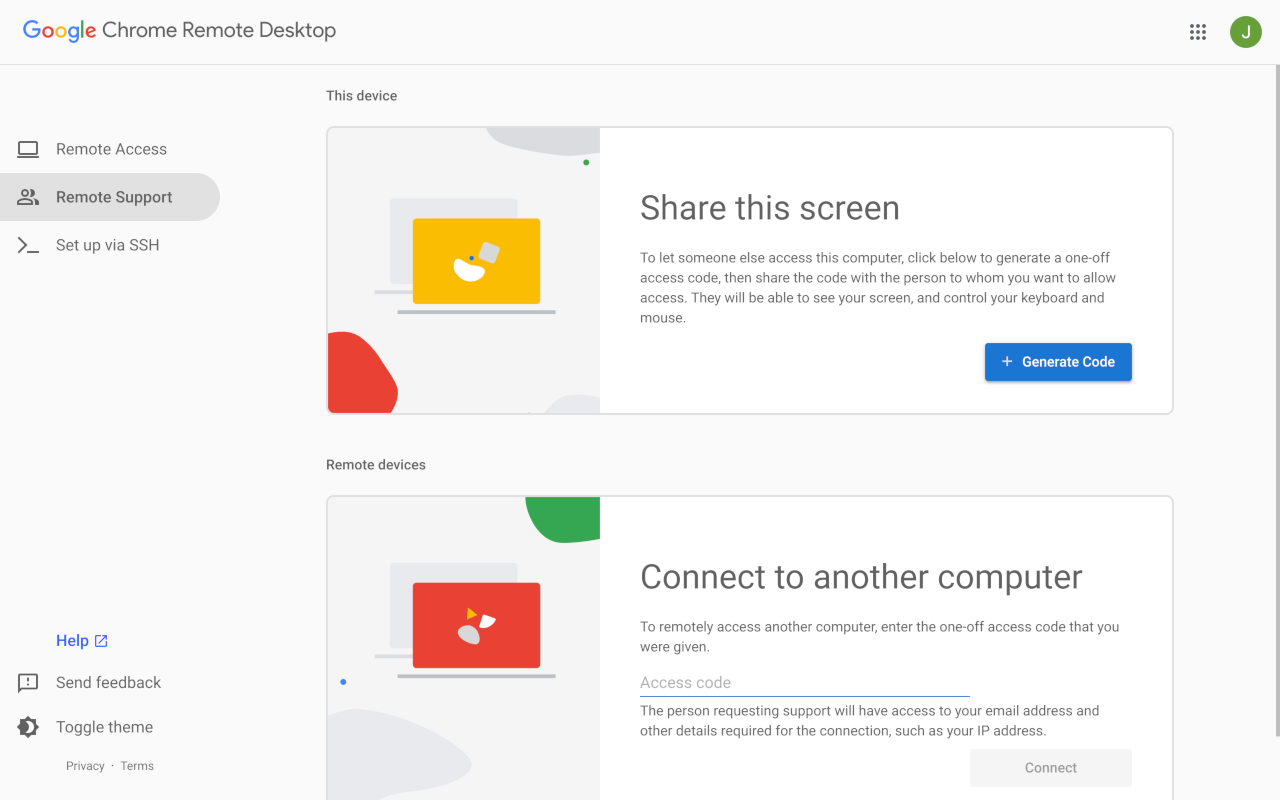
Chrome Remote Desktop (CRD) is a remote desktop software tool developed by Google that lets you remotely control another computer's desktop through a proprietary protocol called Chromoting, Google's own take on remote desktop rather than using Microsoft's standard RDP. Under the hood, this protocol transmits keyboard and mouse inputs to the remote machine and sends screen updates back.
To use it, you visit remotedesktop.google.com, install the host component on the machine you want to control, and set up a PIN. The client side runs entirely through a web portal, no dedicated app required, any browser works.
There are two main usage modes:
- Remote Access, Install the host on your own machine, set a PIN, and log in from anywhere at any time without requiring anyone on the other end to approve it (unattended access).
- Remote Support, The host generates a one-time access code valid for 5 minutes. Share it with whoever needs to help, and they can take control to troubleshoot.
CRD works across Windows, macOS, Linux, and ChromeOS, all it needs is a Google account and the Chrome browser. No ports to forward, no VPN required. Because it is a legitimate Google product, it blends naturally with normal traffic and doesn't immediately raise red flags. Threat actors abuse tools like this for Living off the Land-style persistence, dropping a trusted remote access tool on a compromised host to come and go without maintaining a noisy C2 channel.
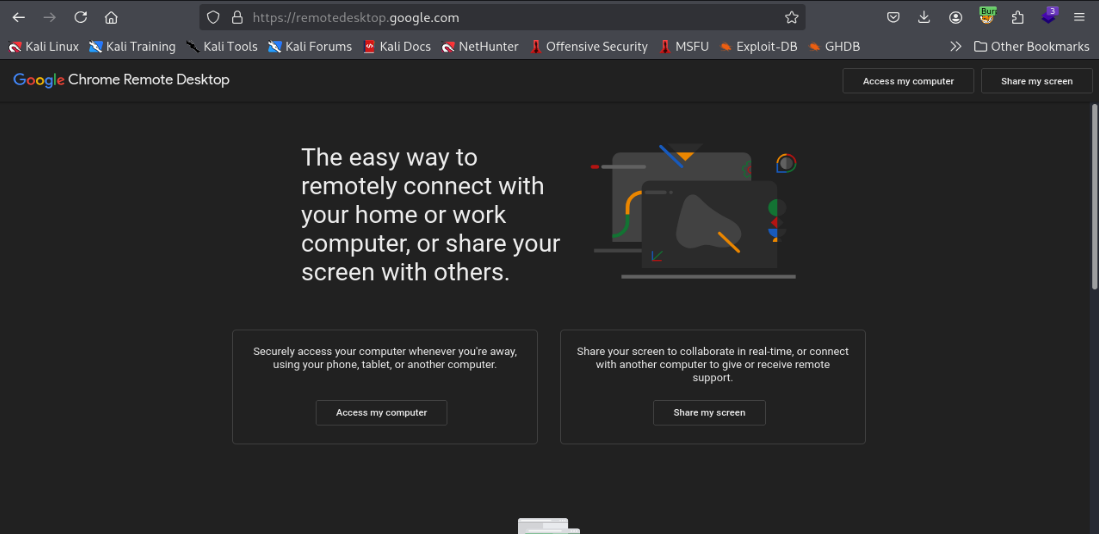
To set up CRD the standard way, navigate to remotedesktop.google.com. After signing in with a Google account, you are presented with two options: "Access my computer" (Remote Access) and "Share my screen" (Remote Support).
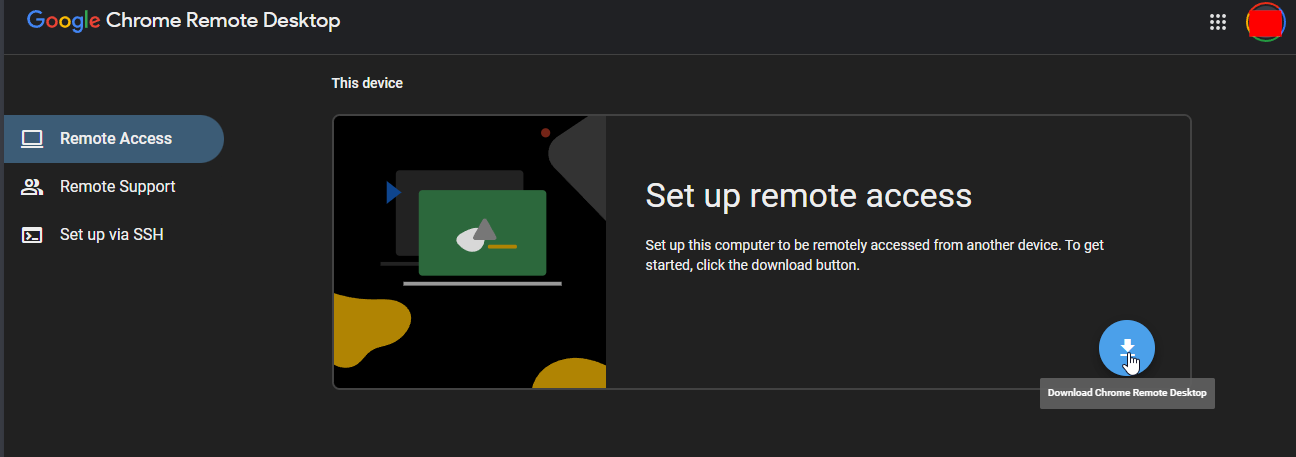
In the Remote Access page, clicking the download button installs the Chrome Remote Desktop extension from the Chrome Web Store.
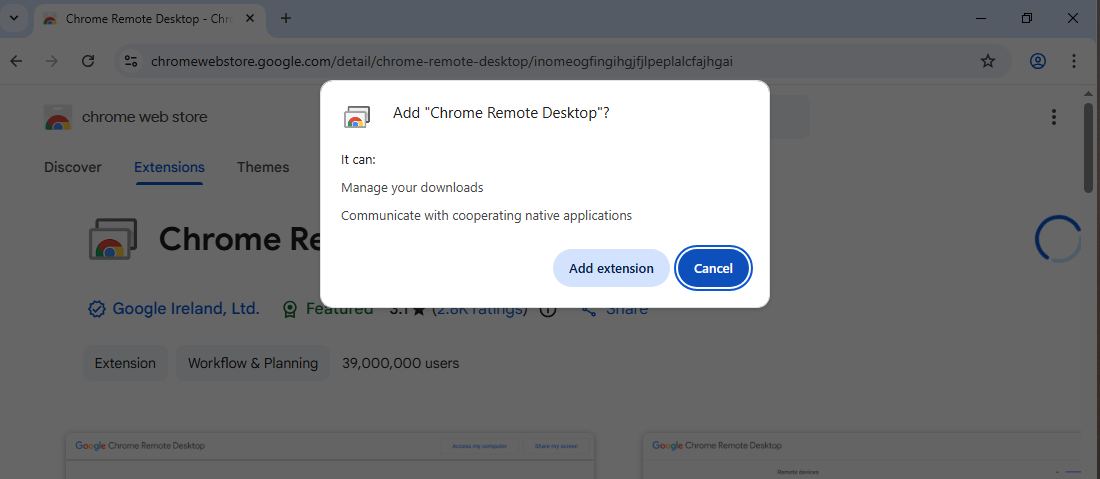
The extension requests permission to "Communicate with cooperating native applications", used to communicate with the native CRD host component installed on the machine. In modern implementations, Google has moved to a web-based interface where the native host service handles the actual remote session; the extension is no longer the primary client interface.
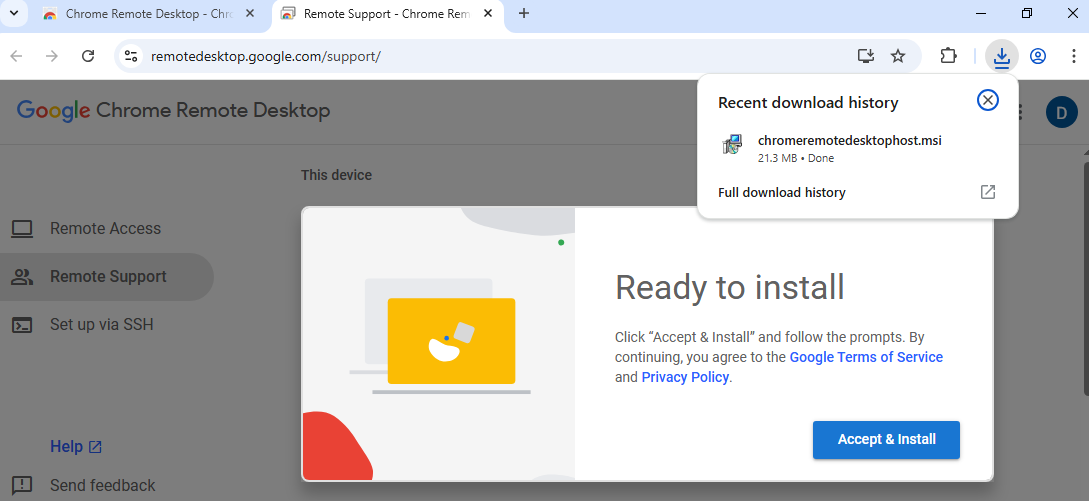
After installing the CRD browser extension, the MSI installer is downloaded automatically for the host component installation.
Installation Artifacts, Application Event Log
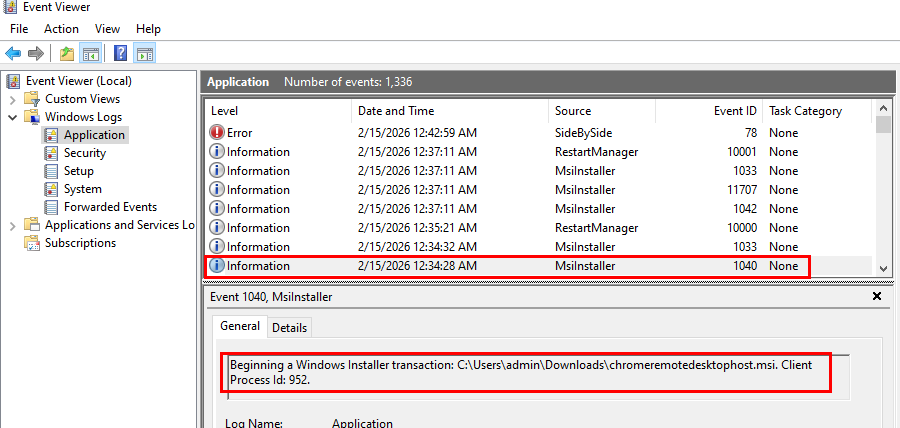
To detect the CRD Windows installer, look in the Application event log for Event ID 1040 from MsiInstaller, this reveals the MSI installer location and the beginning of the installation timestamp.
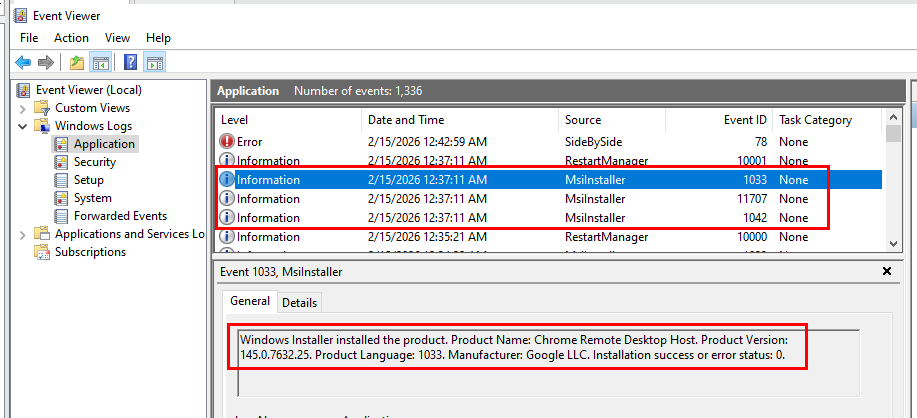
Follow up with Event IDs 1042, 11707, and 1033 to find the finished timestamp of the installation.
Installation Artifacts, System Event Log
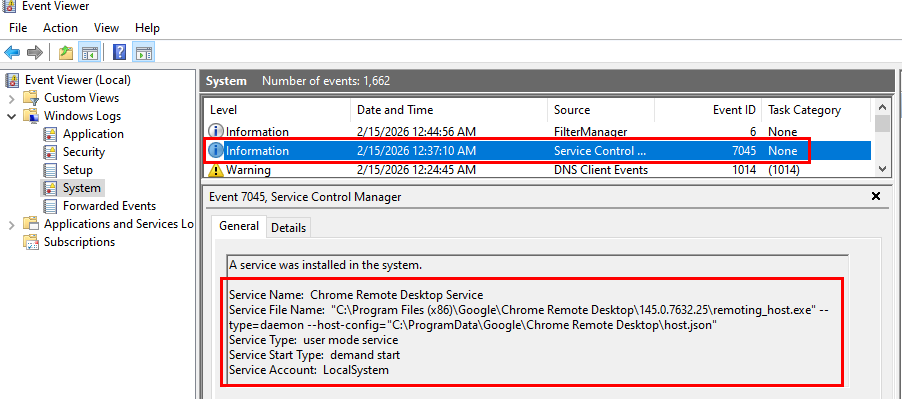
CRD creates a new service named "Chrome Remote Desktop Service". Look for Event ID 7045 in the System event log.
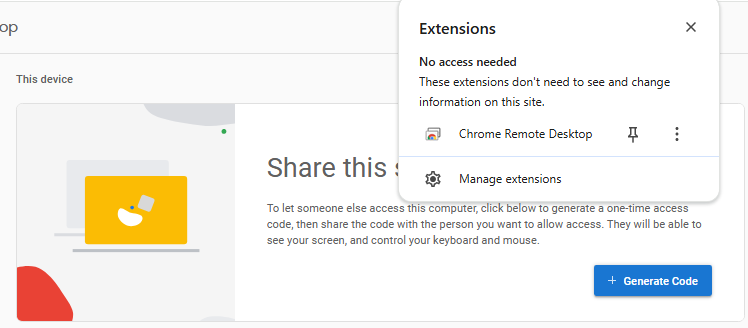
Back on the CRD site after successful installation, the Remote Support page shows a new "Generate Code" button, which leads us to the next section.
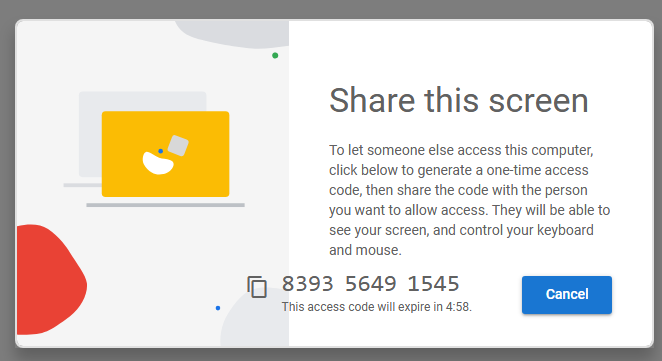
After CRD is installed, a 12-digit unique access code can be generated via the Remote Support page. This code expires within 5 minutes and is shared with the person providing remote assistance.
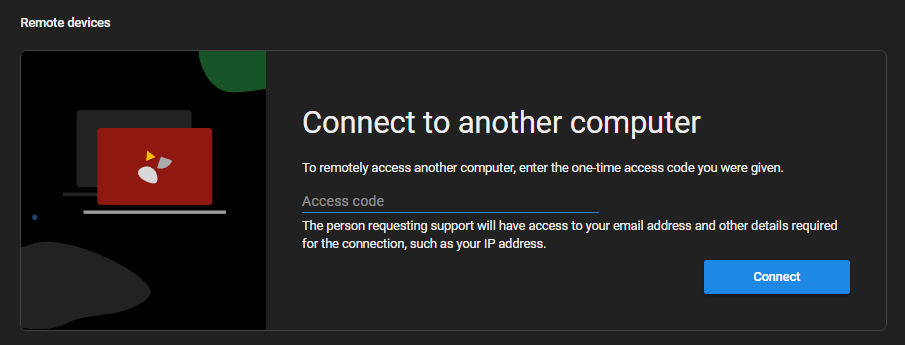
The helper (remote side) goes to the Remote Support page, enters the access code in the "Connect to another computer" box, and clicks Connect.
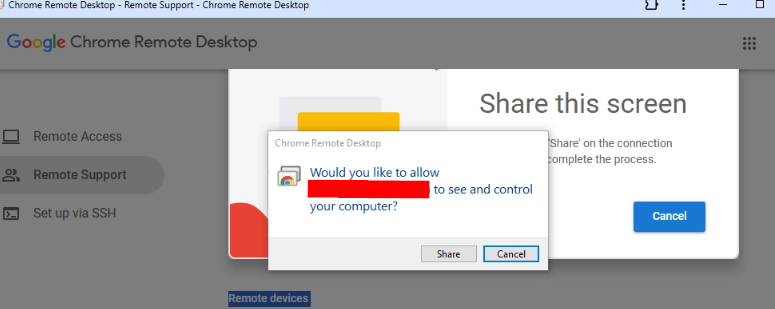
A connection request is sent to the device that generated the code. The user can choose to cancel (default) or click "Share" to allow remote access.
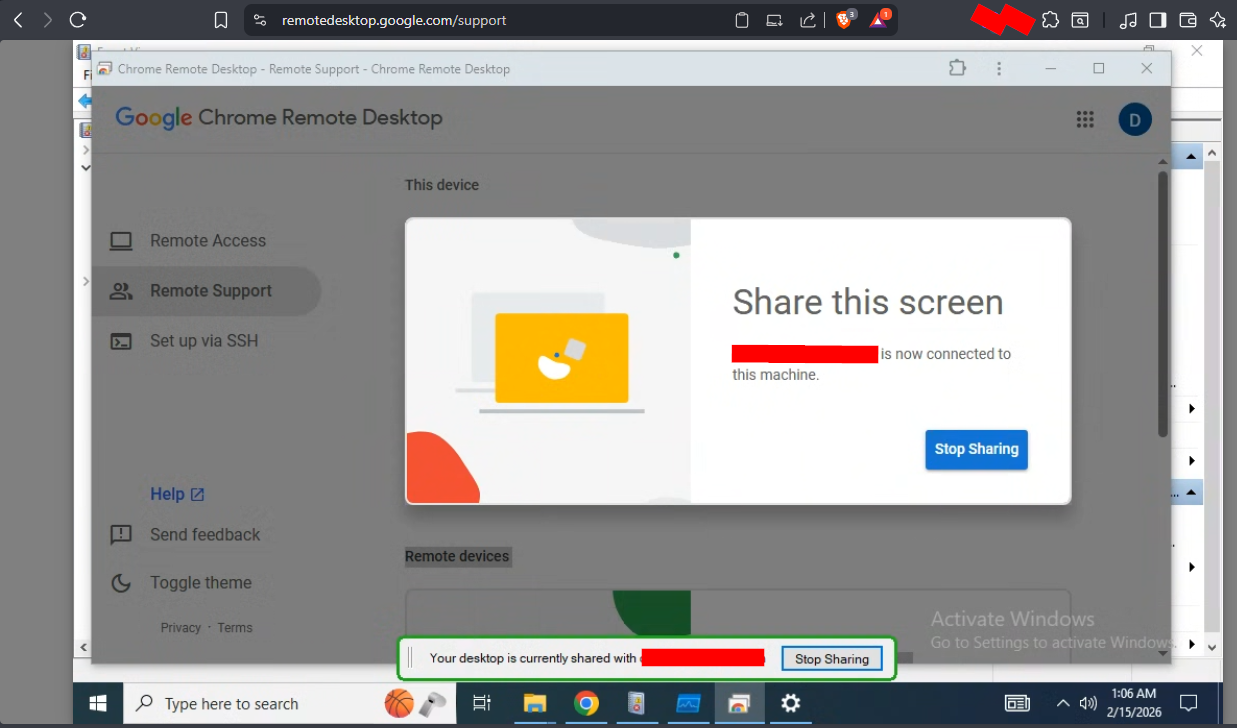
Once the user clicks Share, the remote user sees the target's screen. Notably, the remote user cannot interact with the taskbar or Event Viewer, limiting their ability to perform critical operations, which is intentional for a remote support scenario.
Process Artifacts
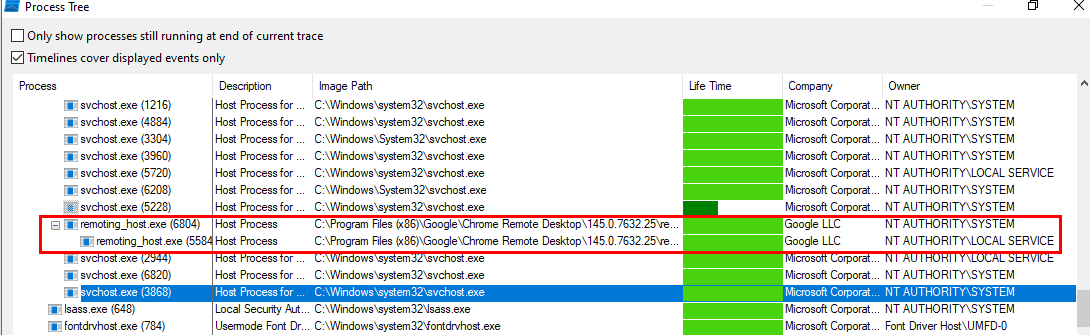
At least one remoting_host.exe runs as SYSTEM and LOCAL SERVICE, spawned from the CRD service.
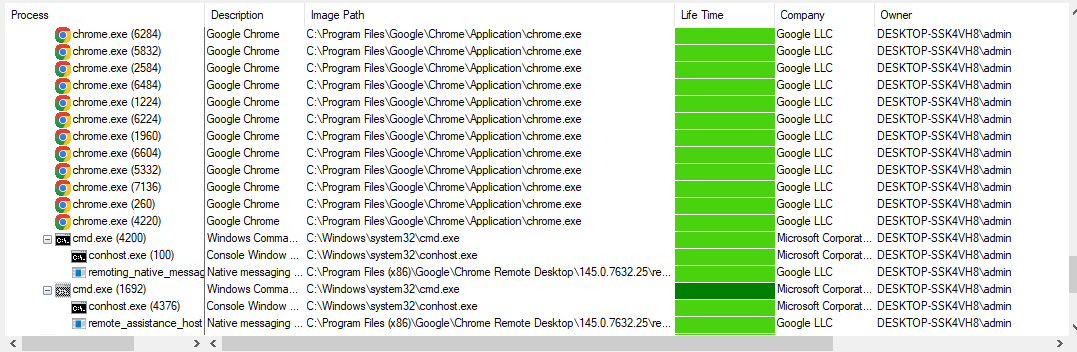
When a user manually accepts the connection via CRD, remoting_native_messaging.exe and remote_assistance_host.exe are spawned as child processes of cmd.exe, with chrome.exe as their grandparent.
Event Log Artifacts, chromoting Source
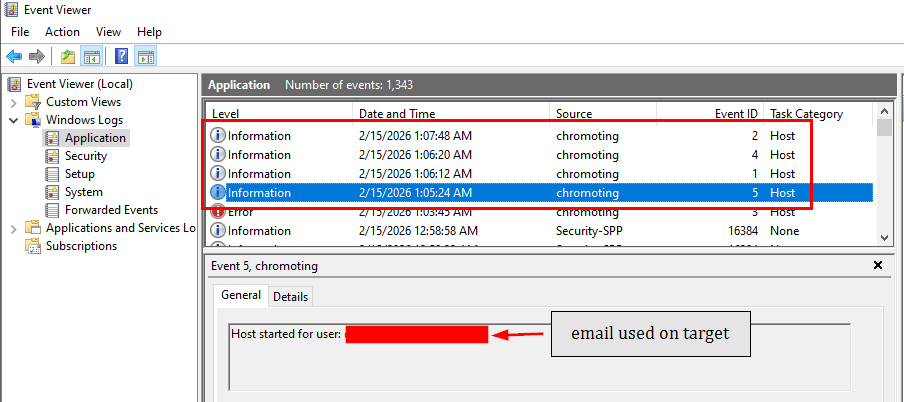
CRD logging is integrated into the Windows Application event log. Use Event ID 5 from the chromoting source to determine when the access code was generated and the email address of the user who generated it.
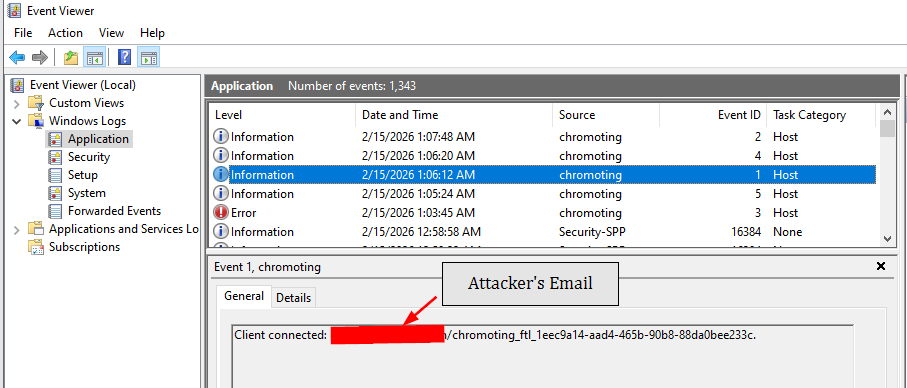
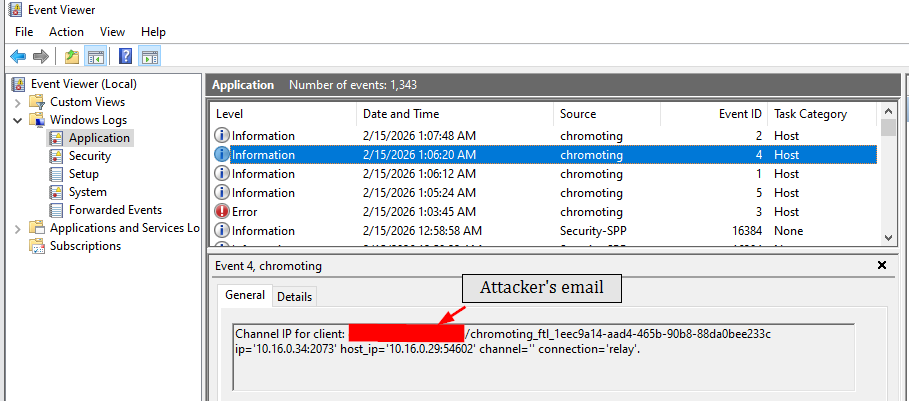
Once the user clicks Accept, Event ID 1 and Event ID 4 from chromoting are generated, both reveal the Gmail address used to remotely access the target machine.
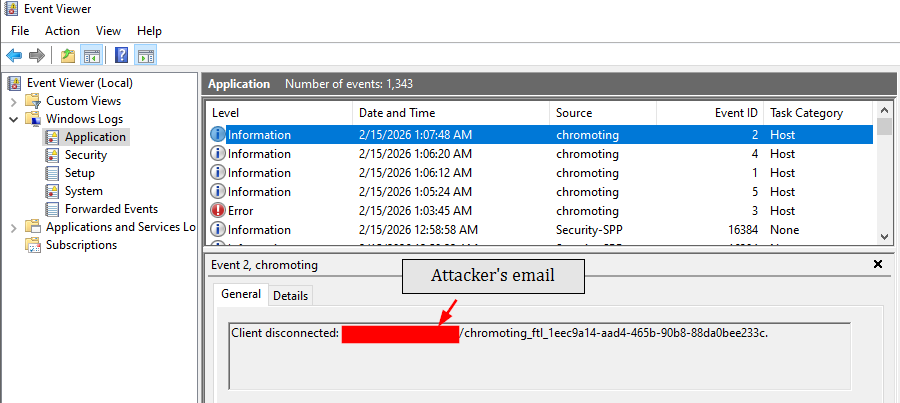
When the session terminates, Event ID 2 is logged with the same unique ID and email address of the remote user.
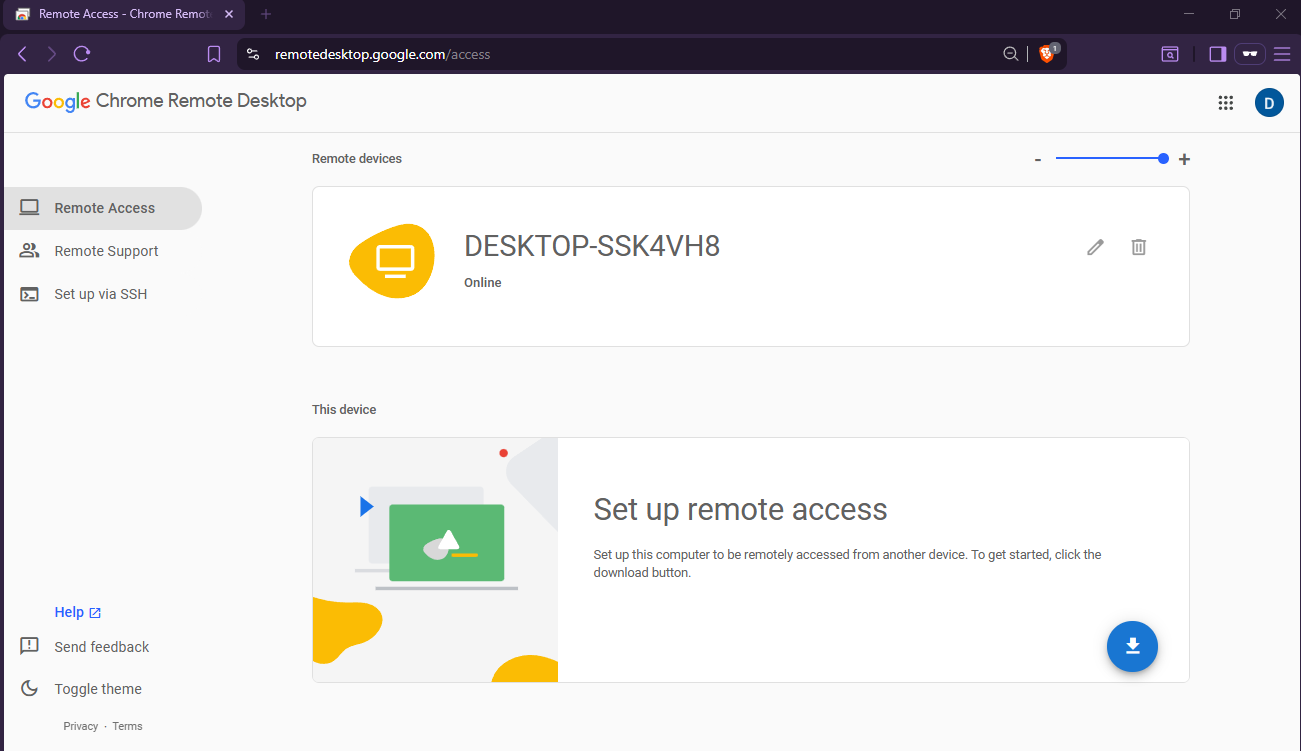
Beside Remote Support, CRD also supports unattended access (Remote Access). This allows you to access your computer remotely at any time using only a PIN, without requiring anyone on the other end. You must use the same Gmail account that was used to set up Remote Access to connect.
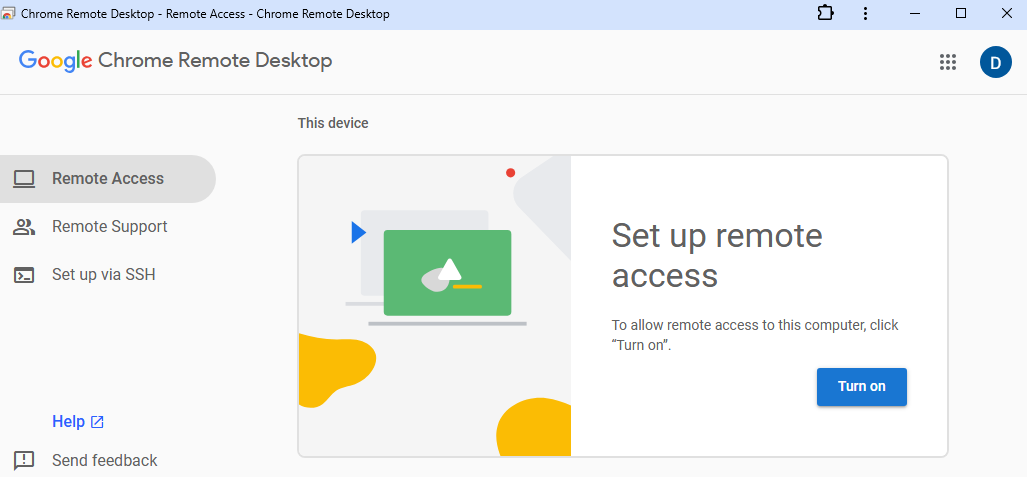
Navigate to the Remote Access page. With both the CRD browser extension and MSI host installed, you'll see the "Turn on" button.
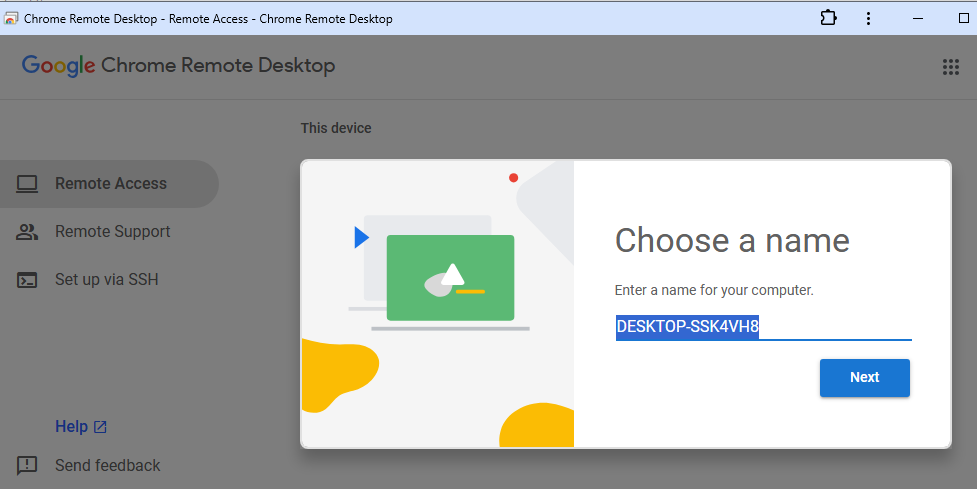
CRD prompts for a computer name to identify the machine. This name is visible in the CRD web interface when multiple computers are registered.
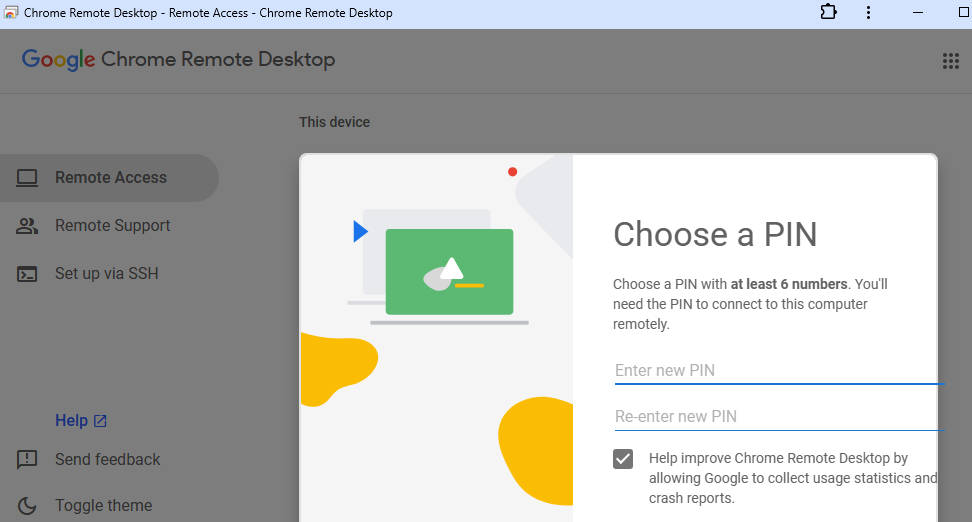
A PIN of at least 6 digits must be set to complete Remote Access setup.
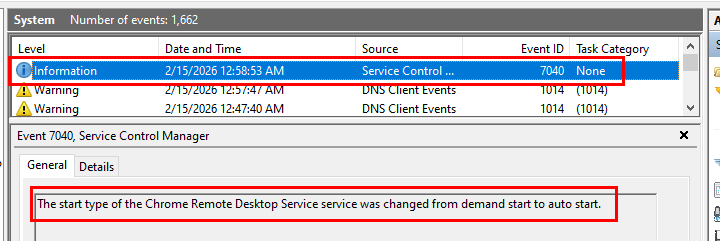
Once the PIN is set, the CRD service start type changes from demand start (manual) to auto start (always starts at boot). This change is logged as Event ID 7040 in the System event log, a critical artifact for detecting Remote Access configuration.
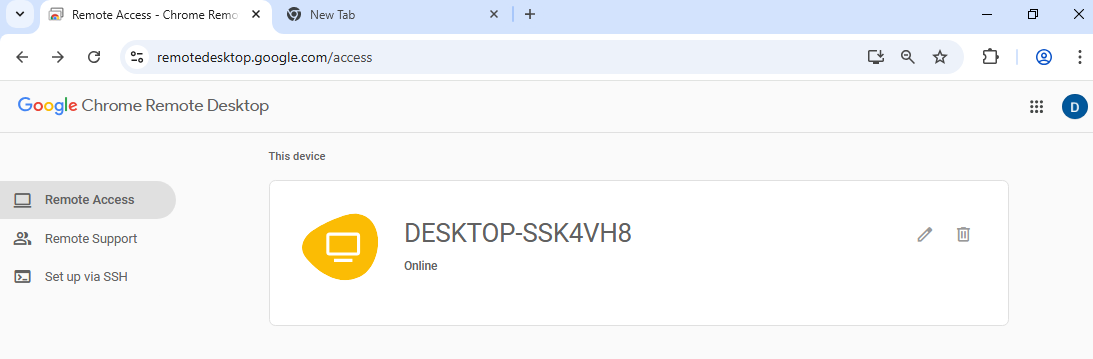
After setup, the computer appears in the CRD web page with an "Online" status. The Gmail account used for setup is the only one authorized to access this machine.
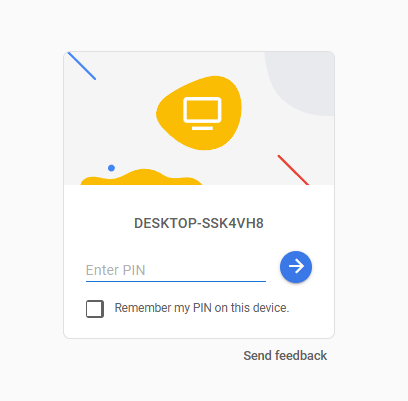
To demonstrate rogue access using the Remote Access feature, I connect from a different device. A PIN prompt is presented to authenticate.
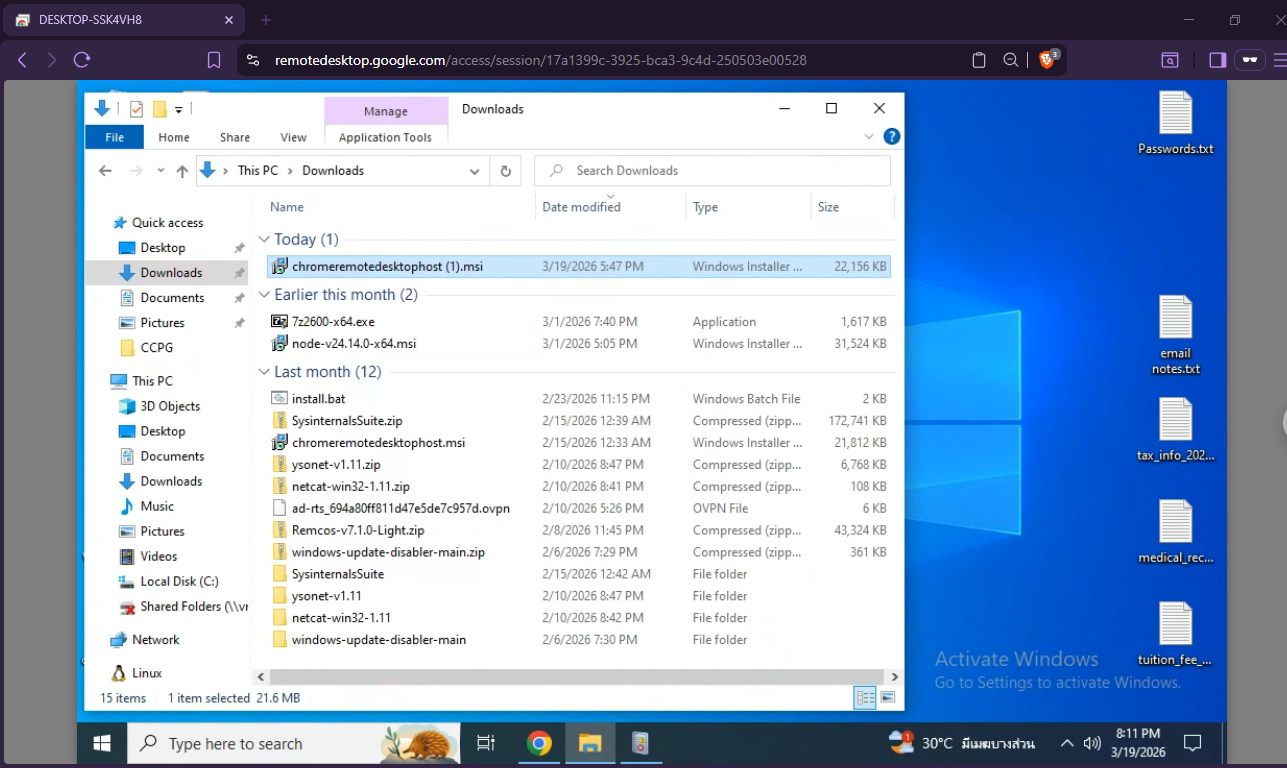
Once the correct PIN is provided, full control of the target machine is available with no heavy restrictions like those in Remote Support. Even closing the Chrome browser doesn't terminate the session, the CRD service instance continues running in the background.
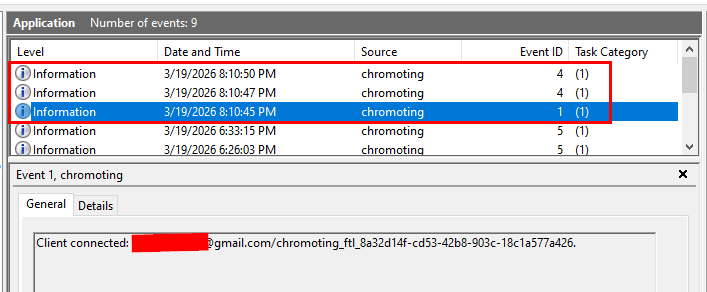
The Application event log artifacts for Remote Access are identical to Remote Support (Event IDs 1, 2, 4), but Event ID 5 is absent since no access code is generated. The Gmail address used to connect appears in Event IDs 1 and 4.
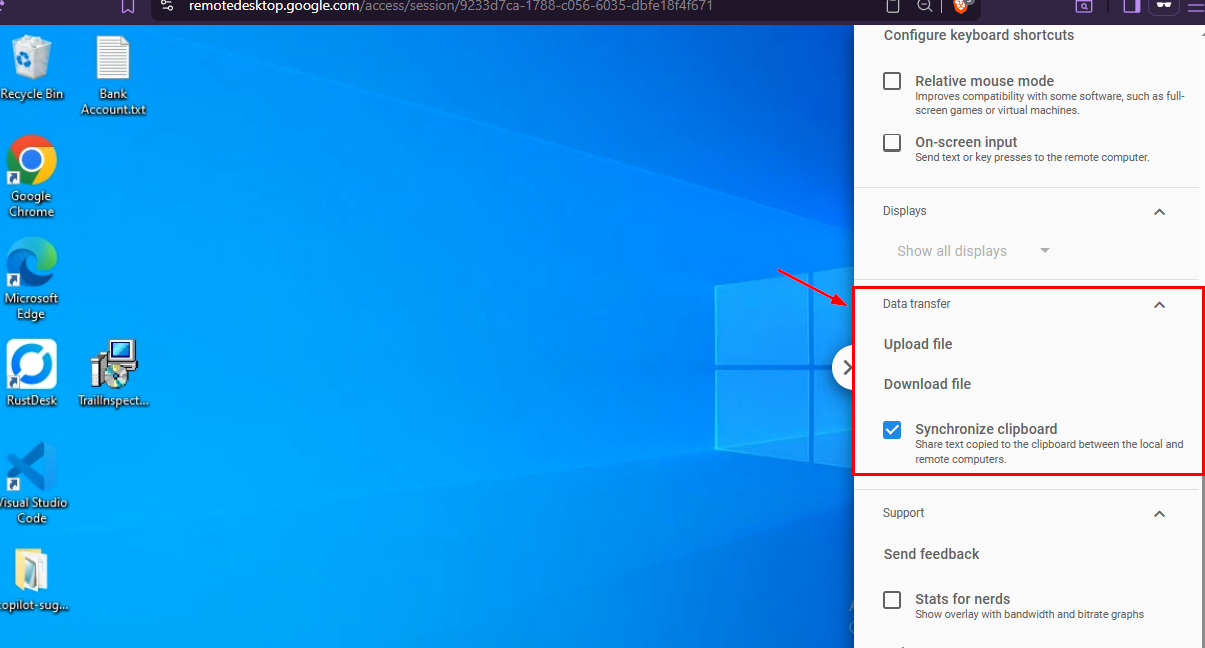
Over a Remote Access session, a file transfer feature is available in the toolbar. This is not available during Remote Support, Remote Access is treated as the user's own machine with full control.
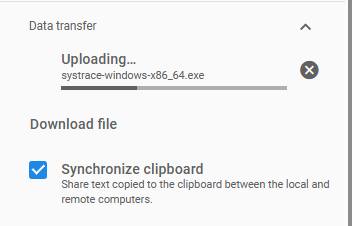
To demonstrate, I uploaded 2 files and initiated 2 downloads, canceling one midway to observe the difference in artifacts.
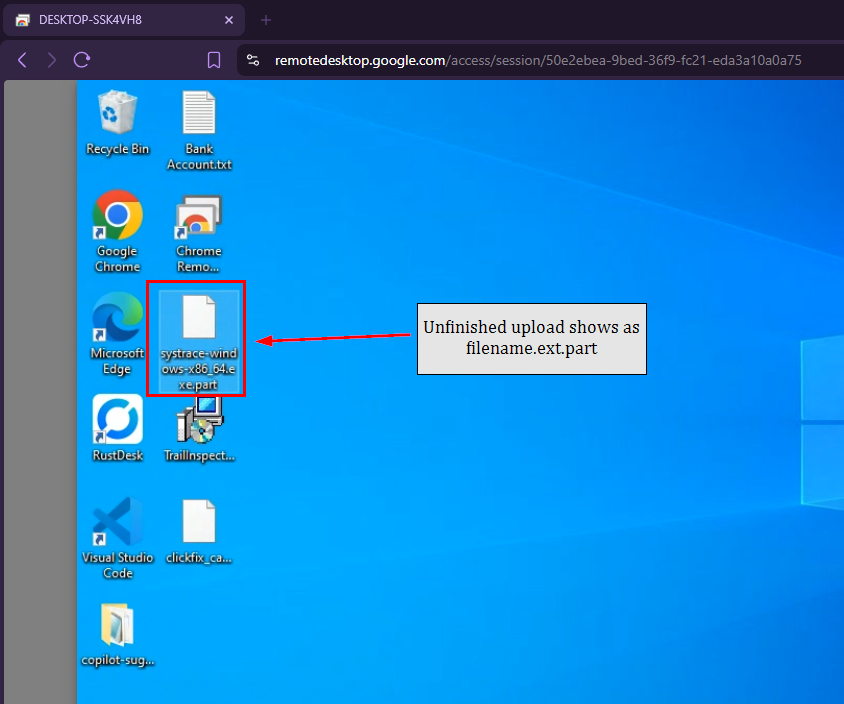
During the file transfer process, a file with the same name as the original but with a .part extension is created. Once the transfer completes, the .part extension is removed. A canceled download leaves a .part file on disk, a useful forensic indicator.
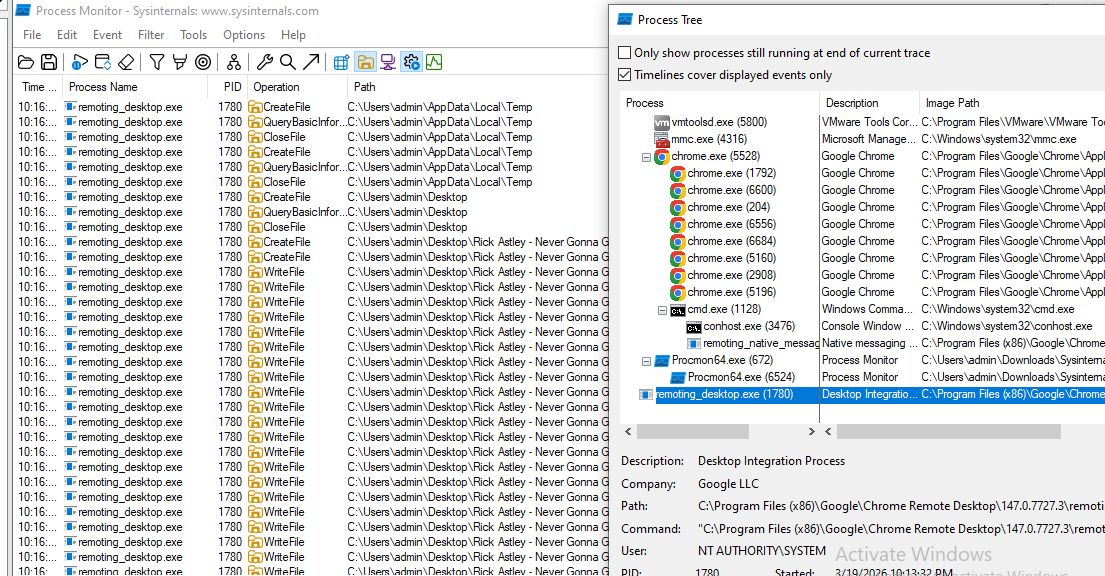
Using Process Monitor, every transferred file is created by remoting_desktop.exe running under NT AUTHORITY\SYSTEM.
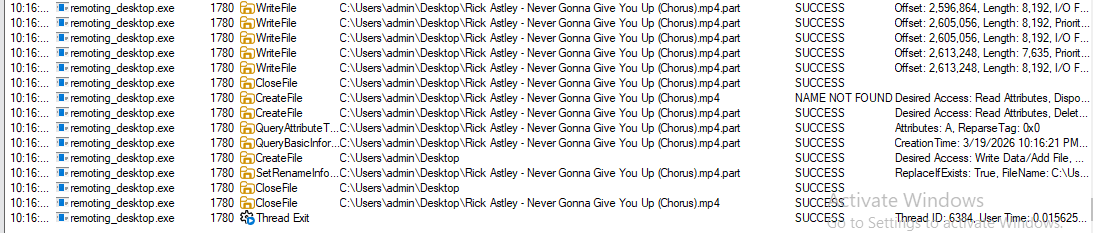
Process Monitor confirms the .part extension is created first, then renamed to the original filename on completion.
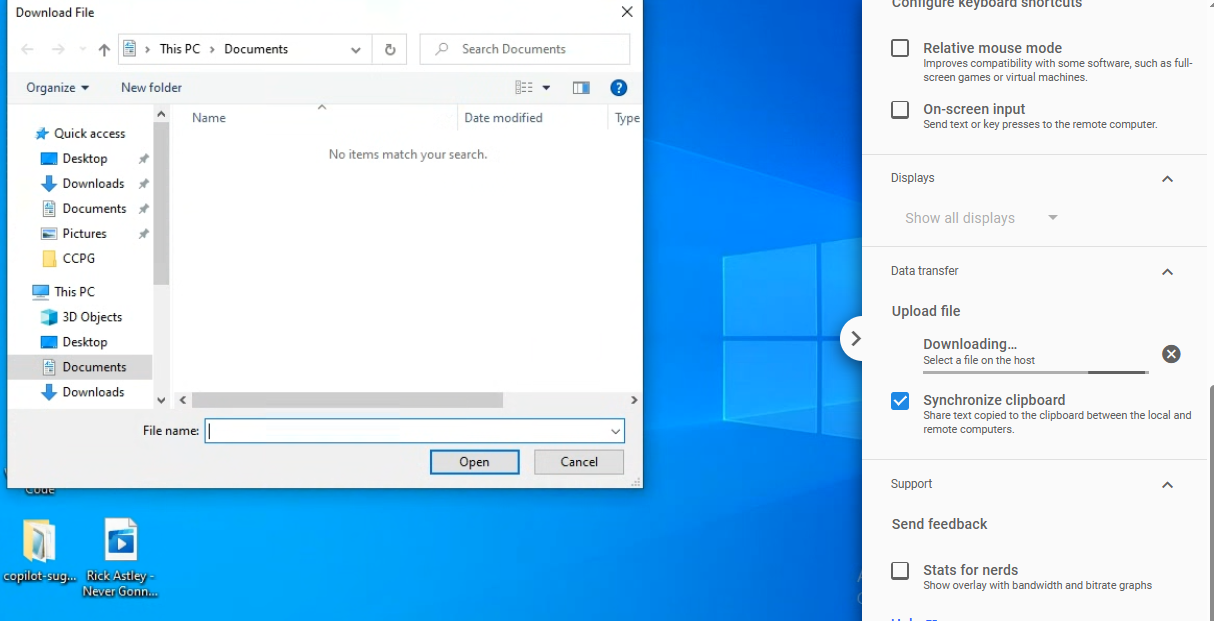
Both download and upload activities are not logged anywhere in event logs or application logs. To detect file uploads: use file creation events (file created by remoting_desktop.exe as SYSTEM). To detect file downloads: rely on network activity monitoring.
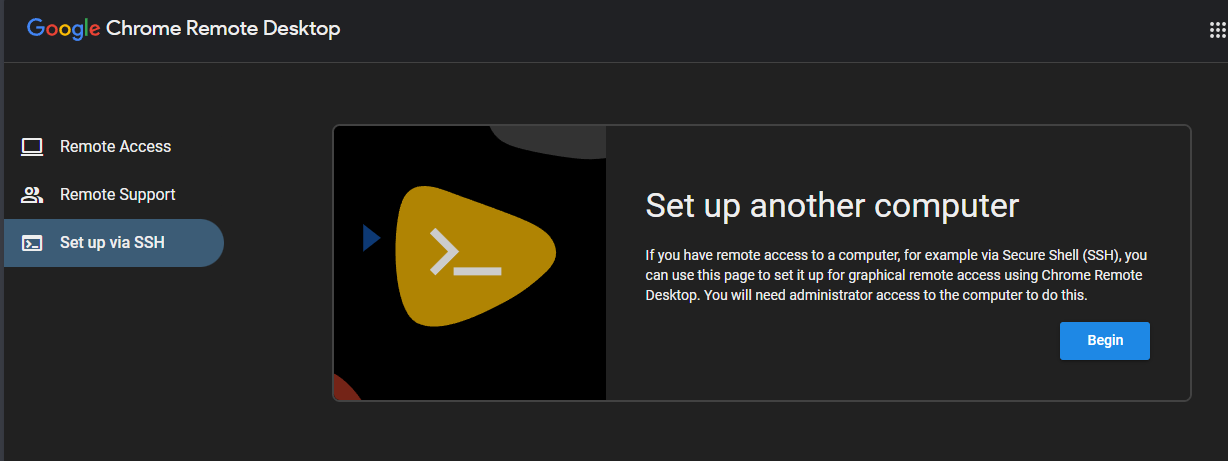
Besides the standard web-based setup, CRD can also be installed and configured entirely via CLI. The MSI installer is available from the "Set up via SSH" page. TrustedSec has a detailed write-up on abusing CRD for red team operations: trustedsec.com.
The CLI setup produces the same forensic artifacts as the GUI setup, just triggered from the command line:
Installation Artifacts
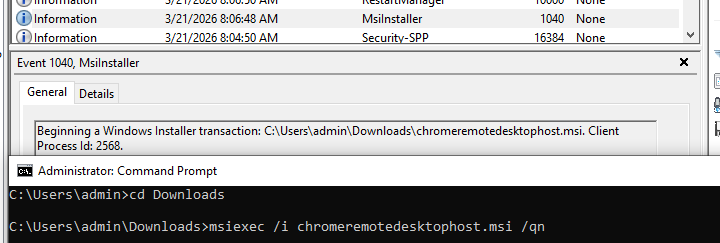
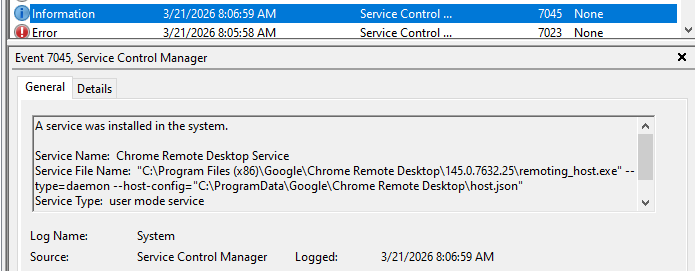
CLI installation still produces Event ID 1040 in the Application log and Event ID 7045 in the System log.
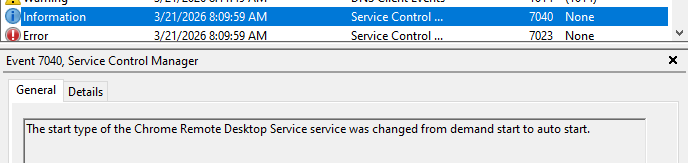
Event ID 7040 (service start type change to auto) is also generated when Remote Access is configured via CLI.
Connection Artifacts
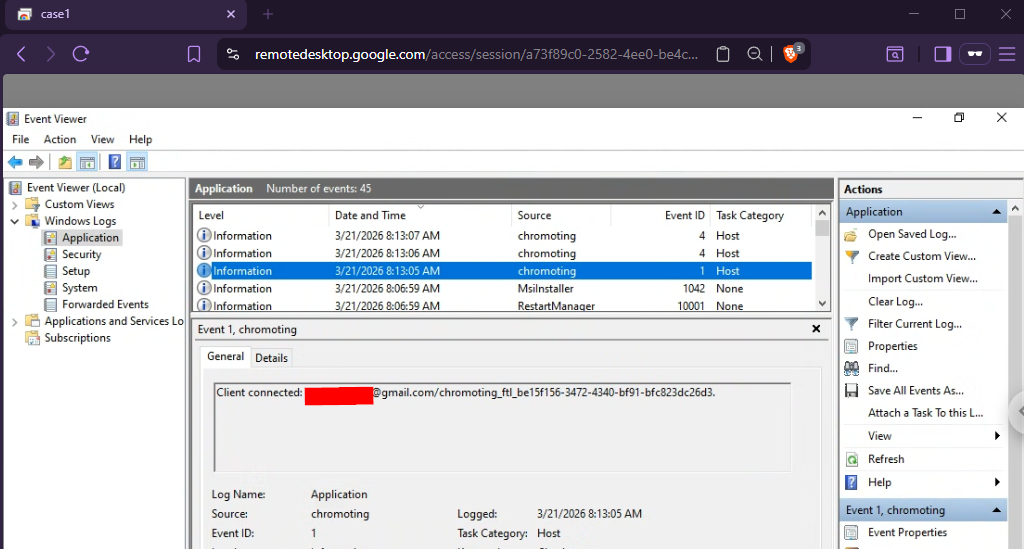
For any remote connection, the Application event log entries are identical to the GUI setup.
host.json, Remote Access Configuration File
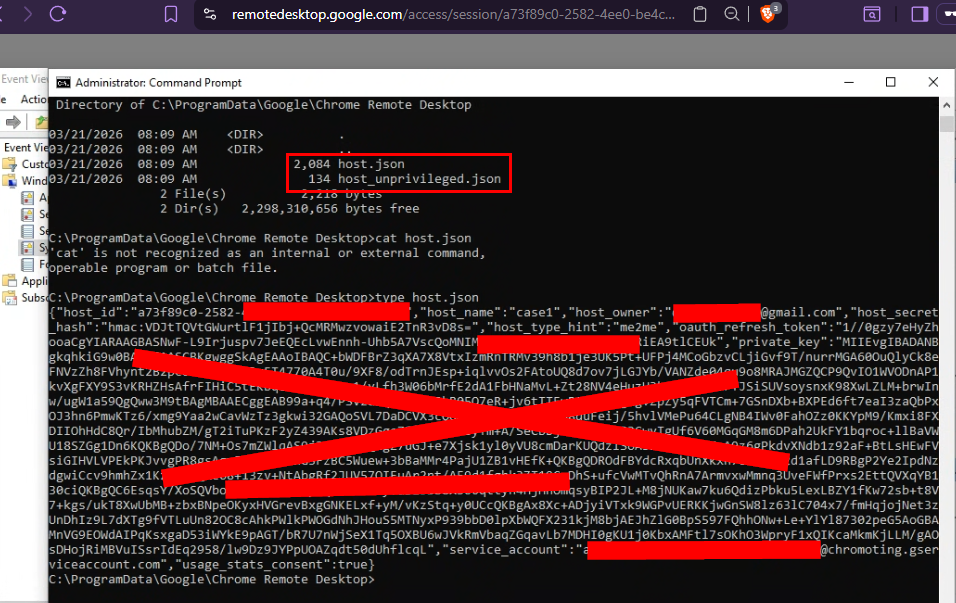
When Remote Access (unattended access) is configured, a host.json file is created at C:\ProgramData\Google\Chrome Remote Desktop. This file contains:
- The host_id of this host
- The name assigned to this host
- The Gmail address authorized to access this host
This is a high-value forensic artifact, it directly identifies the attacker's email address used to set up unauthorized remote access.
CRD Binary Location
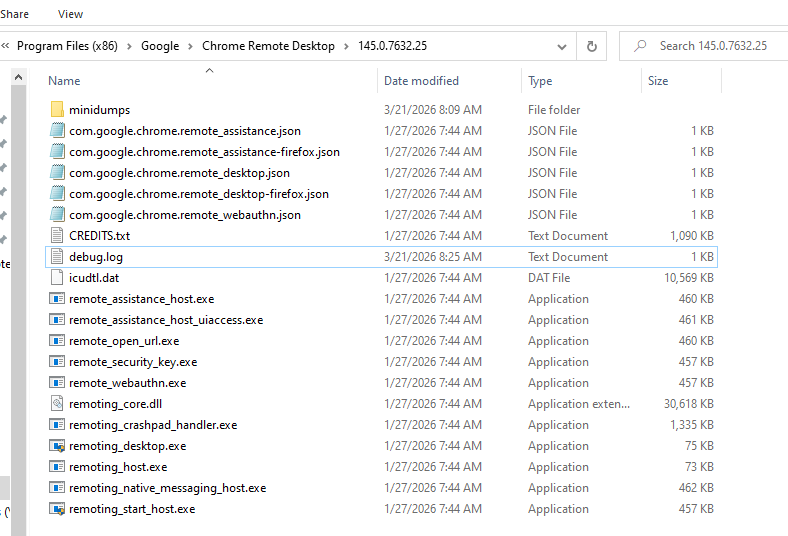
All CRD binaries are located in C:\Program Files (x86)\Google\Chrome Remote Desktop and are signed by Google LLC.
Quick Reference, Key Artifacts
| Activity | Log Location | Event ID / Artifact |
|---|---|---|
| Service installation | System event log | Event ID 7045 |
| MSI installation | Application event log | Event ID 1040 |
| Remote Access setup (auto-start) | System event log | Event ID 7040 |
| Access code generated | Application event log | Event ID 5 (chromoting) |
| Connection established | Application event log | Event ID 1 + Event ID 4 (chromoting) |
| Connection terminated | Application event log | Event ID 2 (chromoting) |
| Authorized Gmail + host info | C:\ProgramData\Google\Chrome Remote Desktop\host.json | host_id, name, Gmail |
| CRD browser extension | C:\Users\%username%\AppData\Local\Google\Chrome\User Data\Default\Extensions\inomeogfingihgjfjlpeplalcfajhgai\ | Extension directory |