Investigating GotoHTTP on Windows: Behavior, Forensic Artifacts & Detection
Hey everyone, Chicken0248 here. In this post, I'll be sharing my research on investigating GotoHTTP, a cross-platform Remote Monitoring and Management (RMM) tool that, once deployed on a target endpoint, behaves very much like a Remote Access Trojan (RAT). The entire session can be controlled through a web browser, which makes it both operationally convenient for attackers and an interesting target for forensic investigation.
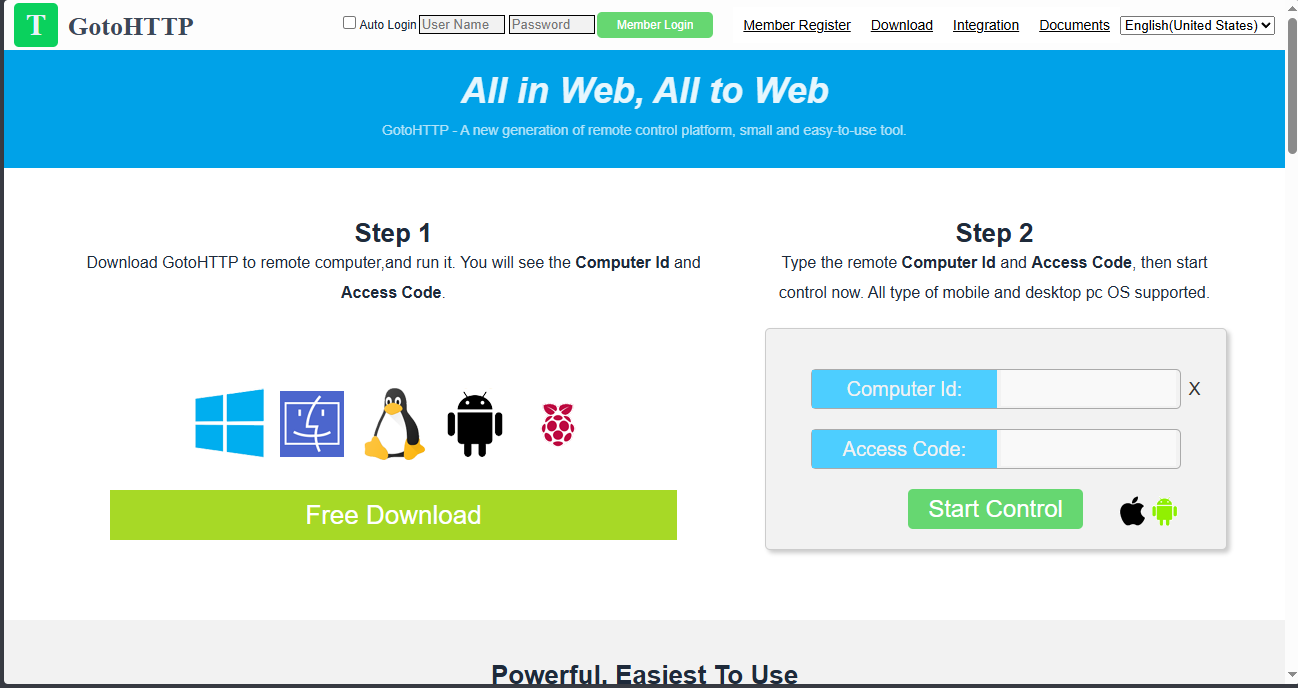
To control a machine running a GotoHTTP instance, or to download its binary, you can visit gotohttp.com and use the web interface from there.
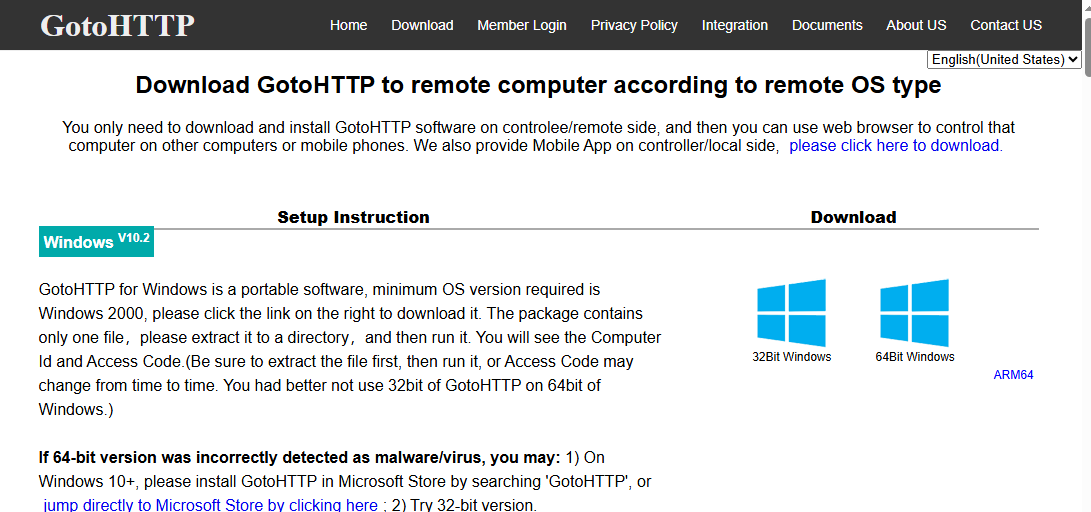
The GotoHTTP client binary is available at https://gotohttp.com/goto/download.12x. It supports a wide range of platforms: Windows, Linux (both ARM and AMD64), macOS, Android, and even Raspberry Pi.

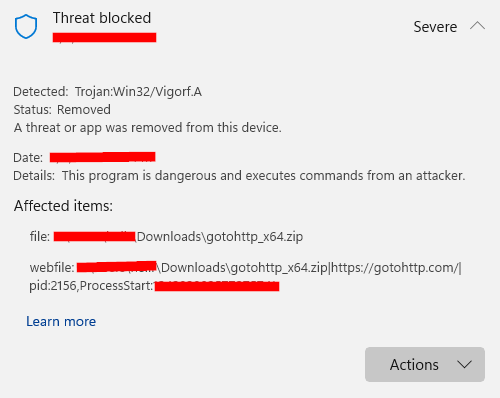
On Windows, Defender flags and blocks the binary immediately upon download. This is a bit unusual, Defender typically leaves other RMM tools like AnyDesk or TeamViewer alone. The aggressive detection likely reflects GotoHTTP's track record in malicious campaigns. In most legitimate environments, remote support is handled via TeamViewer, AnyDesk, Quick Assist, or RDP, so there is very little reason for GotoHTTP to appear on a corporate endpoint.
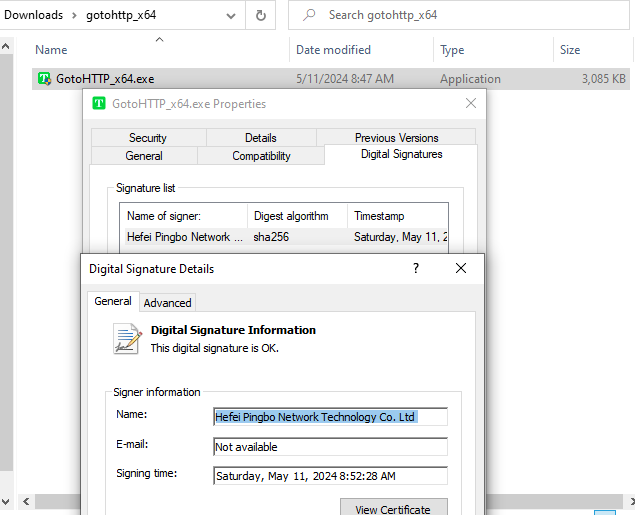
Once downloaded (with Defender exclusion or in a lab environment), the Windows binary is a self-contained standalone executable, no installer, no additional dependencies. It is digitally signed by "Hefei Pingbo Network Technology Co. Ltd.", indicating Chinese origin. The GotoHTTP website contains Chinese text and references an ICP filing.
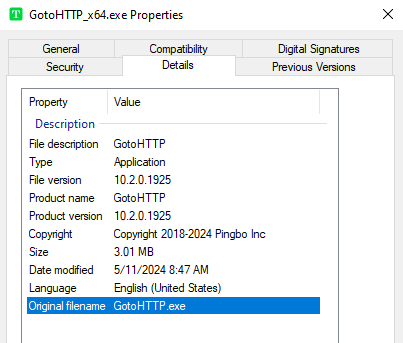
The original filename is GotoHTTP.exe, with both the Product Name and File Description fields set to "GotoHTTP."
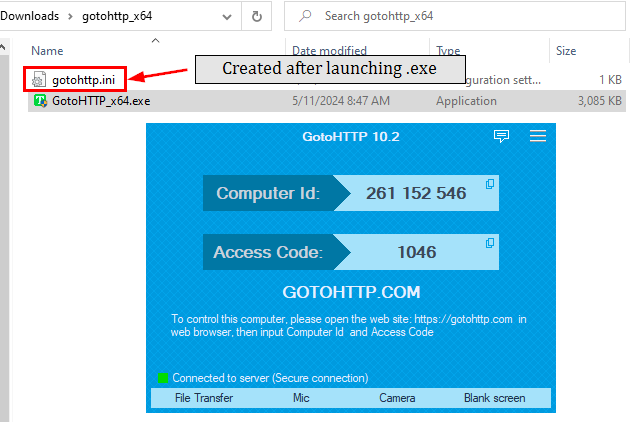
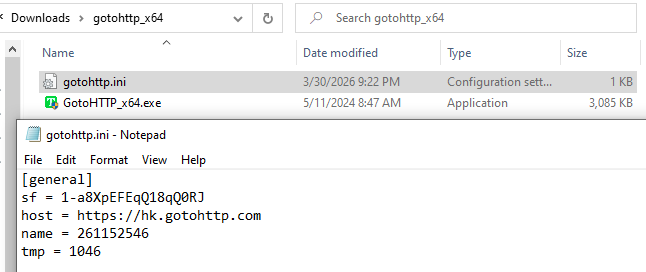
GotoHTTP is designed to run as Administrator. On first launch, the binary contacts the relay server to retrieve a Computer ID (9-digit code) and an Access Code (4-digit code). It then creates a configuration file, gotohttp.ini, in the same directory as the binary. This file contains four fields: sf (purpose unclear, likely a session or fingerprint value), host (the relay server, the observed subdomain was hk, suggesting a Hong Kong relay), name (the Computer ID), and tmp (the Access Code).
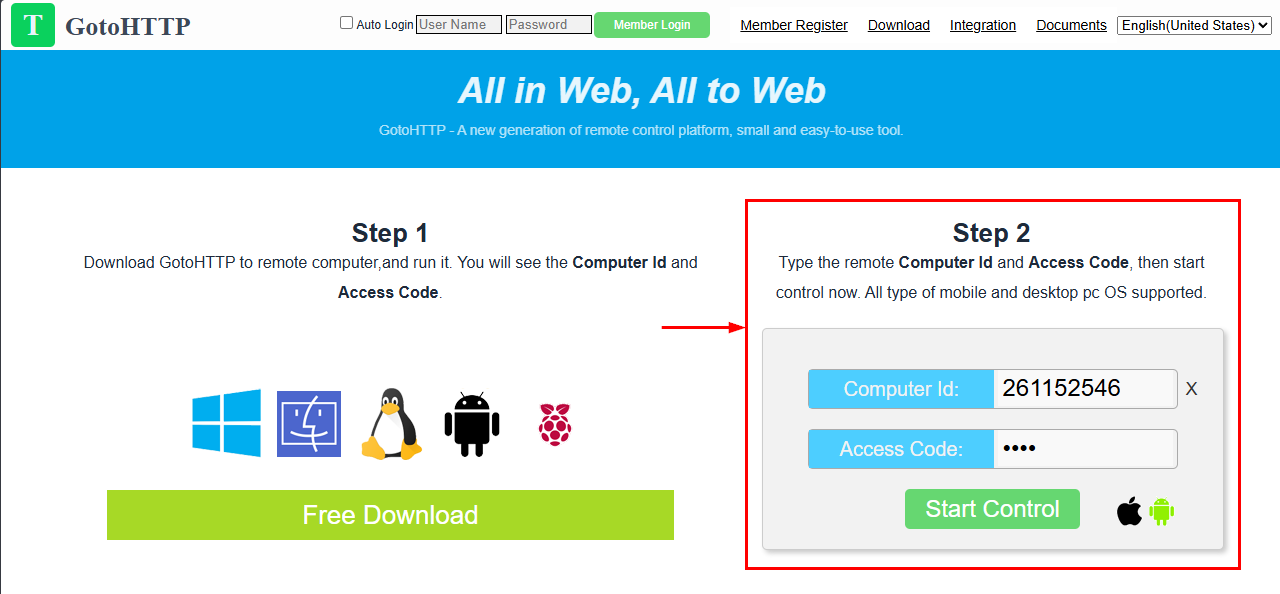
To connect to a running GotoHTTP instance, the operator navigates to the GotoHTTP website, enters the Computer ID and Access Code, and clicks "Start Control", gaining full administrator-level remote access. No prompt or consent is required on the victim's side.
Before diving into what happens over an active session, let's first look at what the binary does immediately after launch.
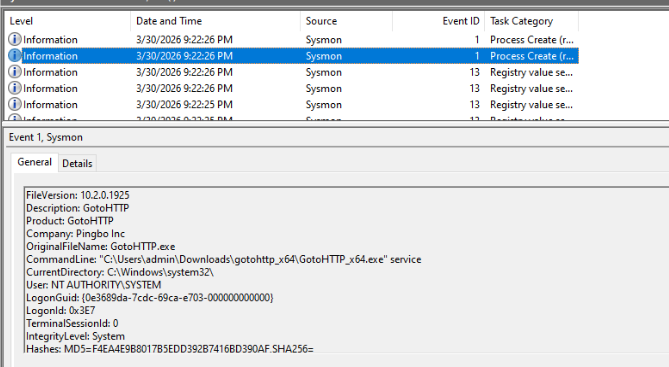
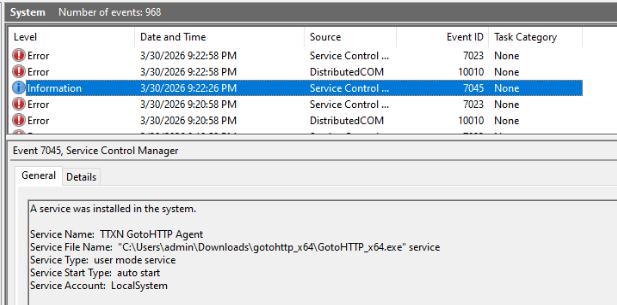
When executed with administrator privileges, GotoHTTP escalates to SYSTEM and relaunches itself with the server argument. This creates a Windows service named "TTXN GotoHTTP Agent" with an auto-start configuration, running as SYSTEM on every boot without any user interaction. This service creation event is a key forensic indicator, alongside the gotohttp.ini file creation.
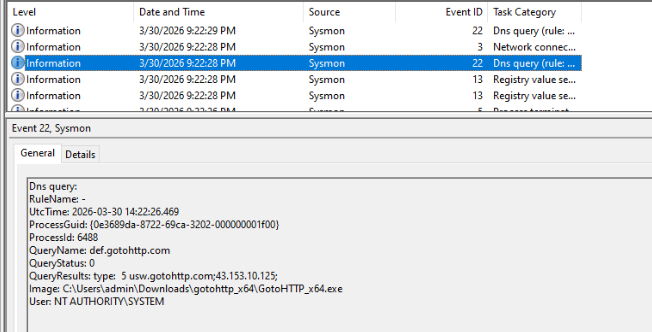
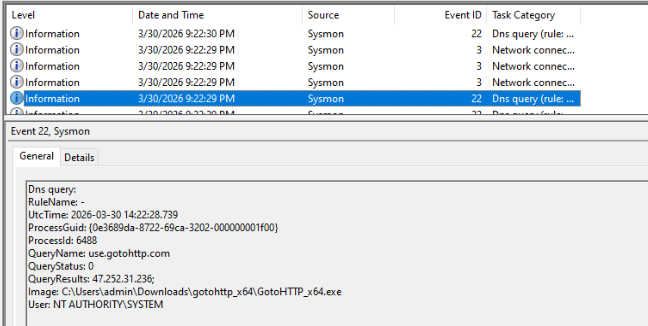
From a network perspective, the most reliable indicator is DNS queries to *.gotohttp.com. Since GotoHTTP is entirely browser-controlled via an HTTP relay, these queries will be present whenever the agent is running or being actively controlled.
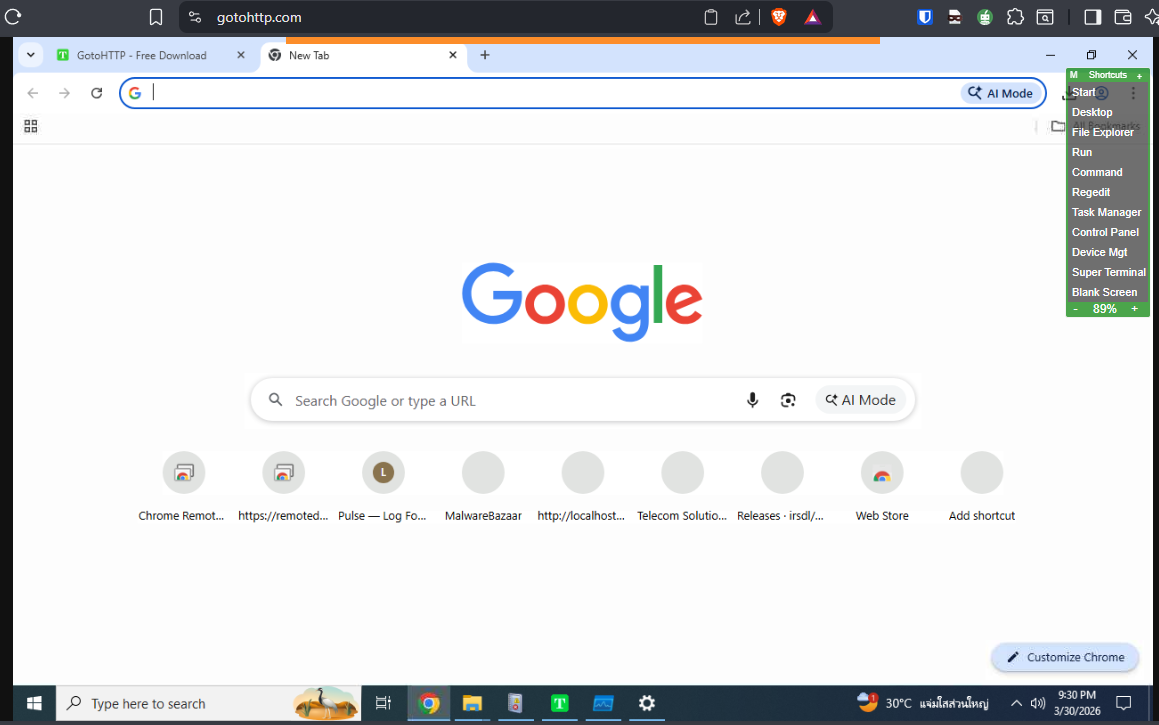
Once connected, there is no prompt or notification on the victim's side, this is unattended access by design, with full administrator privileges. On the controller's browser panel, a suite of one-click shortcuts is available:
- Open Start Menu
- Go to Desktop
- Open File Explorer
- Open Run Dialog
- Open Command Prompt
- Open Registry Editor (
regedit) - Open Task Manager
- Open Control Panel
- Open Device Manager
- Open SuperTerminal (covered below)
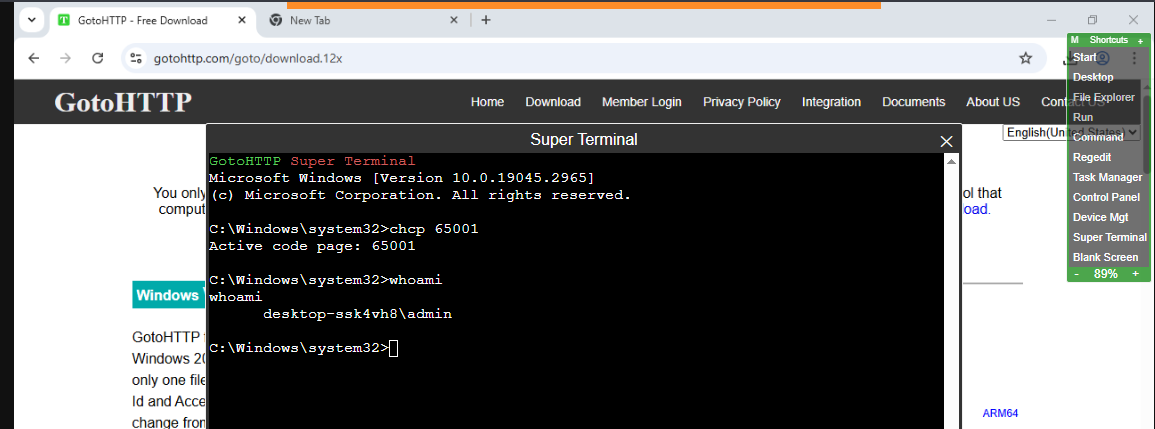
The SuperTerminal solves the window visibility problem. Opening a regular Command Prompt through screen sharing would be visible to the victim. The SuperTerminal renders entirely on the controller's side, executing commands on the victim machine and returning output without any visible window appearing on the client end.

Beyond screen sharing and the SuperTerminal, GotoHTTP includes built-in capabilities that put it firmly in RAT territory: audio capture, screenshots, file transfer, video chat, and the ability to send messages directly to the victim's screen.
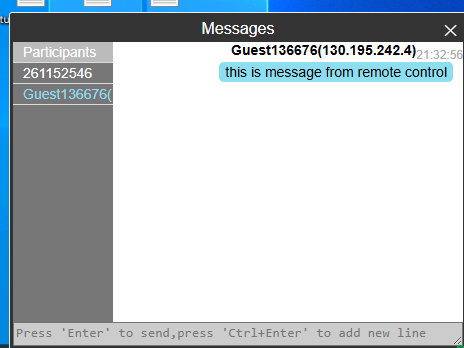
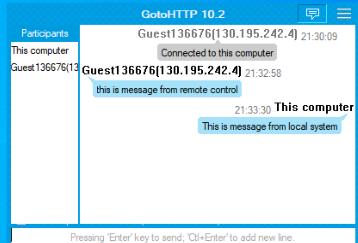
The built-in chat feature is illustrated above. Notably, no artifacts from this interaction are written to disk on the client side, the entire chat history lives in memory only.

If Sysmon or Security Event 4688 (with command-line auditing enabled) is deployed, every shortcut button click leaves a trace, the associated executable is spawned as a direct child process of the GotoHTTP binary. The SuperTerminal specifically produces cmd.exe with chcp.com 65001 as a child, which is a reliable behavioral indicator that the feature was used.
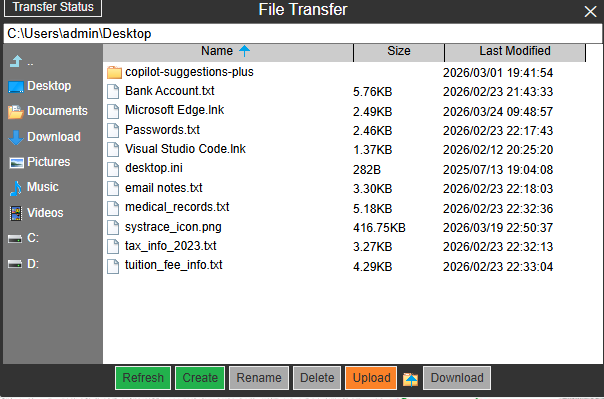
For file transfer, the operator has full read/write access to the victim's filesystem, download, upload, create, rename, and delete, through a clean browser-based UI.
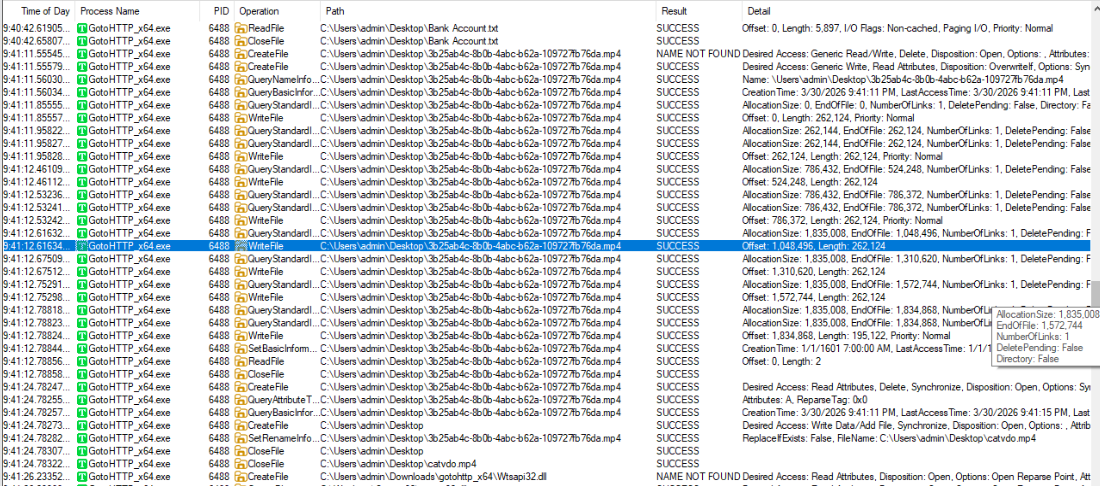
GotoHTTP generates no dedicated log entries or Windows events for file transfer operations. The only reliable ways to catch file activity are the USN Journal or a File Integrity Monitoring (FIM) solution. One useful behavioral pattern: uploaded files are initially written with the correct extension but a random unique filename, then renamed to the intended name only after the transfer completes. This two-step write-then-rename sequence can be correlated through USN Journal records or FIM alerts.
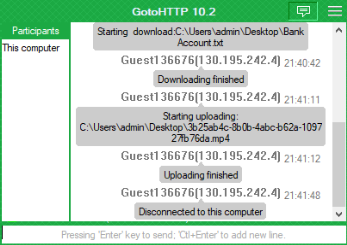
If GotoHTTP is still running at investigation time, file transfers are visible in the chat panel. However, no chat history is persisted to disk, once the process is terminated, that evidence is gone permanently.
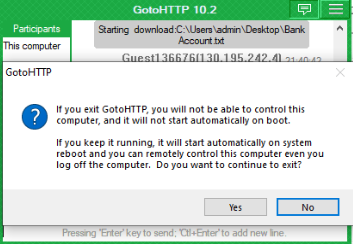
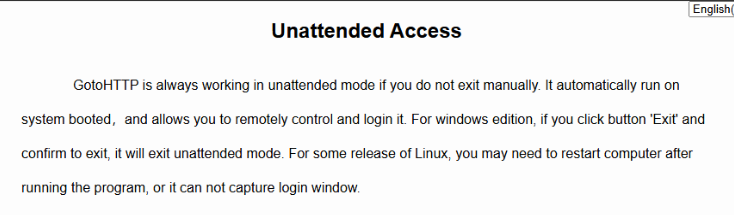
When the operator closes the GotoHTTP window, a popup warns that keeping the application running will auto-start it on the next boot, while closing it removes that persistence, though the service entry remains.
GotoHTTP's artifact footprint is minimal by design, no session logs, no chat history on disk, no file transfer events in standard Windows logs. Detection relies on telemetry quality.
Consolidated indicators and detection opportunities for GotoHTTP abuse on Windows endpoints:
gotohttp.inicreation in the same directory as the GotoHTTP binary, contains relay host, Computer ID, and Access Code- DNS queries and connections to
*.gotohttp.com, detectable via DNS logging, firewall logs, or network monitoring - Windows service creation, "TTXN GotoHTTP Agent", auto-start, SYSTEM context (Event ID 7045)
- Child process anomalies, system utilities (
regedit.exe,taskmgr.exe,cmd.exe, etc.) spawned as children of the GotoHTTP binary (Sysmon Event ID 1 / Security Event 4688 with command-line logging) - SuperTerminal indicator,
cmd.exespawningchcp.com 65001as a child of GotoHTTP - USN Journal or FIM alerts, random-named temp files appearing then being renamed to their final filename, indicating an in-progress file upload via the transfer module
GotoHTTP is a lean, capable, and dangerously easy-to-deploy RMM tool that blurs the line between legitimate remote support software and a fully-featured RAT. Its broker-relay architecture, unattended access model, SYSTEM-level persistence via service installation, and built-in SuperTerminal make it attractive for threat actors who want to avoid deploying custom malware.
From a defensive standpoint, the artifact footprint is minimal by design, no session logs, no chat history on disk, no file transfer events in standard Windows logs. Detection relies almost entirely on getting your telemetry right: DNS visibility, service creation monitoring, and process tree analysis via Sysmon. If you're not collecting those, GotoHTTP can operate with very little noise.
Know your environment, baseline your RMM tool usage, and flag anything that doesn't belong.
Thanks for reading, see you on the next one. peace! ✌️