Deep dive into RustDesk RMM Investigation & Forensics on Windows
Hello everyone, it's me Chicken0248 again. In this blog I'll share my research on investigating RustDesk RMM, covering its normal behavior, installation artifacts, CLI capabilities, connection forensics, file transfer investigation, and configuration decryption.
RustDesk is an open-source cross-platform remote desktop software written in Rust that also offers self-hosting capability. It allows users to remotely control another device over a network by specifying the target device's ID. Because it is cross-platform, the remote device does not need to run the same OS, as long as RustDesk is installed and running with the correct ID provided, a remote session can be established regardless of the OS.
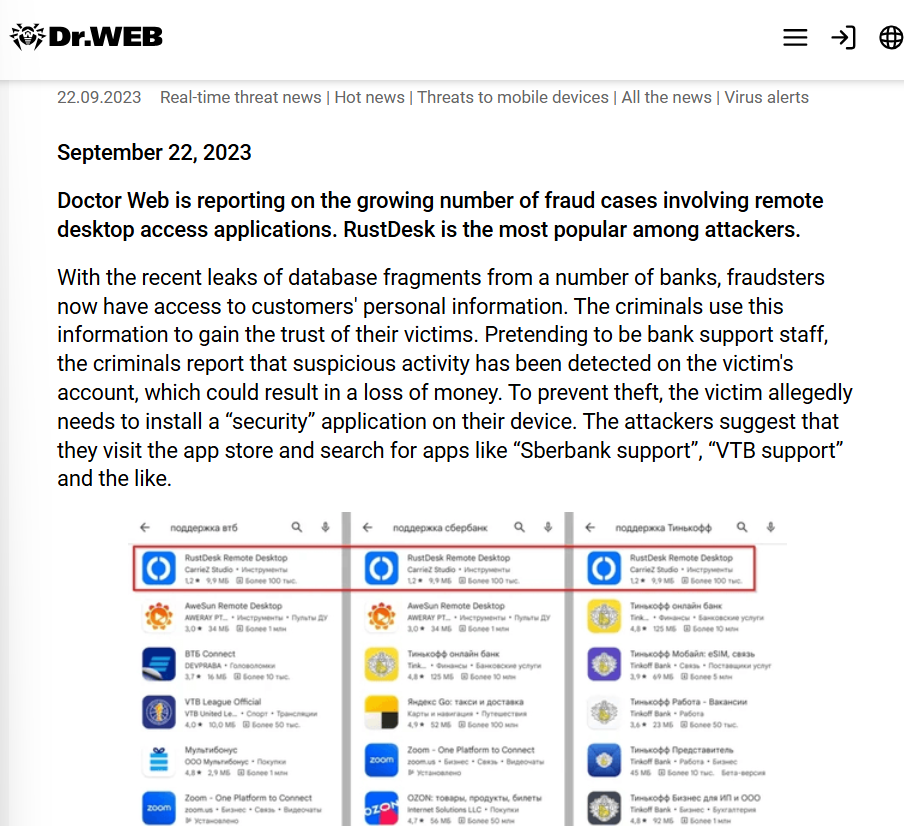
Since RustDesk is practically free, easy to use, and reliable, it can be abused for initial access by scammers and in some cases for persistence. There are documented cases of fraudsters tricking users into installing RustDesk to steal money and sensitive data, making RustDesk forensics knowledge valuable for any investigator.
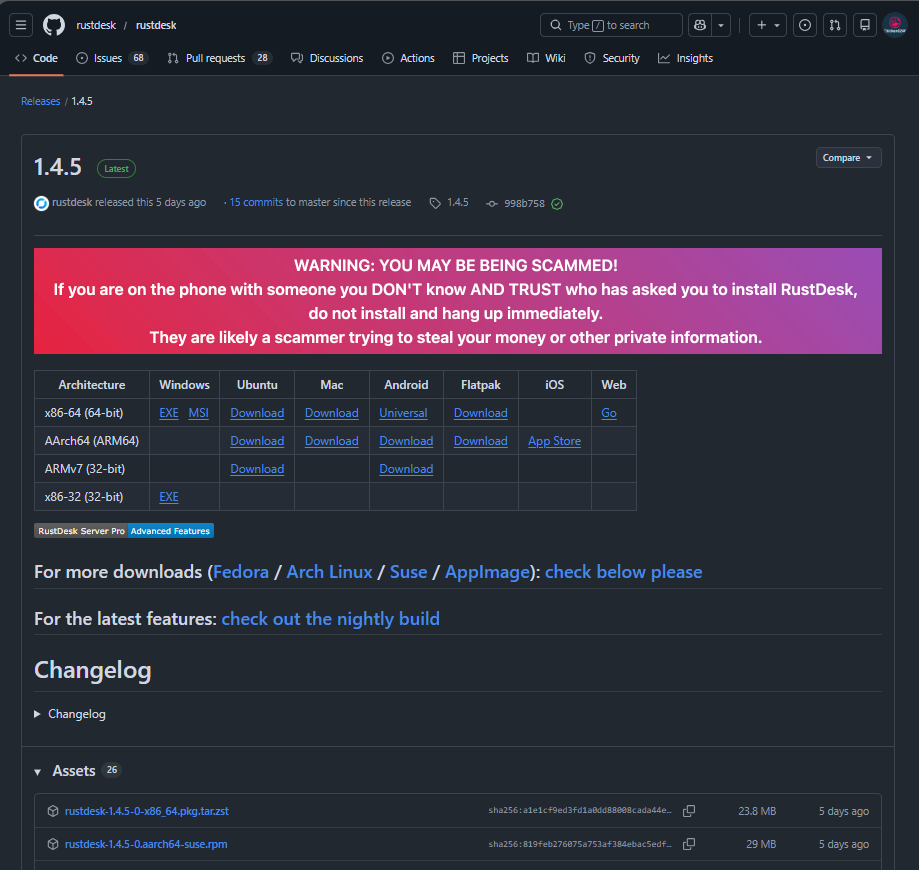
Being open source, RustDesk is available on its GitHub releases page and downloadable via CLI, perfect for automation scripts. Both EXE (32-bit) and MSI (64-bit) installers are available for Windows, and this blog covers both.
Key terms used throughout this blog:
| Term | Definition |
|---|---|
| Remote device | The device that requests a connection to take control over another device, in this research, Kali Linux |
| End device | The local device that accepts a connection request, in this research, Windows VM |
| ID | The unique identifier for each RustDesk instance, required to establish connections between devices |
This blog focuses on RustDesk's core functionality relevant to DFIR analysis, not a full feature guide.
Basic Behavior and File Metadata
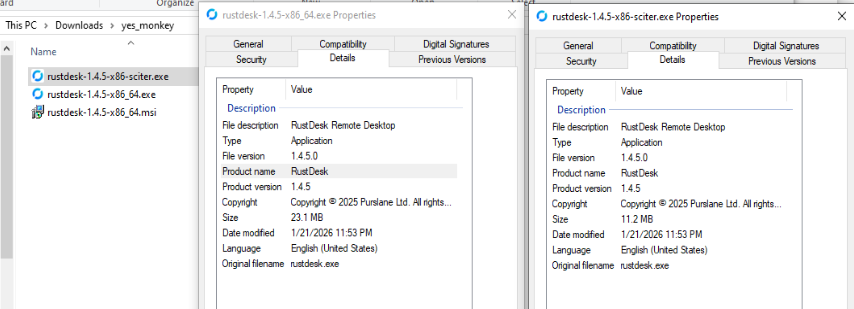
The metadata of RustDesk binaries contains the product name, file description, version, original filename, and copyright information.
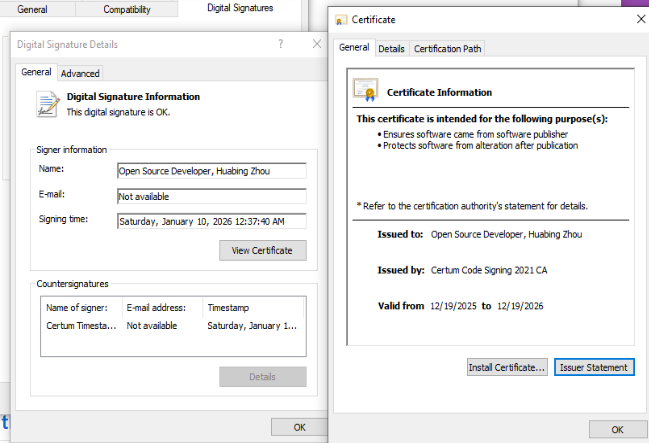
All examined binaries are digitally signed, with the signer listed as "Open Source Developer, Huabing Zhou".
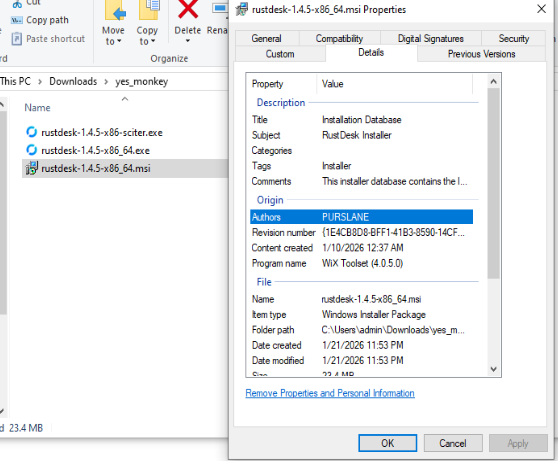
The MSI installer was created using the WiX Toolset and lists "PURSLANE" as the author.
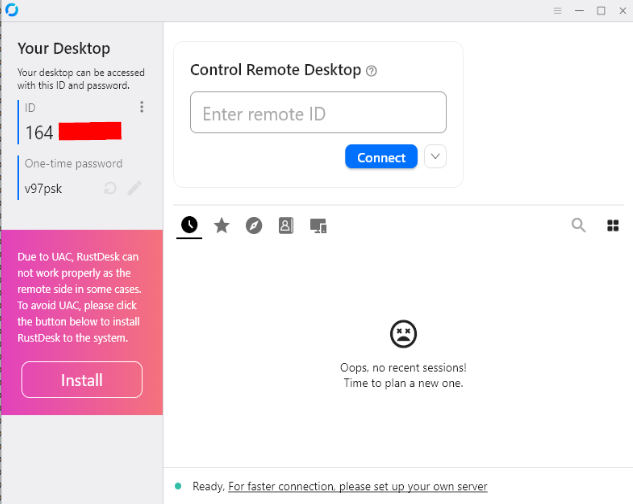
Once launched, RustDesk displays an ID and a one-time password (OTP). These can be used to access the target system without requiring manual acceptance. The forensic implications are discussed in the connections section.
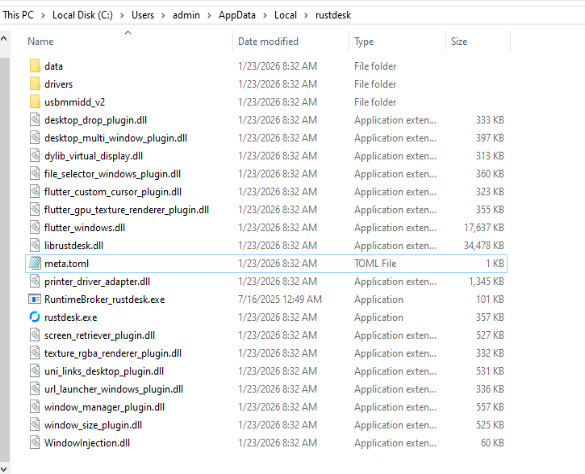
After launching, RustDesk creates C:\Users\%username%\AppData\Local\rustdesk containing all required files.
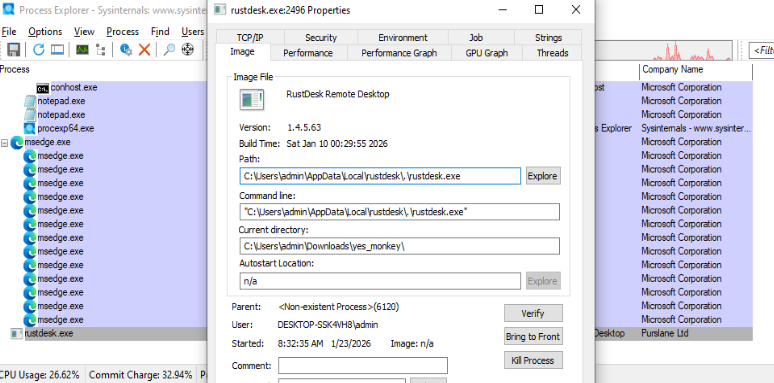
RustDesk then executes rustdesk.exe from C:\Users\%username%\AppData\Local\rustdesk. This directory is a key forensic artifact to determine if RustDesk was ever run on the system.
Log and Configuration Files
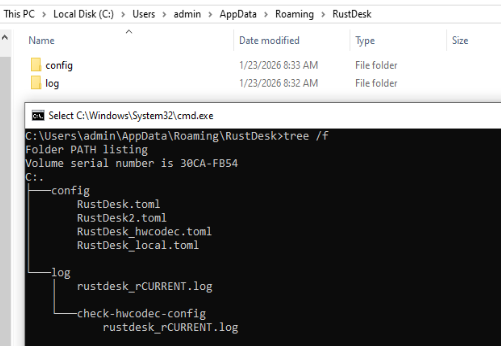
RustDesk also creates a folder under C:\Users\%username%\AppData\Roaming, organized into config and log subdirectories.
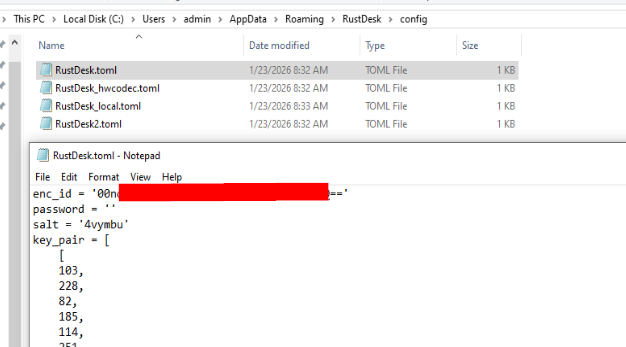
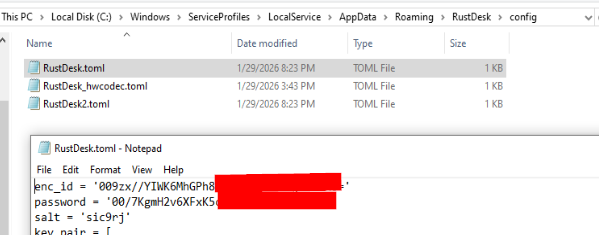
The RustDesk.toml file in the config directory stores the device's unique ID in encrypted form with a corresponding password and salt. Decryption is covered in the final section.
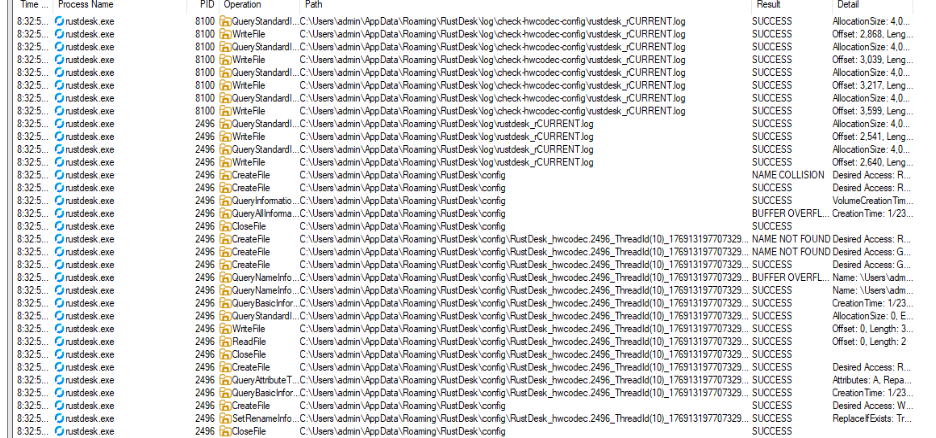
Once rustdesk.exe runs, a log file is created under the log directory. Additional configuration files are named using the PID, TID, and execution timestamp of the running instance.
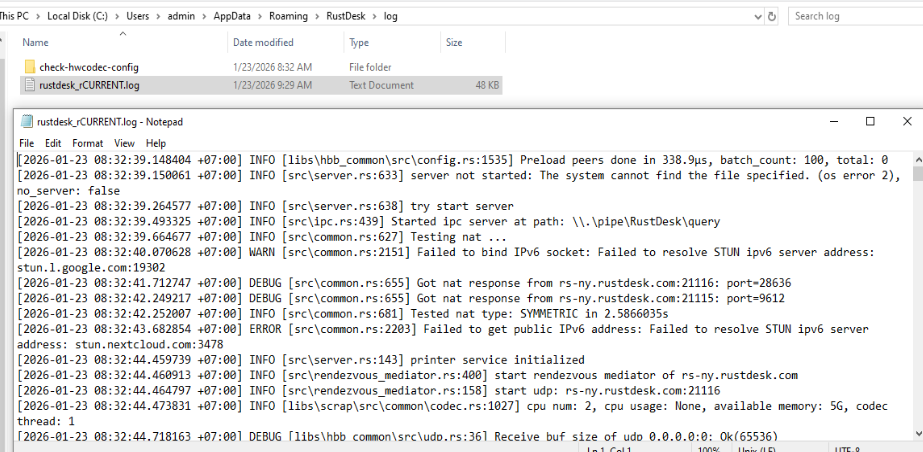
rustdesk_rCURRENT.log is the primary log file. Events are timestamped in the system's local timezone and include which RustDesk component triggered each event. Compared to AnyDesk, RustDesk's logging is relatively limited.
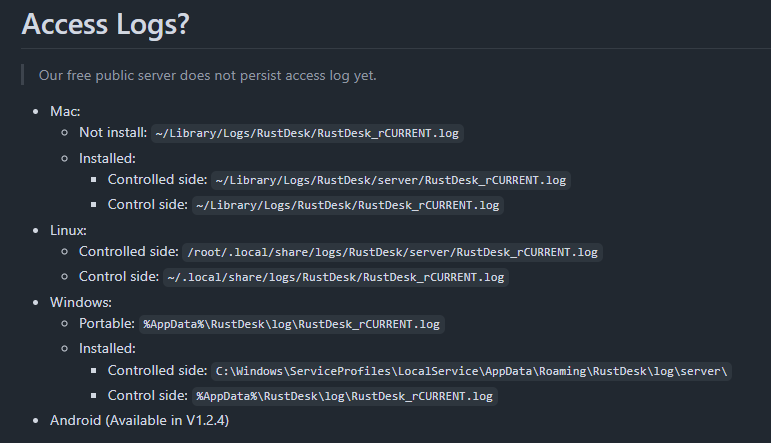
Log file locations vary across operating systems per the RustDesk documentation.
Installation Behavior, EXE Installer
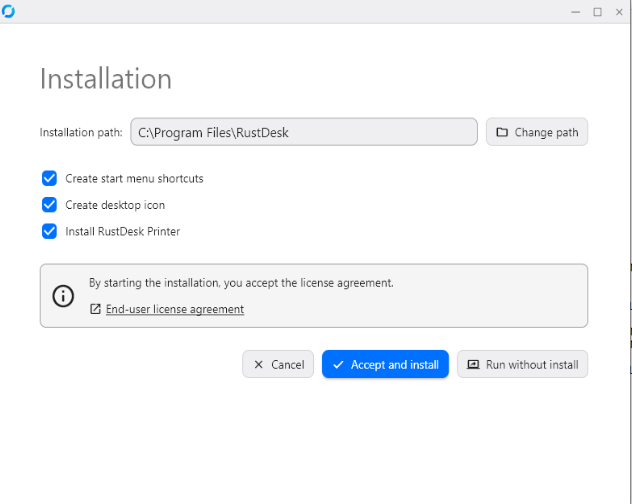
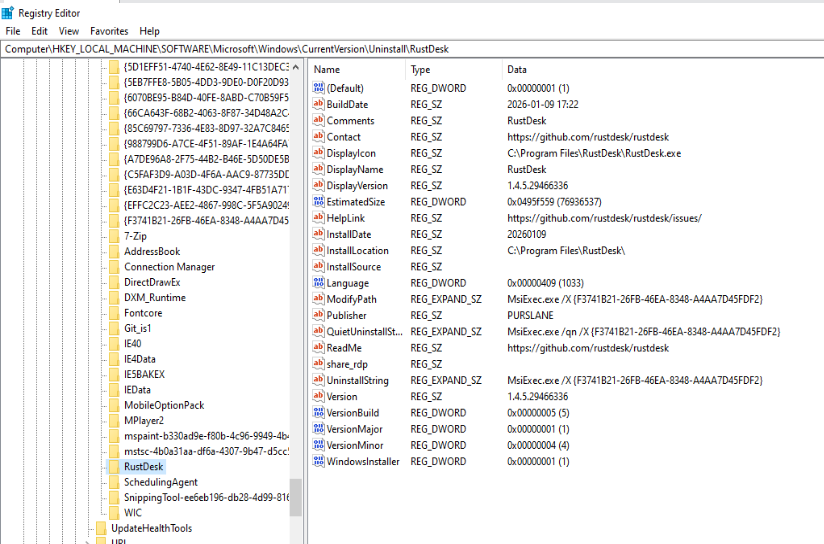
Installation requires administrator privileges. Default installation path: C:\Program Files\RustDesk (both EXE and MSI use the same path).
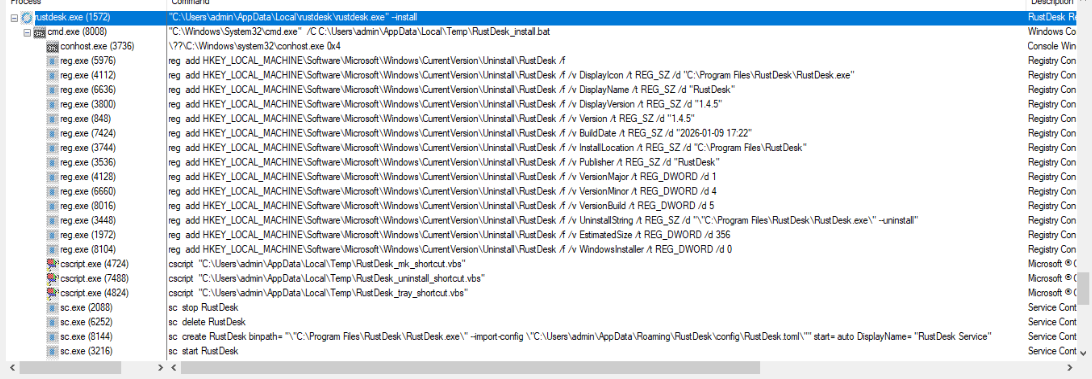
During installation, RustDesk_install.bat is created in %TEMP% and executed. It performs:
reg addcommands to create theRustDeskuninstall entry- Three VBScript files to create shortcuts:
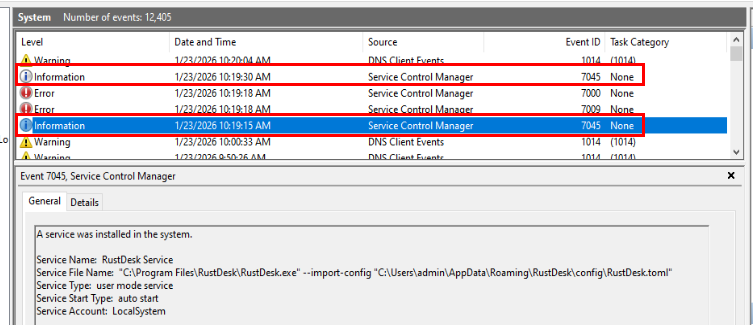
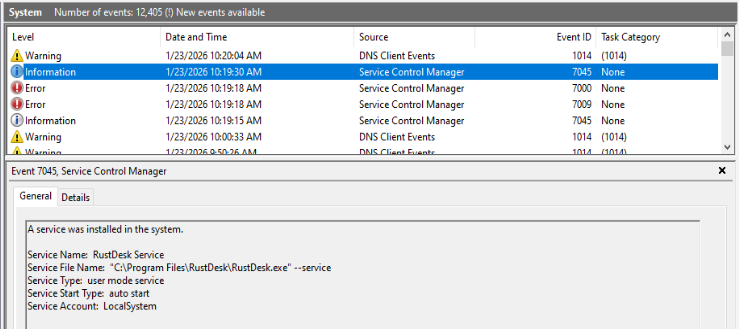
RustDesk_mk_shortcut.vbs,RustDesk_uninstall_shortcut.vbs,RustDesk_tray_shortcut.vbs sc.exeto remove any existing service, create a new one (initial config phase), then create it again with--serviceflag for normal operationnetshto add firewall rules forRustDesk.exe
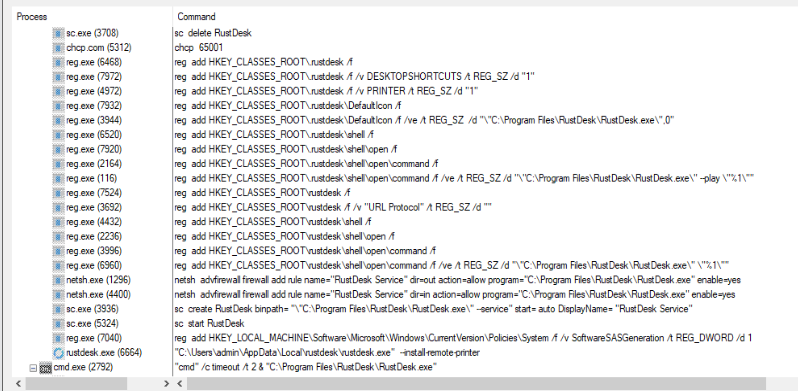
Two service creation events using the same service name occur during EXE installation, resulting in two Event ID 7045 entries.
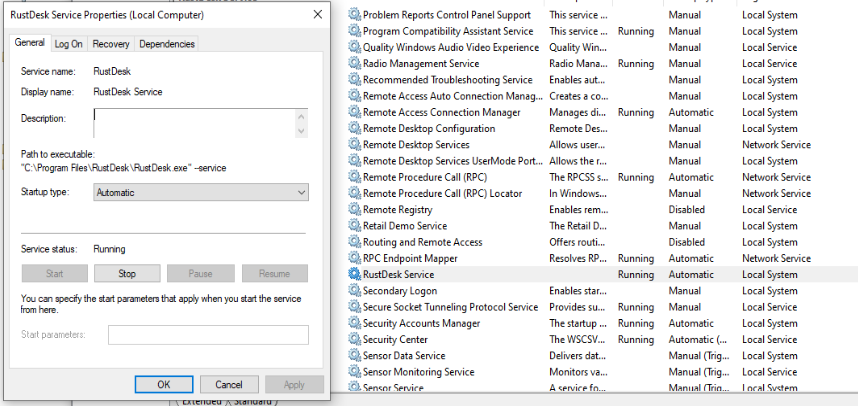
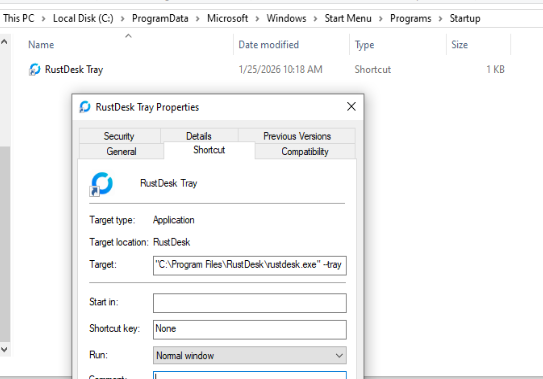
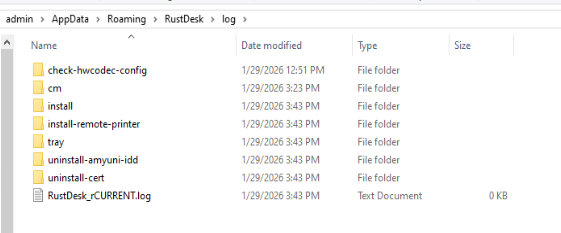
The install folder created during installation is a key indicator for confirming which user account installed RustDesk on the device.
Installed File Structure
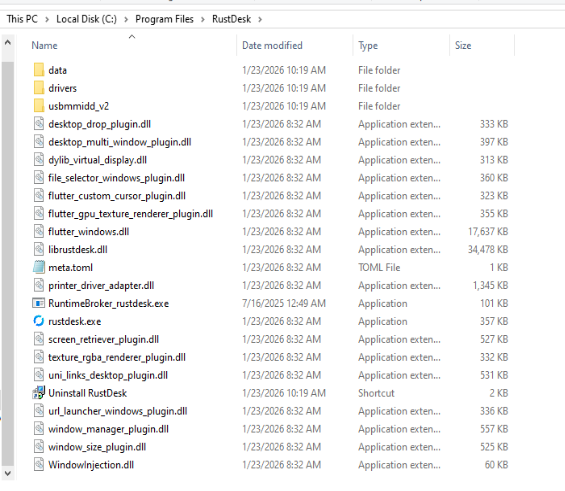
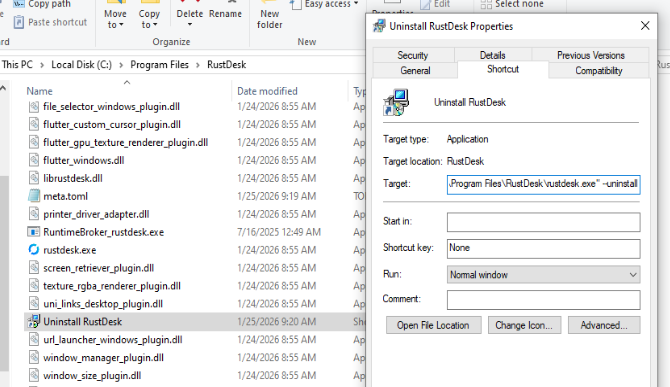
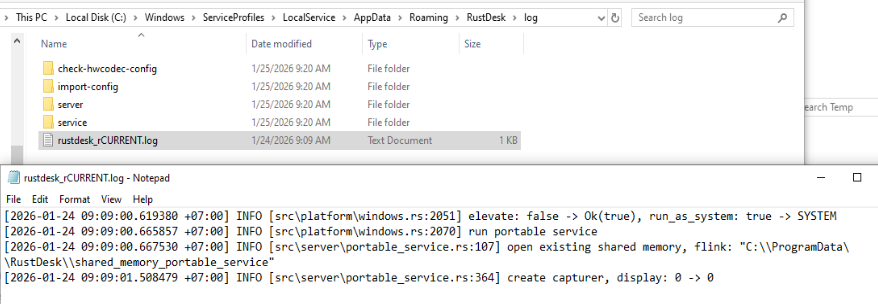
When RustDesk runs as a Windows service, additional log and config files are created under the Local Service account at C:\Windows\ServiceProfiles\LocalService\AppData\Roaming\RustDesk\.
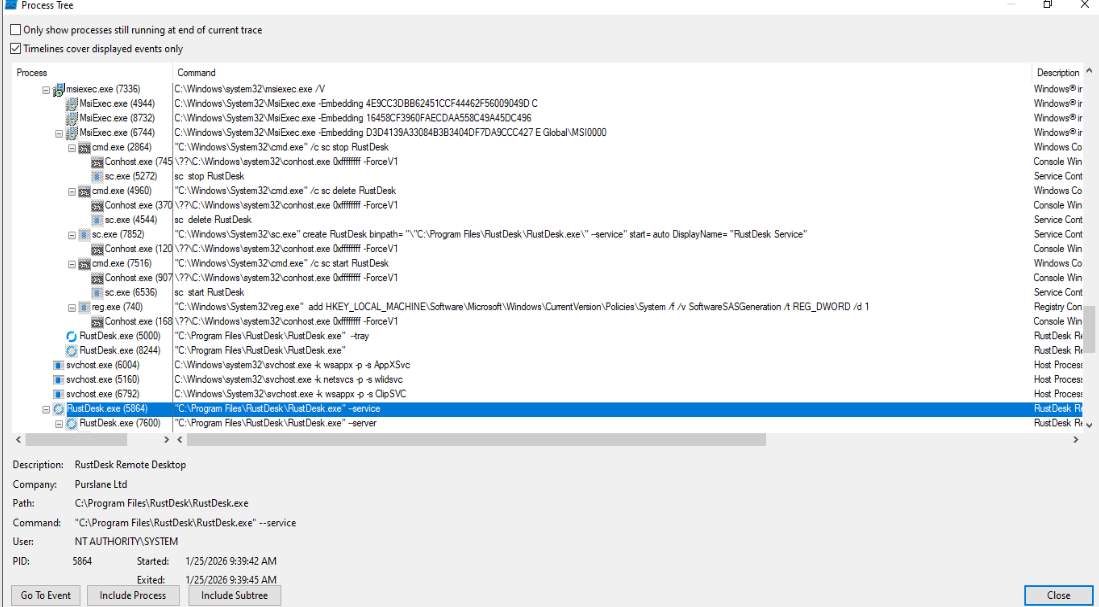
The MSI installer performs similar actions but modifies registry directly without batch scripts, producing only a single Event ID 7045.
Uninstall Behavior
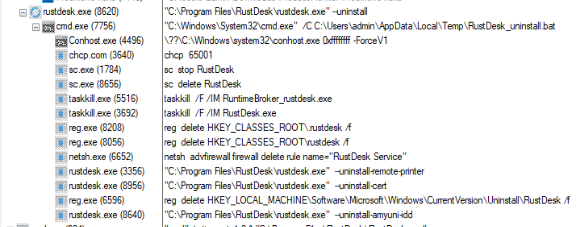
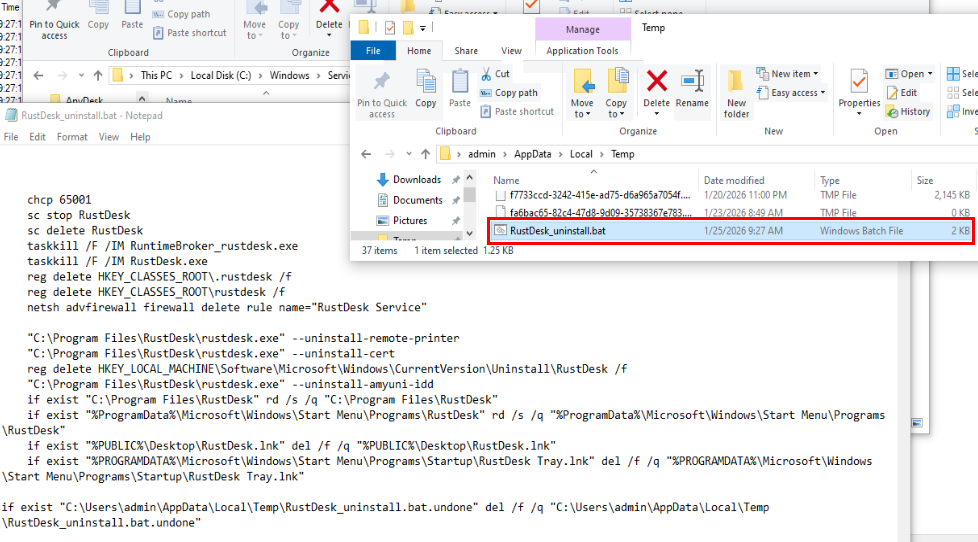
EXE uninstallation creates RustDesk_uninstall.bat in %TEMP% which removes the service, certificate, printer, registry entries, and shortcuts.
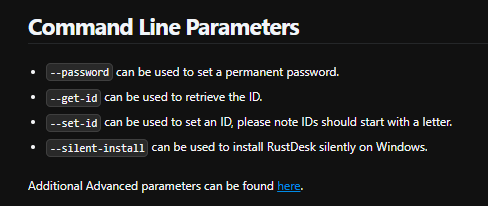
RustDesk provides CLI functionality enabling automation of installation and execution, useful for legitimate administration but also an abuse vector for threat actors.
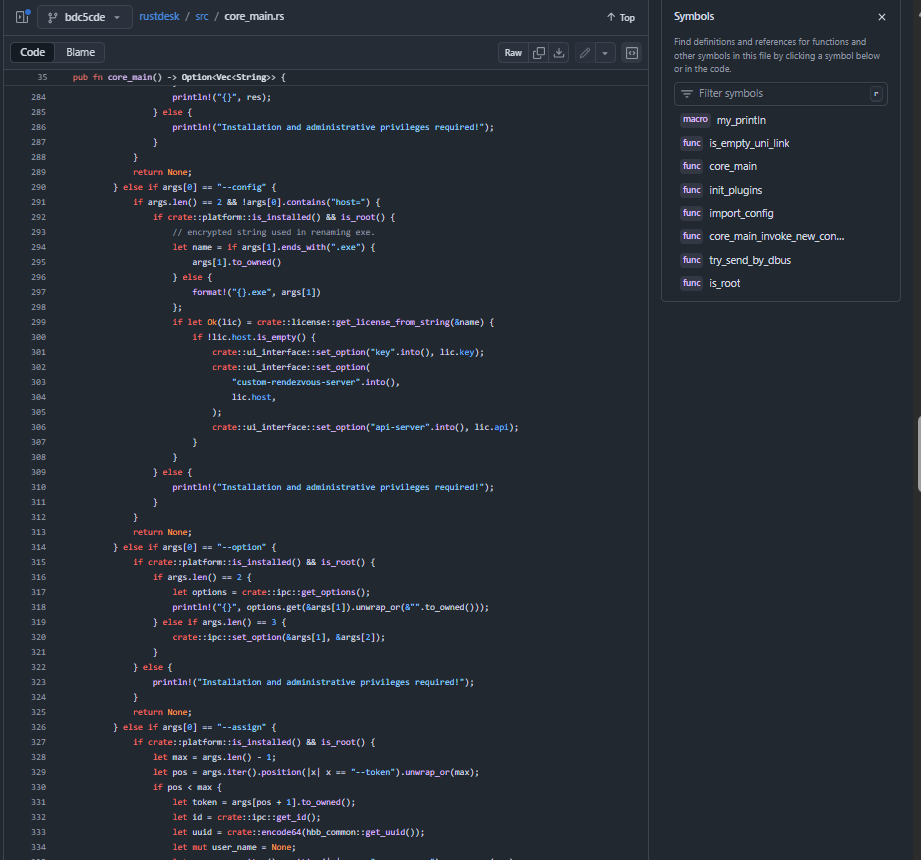
Reviewing the open-source code reveals additional undocumented commands:
--connect, Initiate a session to a specified RustDesk ID--file-transfer, Start a file transfer-only session--port-forward, Establish port forwarding--elevate, Execute with elevated privileges--run-as-system, Run under the SYSTEM account--portable-service, Run as a portable service with elevation--install-service, Install as a system service--service, Run in service mode
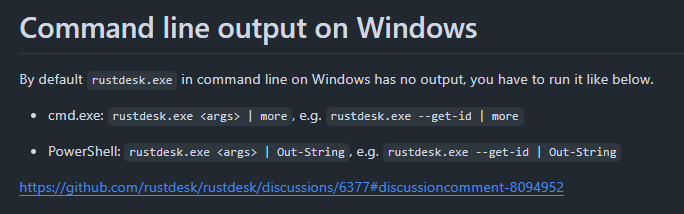
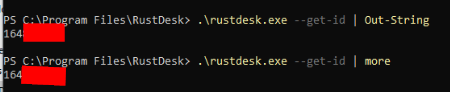
RustDesk on Windows does not produce console output by default. Pipe output to another utility (e.g., | more) to view CLI results.
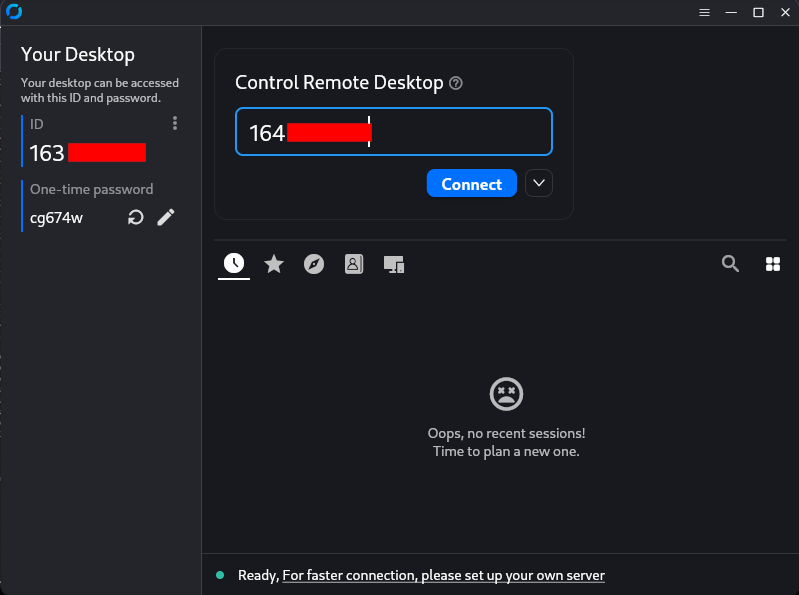
To initiate a remote connection, the remote device must specify the correct RustDesk ID, and the RustDesk client must be actively running on the end device.
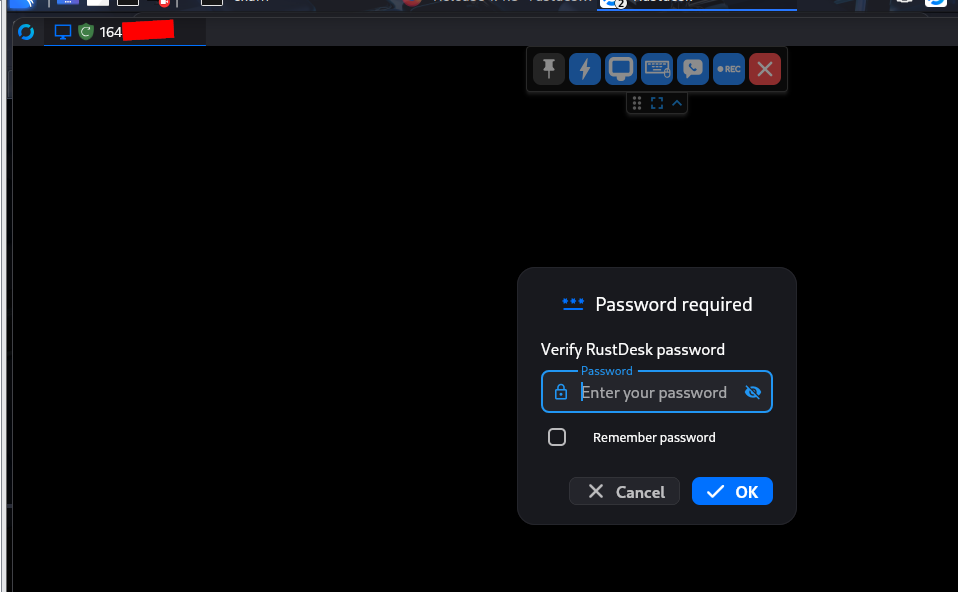
The connecting client first communicates with the relay/rendezvous server to locate the endpoint. If the connecting user has the OTP or if unattended access is configured, the connection can be established without manual acceptance.
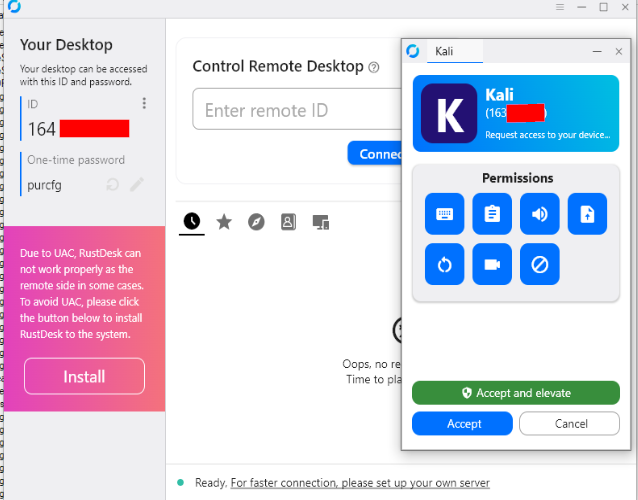
Connection Logging
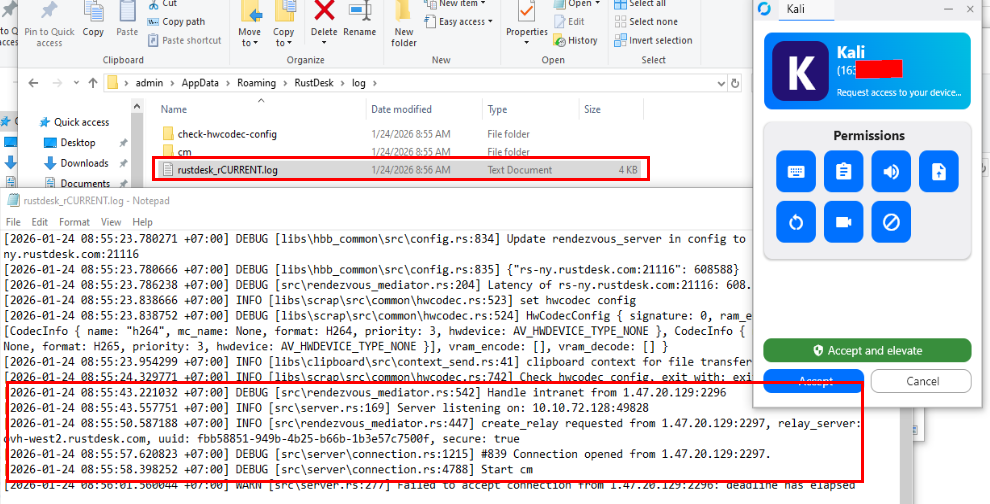
Even before a session is accepted, rustdesk_rCURRENT.log already records the public IP address of the connecting device or private IP address if it's happened to come from the same subnet.
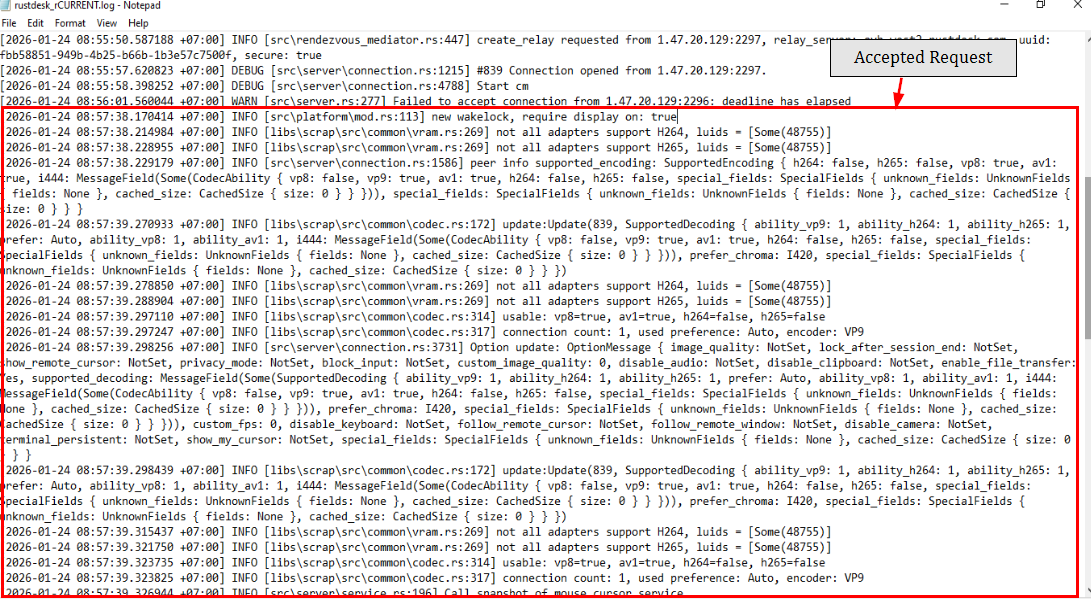
Unlike AnyDesk, RustDesk does not log the connecting device's RustDesk ID. The only external identifier consistently recorded is the public IP address.
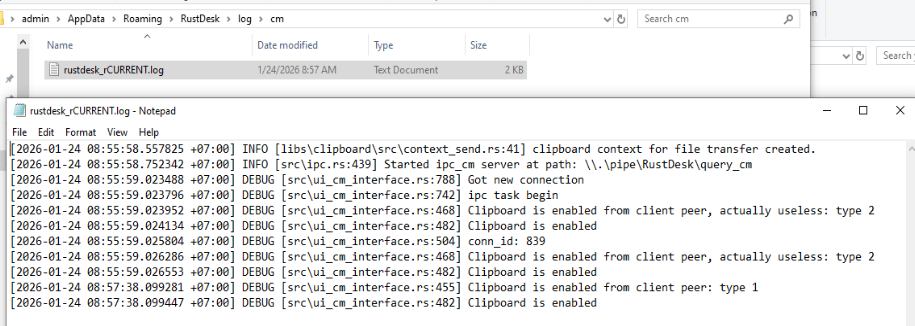
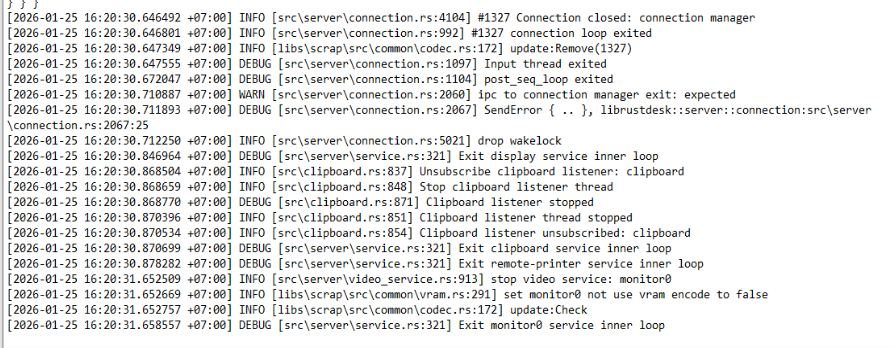
Key search terms for rustdesk_rCURRENT.log:
| Keyword | Source | Meaning |
|---|---|---|
Connection opened from | src/server/connection.rs | Public IP + timestamp of connection request |
new wakelock | src/platform/mod.rs | Session established; require display on: true = screen-sharing session |
drop wakelock | src/server/connection.rs | Session ended |
RustDesk's limited logging significantly restricts investigative visibility. Supplement with Windows audit policies, Sysmon, and firewall/network logs.
Log Rotation
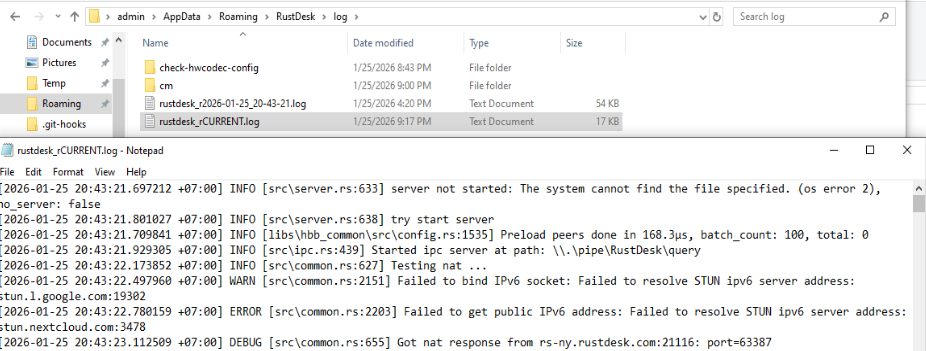
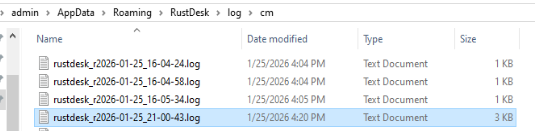
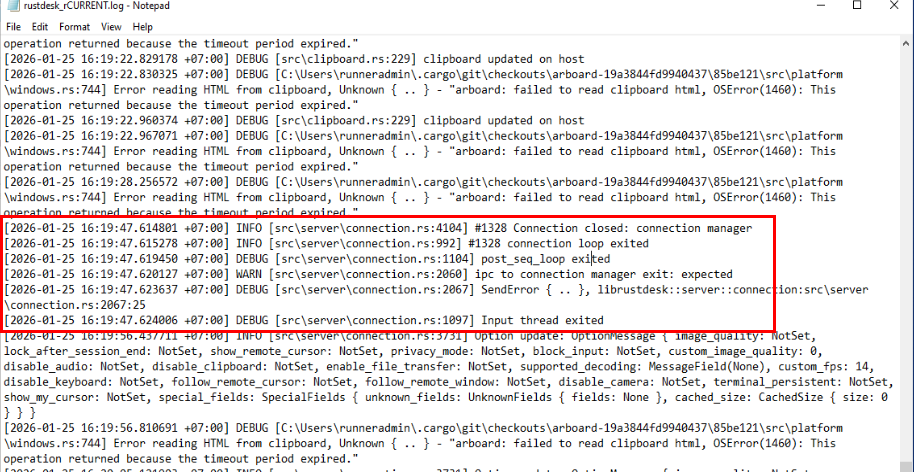
When RustDesk restarts, rustdesk_rCURRENT.log is renamed to rustdesk_rYYYY-MM-DD_HH-MM-SS.log. The same applies to all other logs including clipboard manager logs as shown in the image above as the example.
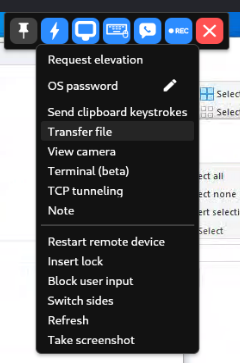
RustDesk has a built-in file transfer utility allowing file transfer between two devices.
File Transfer via File Manager
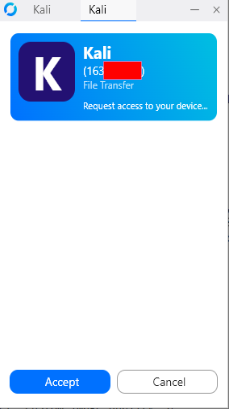
File transfer creates a separate session from the remote-control session, a new connection request event appears in the log.
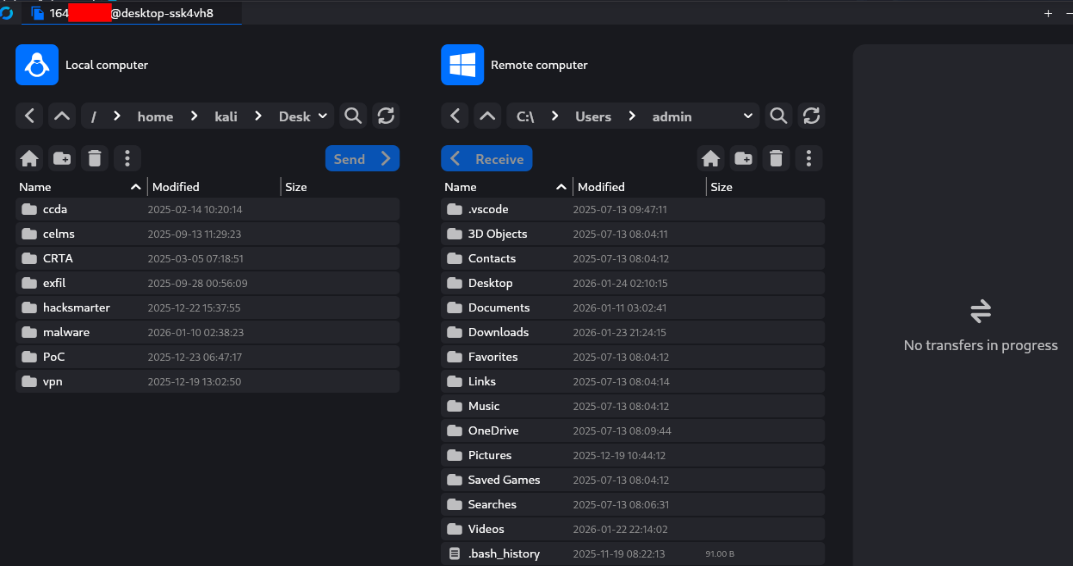
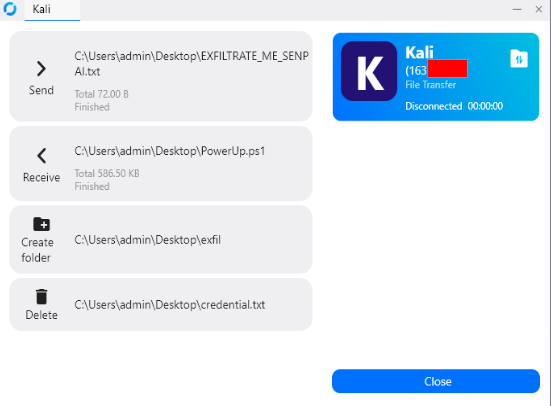
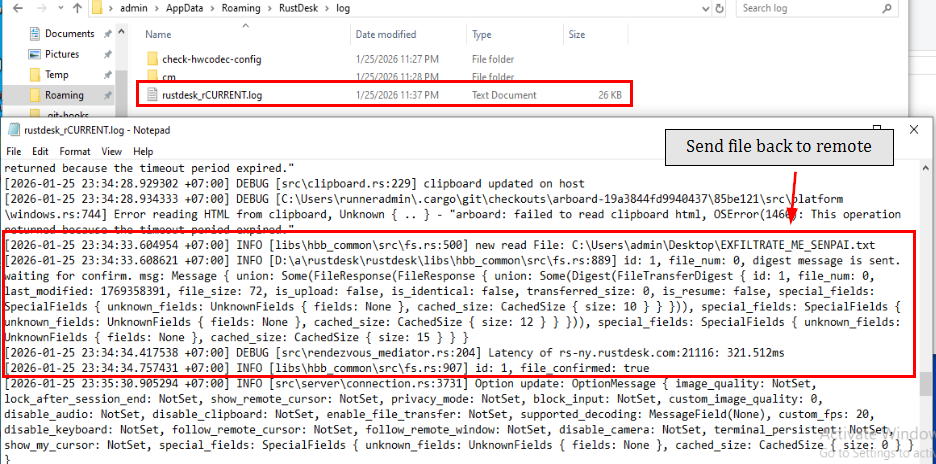
When a file is downloaded from the end device, the access log records the full path and size with new read File:. Note: there are no explicit log entries for folder creation or file deletion.
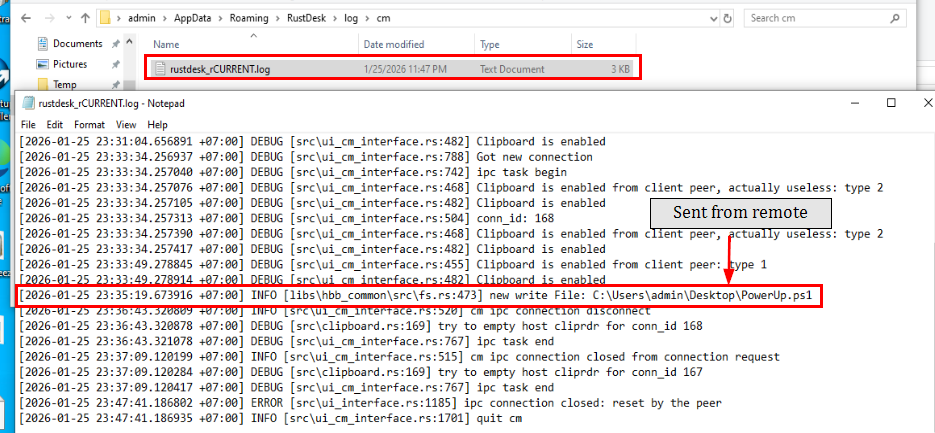
When a file is uploaded to the end device, it is logged in the clipboard manager log with new write File:.
File Transfer via Clipboard
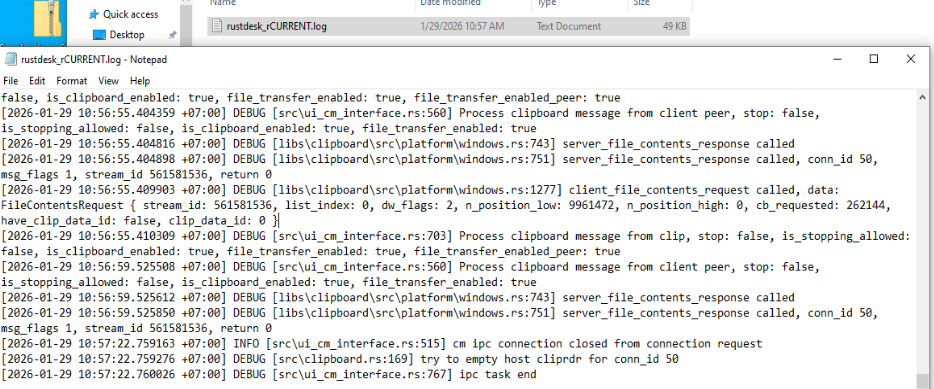
File transfer via clipboard leaves no file path in logs, but you can detect it:
server_file_content_request+client_file_content_response→ file sent to remote deviceclient_file_contents_request+server_file_contents_response→ file downloaded from remote
File Transfer via --file-transfer CLI
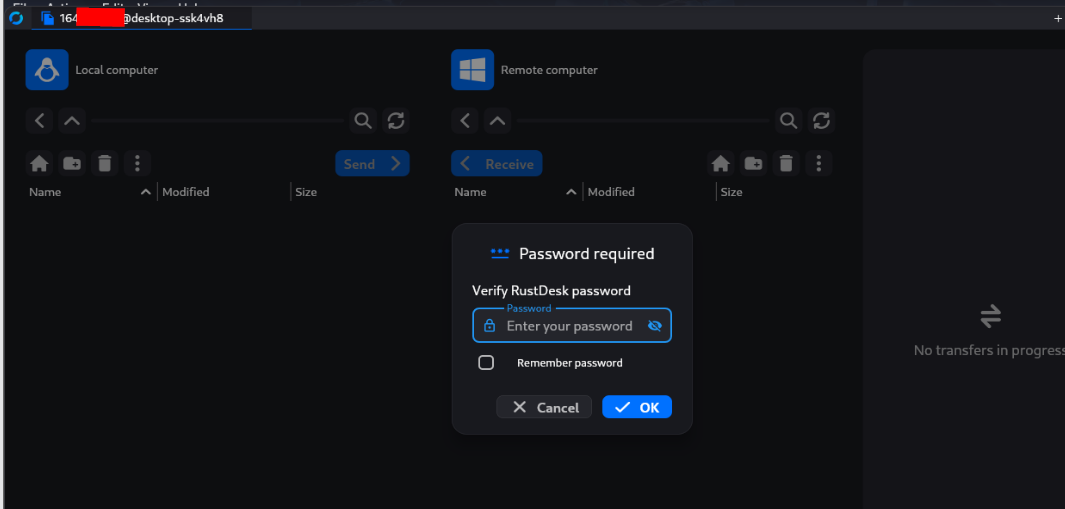
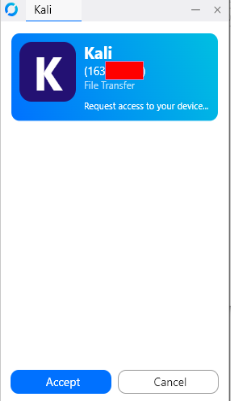
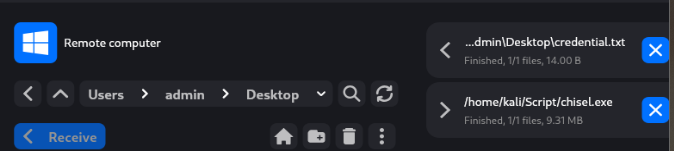
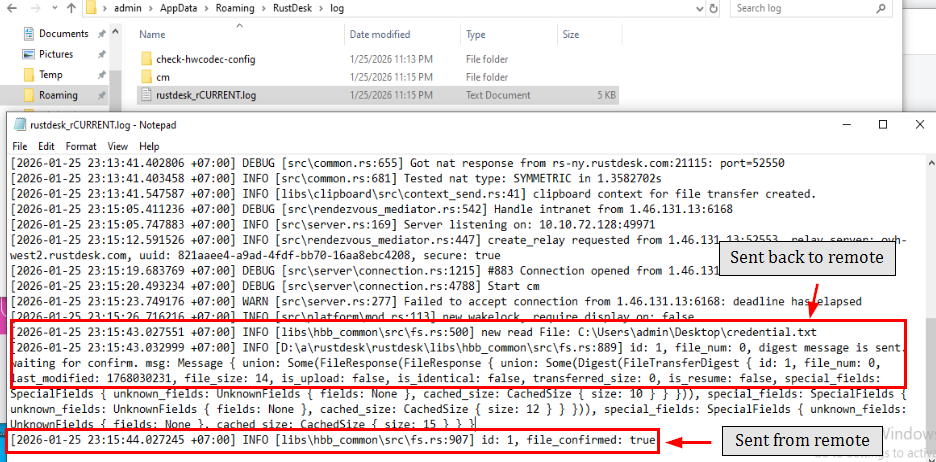
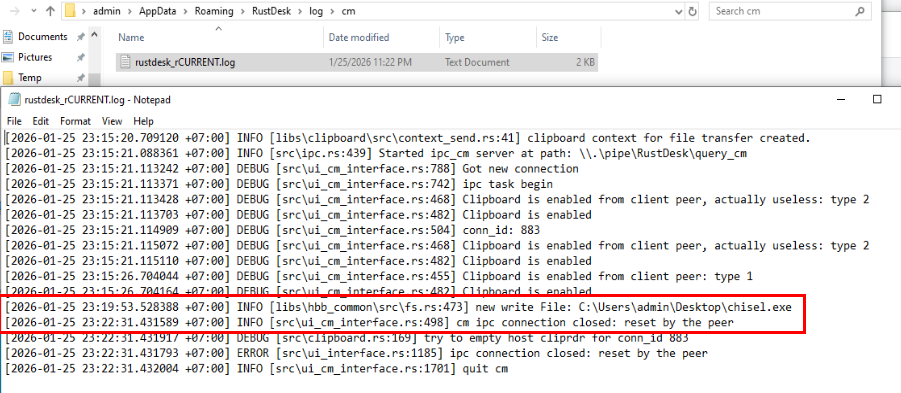
rustdesk --file-transfer <ID> creates a file transfer-only session. The same logging methodology applies for identifying download/upload activity.
Clipboard-based transfers leave no file path in logs. Use file creation event monitoring and network activity analysis to compensate.
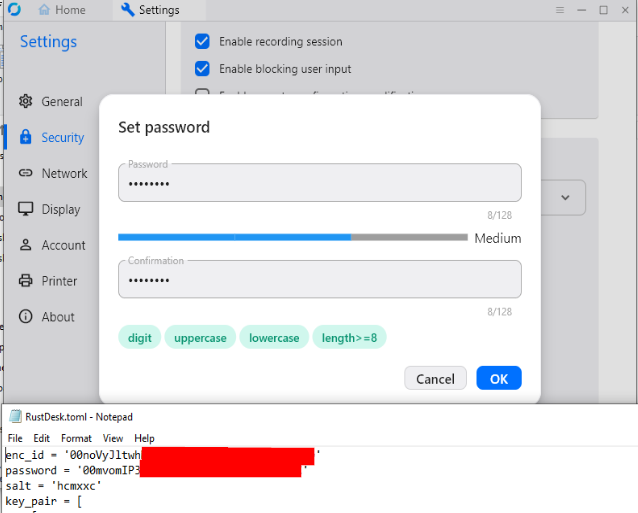
RustDesk supports Unattended Access via a permanent password (set via GUI or --password flag). The password is stored encrypted in RustDesk.toml.
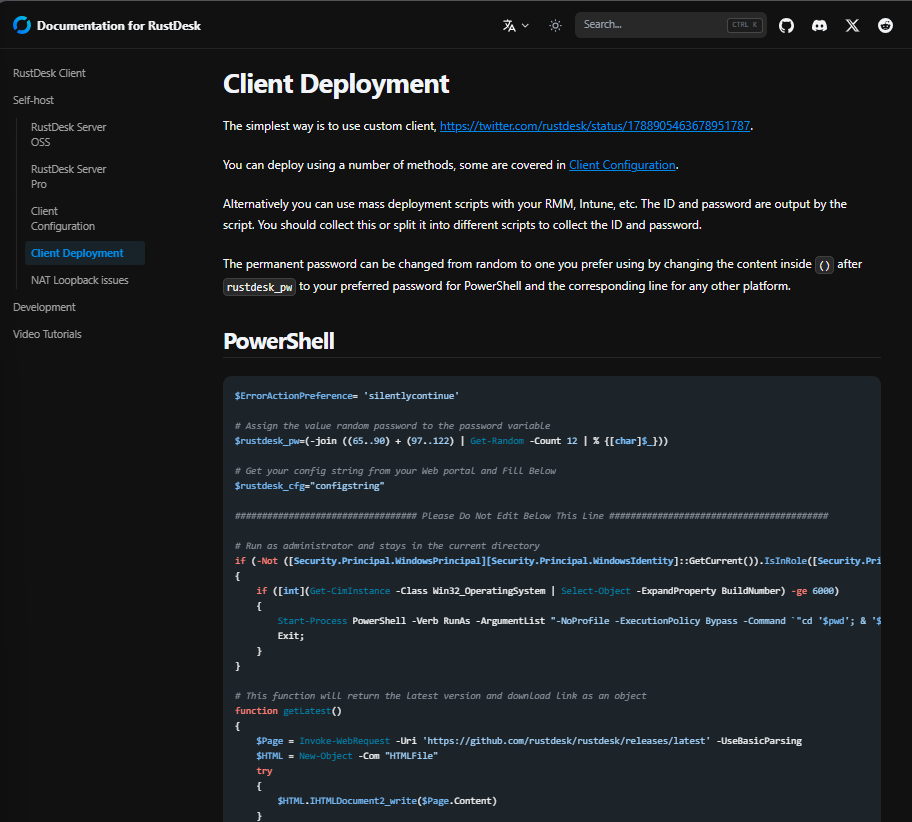
The RustDesk documentation provides ready-made automation scripts for client deployment, a threat actor can copy this script, set their desired password, and optionally add a local administrator account creation.
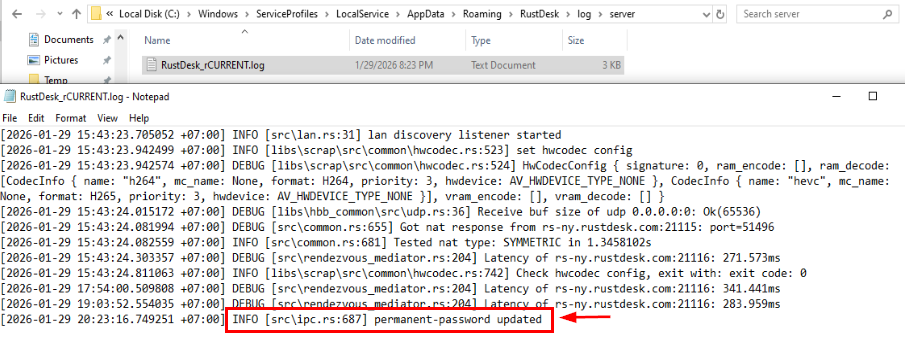
When setting a password with the service installed, a log entry is written to C:\Windows\ServiceProfiles\LocalService\AppData\Roaming\RustDesk\log\server\RustDesk_rCurrent.log, explicit enough to confirm a permanent password was configured.
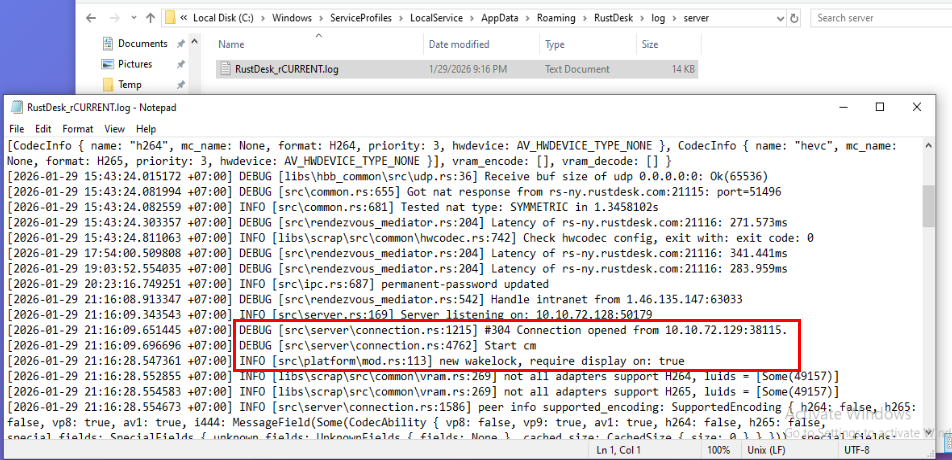
Unattended connections are handled by the RustDesk service instance and logged at C:\Windows\ServiceProfiles\LocalService\AppData\Roaming\RustDesk\log\server.

The free self-hosting plan has these limitations: no audit logging, no web management console, no MFA/2FA, and limited device management. Paid plans unlock the Custom Client Generator.
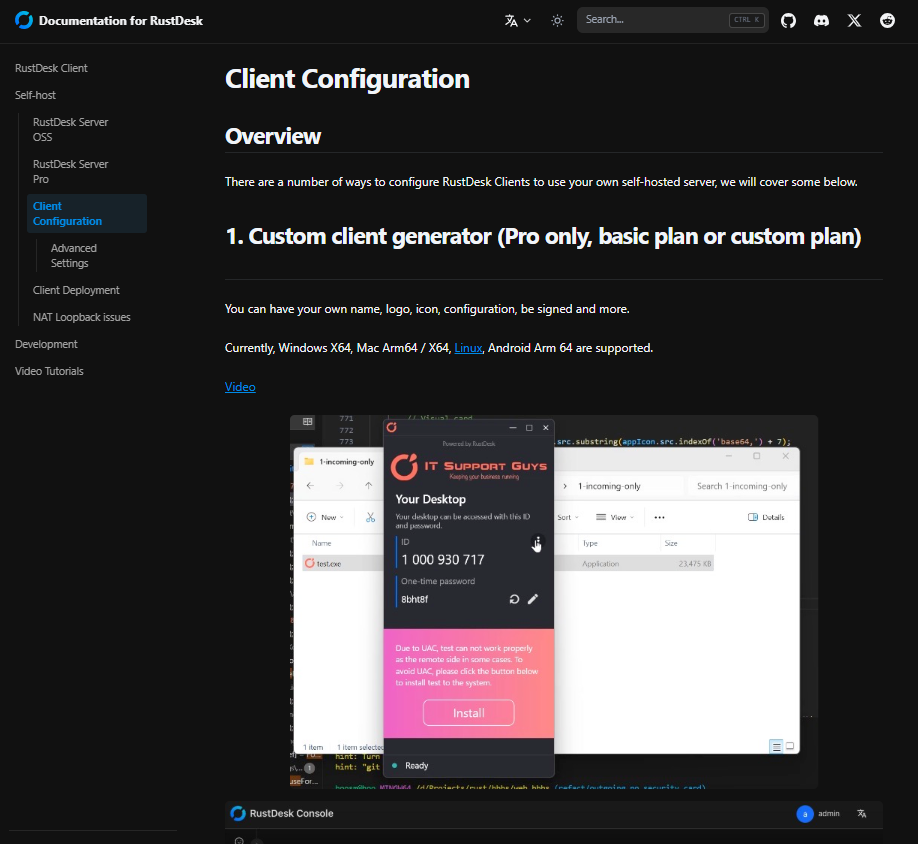
From a threat modeling perspective, the Custom Client Generator enables threat actors to:
- Create malicious clients connecting to attacker-controlled infrastructure
- Deploy branded installers disguised as legitimate IT tools
- Lock server configuration to prevent victims identifying the malicious backend
- Bypass user suspicion with legitimate-looking software behavior
This blurs the boundary between legitimate RMM tools and malicious remote access implants.
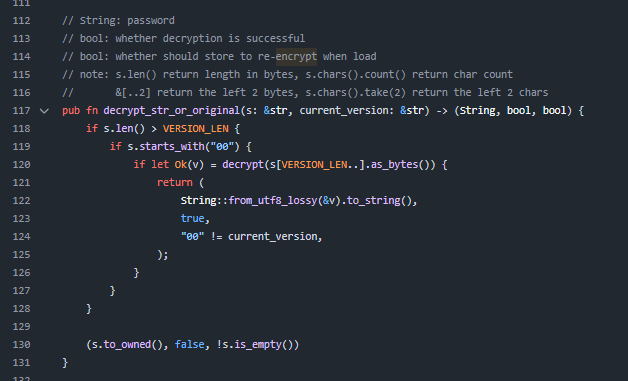
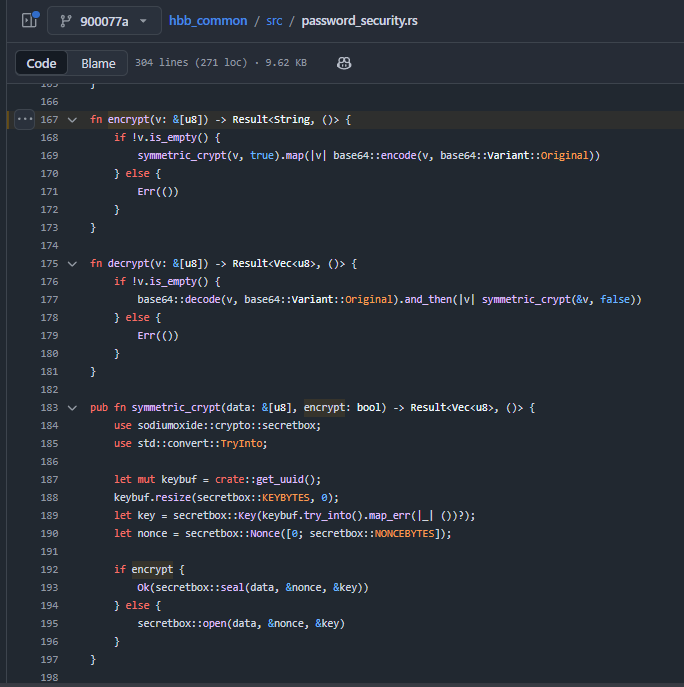
RustDesk encrypts both the stored ID and password. Understanding this allows analysts to recover these values during a forensic investigation.
Encryption Process
- Retrieve the device ID or password value
- Encrypt using XSalsa20-Poly1305 cipher
- Derive the key from the machine UUID
- Use a static 24-byte nonce of all zeros (0x00 × 24)
- Encode the ciphertext with base64
- Prepend
00to the base64 string
Format: 00<base64_encoded_ciphertext>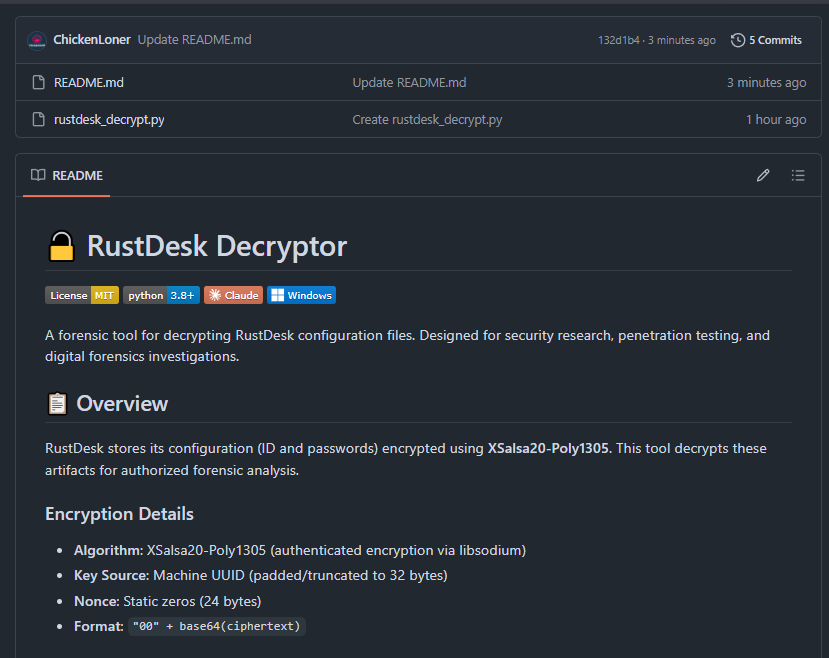
I wrote a Python decryption script available at github.com/ChickenLoner/rustdesk-decrypt. It requires the system Machine UUID and the path to the config file (or the encrypted string directly).
Critical limitation: You need the Machine UUID of the specific compromised system to decrypt its RustDesk config. Obtain it from: HKEY_LOCAL_MACHINE\SOFTWARE\Microsoft\Cryptography\MachineGuid.
Bonus: Folder Creation by Flag
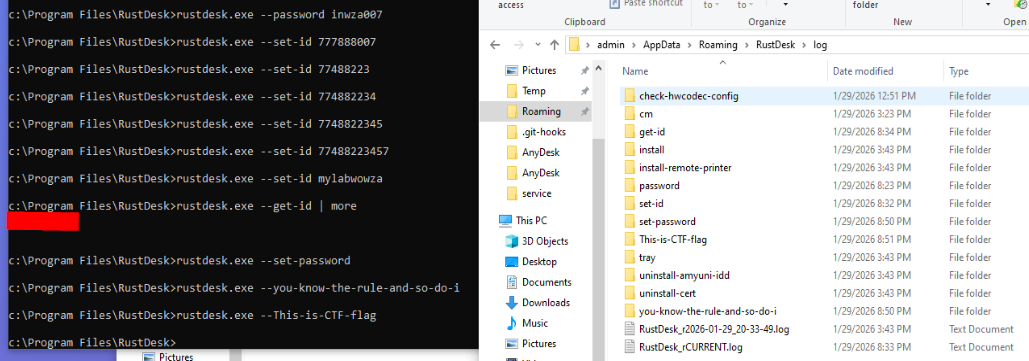
Even providing an incorrect flag causes RustDesk to create a folder named --. Use MFT analysis or file creation monitoring to identify what CLI flags were used with RustDesk.